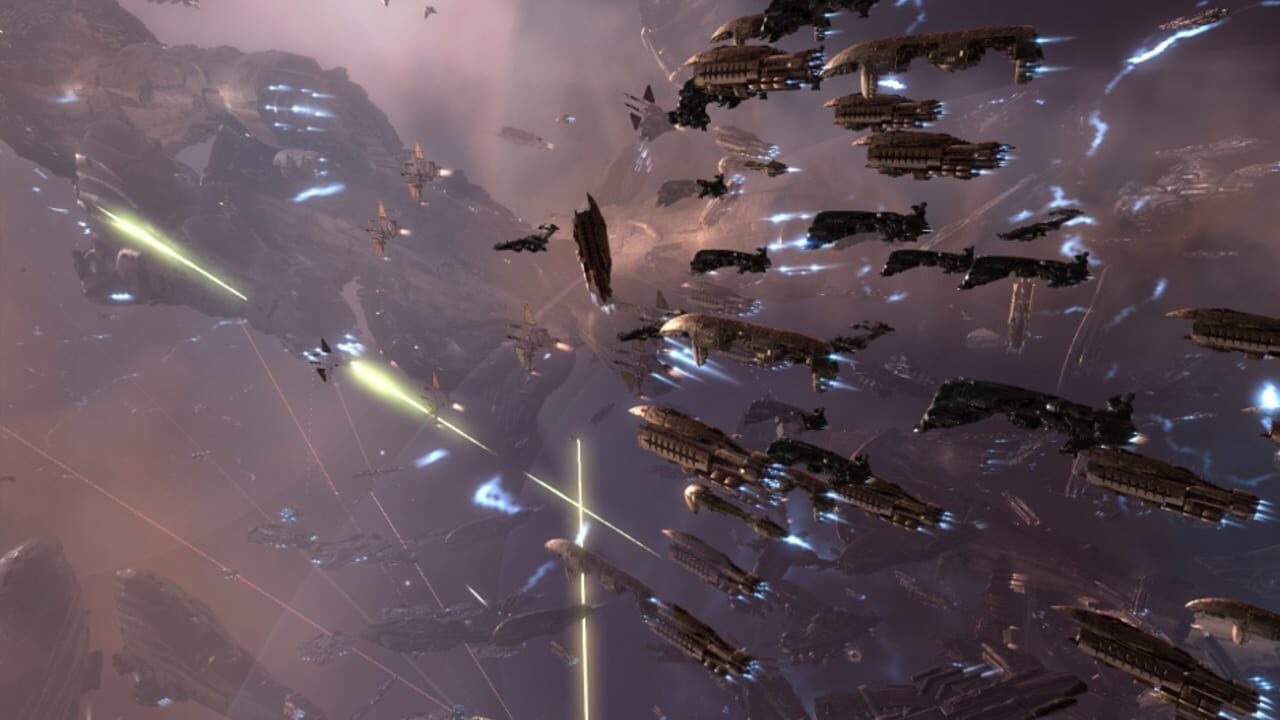
Eve Online Hotkeys: 9 Bars, Fits & Skills 2026
Intro
Capsuleer, if you’re grinding through eve-online and want to fly faster, fit smarter, and react quicker—this guide is your cockpit overhaul. We’ll walk through every real hotkey system in the game: the nine primary bars, fitting shortcuts, skill-queue nudges, and profile swaps. A crucial heads-up first: Eve Online does not have a built-in macro system. There’s no multi-key sequence recorder and no scripted button chains inside the client. What does exist is a deep hotkey-config panel, window-management shortcuts, and fitting-profile toggles that feel macro-like without crossing into automation territory. We’ll flag every real limit so you never waste time chasing features that aren’t there. Strap in, and let’s tighten your reaction times before the next rat run rolls through.
Core Mechanics
| Feature | What It Actually Is in Eve Online |
|---|---|
| Hotkey Bars | Nine primary bars (F1–F12 plus Shift/Fn modifiers expand coverage), each fully assignable from the Options → Hotkeys menu. |
| Fit Assignments | Each saved ship fit can be bound to a hotkey slot so you can swap gear with one press. |
| Module / Weapon Hotkeys | Every active and passive module, plus every gun turret, missile launcher, and drone bay, can get its own key binding. |
| Skill Queue Shortcuts | Keyboard commands to promote, demote, freeze, and cancel queued skills without reaching for the mouse. |
| Window Management Keys | Dedicated hotkeys for docking/undocking, opening the fitting window, and cycling through open docked items. |
| True Macros | Not available. Eve Online has no native macro recorder, no multi-step scripted sequences, and no built-in automation API for gameplay actions. Any third-party tool that automates clicks or keypresses violates the Terms of Service and risks suspension. |
| PvP Arenas | Not available. Eve Online uses persistent high-sec, low-sec, null-sec, and wormhole space for player combat. There are no instanced arena modes. |
| Cross-Character Co-op | Not available. Eve Online is inherently solo-or-squad-based across a shared universe; there is no formal co-op matchmaking system. |
| Built-in Trading Floor | Not available. There is no built-in player-to-player trading floor or in-game currency trading system. All trading happens through the station market interface. |
Step-by-Step
1. Open the Hotkey Settings Panel
Press Esc to open the main menu, then click Options on the left. Select the Hotkeys tab at the top. You’ll see a searchable tree of every action the client supports: ship control, module firing, drones, fittings, Windows, and system menus.
2. Configure Your Primary Fire Bar
In the tree, expand Combat → Weapons. Look for entries like Fire Primary, Fire Secondary, Fire Turrets, Fire Missiles, and individual Target Turret N. Set comfortable keys—many players favor R, T, Y, U, and I for turrets, with G, H, and J for missiles. Avoid default keys already cluttered by other actions.
3. Assign Active Modules
Navigate to Combat → Modules. Bind critical powers: shield boosters, armor repairers, capacitor transfers, tracking computors, and so on. A common flow is Tab-cycling through slots, then assigning Numpad 1 through Numpad 9 for quick rotation. Reserve F1–F4 for emergency modules like afterburners or weapon upracks.
4. Bind Drone Commands
Drone pilots get their own section under Combat → Drones. Bind Send All Drones, Recall All, Wing A/B/C/D Attack, Hunger Strike, and Fight Mode. Quick-access keys like Z, X, C, V keep your left hand near home row while your right stays on targeting keys.
5. Save and Assign Fits to Hotkeys
Before you assign a key, click Save Fit in the fitting window (Ctrl+K by default) and give it a recognizable name. Then go to Options → Hotkeys, search for Load Fit, and bind it to any available slot. Many pilots create a small set—full plex hauler, ratting frigate, solo gank fit—and hotkey them for instant swaps.
6. Map Skill Queue Controls
Find Skills → Skill Queue in the hotkey list. Bind keys for Promote Next Skill, Demote Skill, Pause Queue, and Cancel Queue. These shortcuts turn a two-click chore into a single tap, which matters when you’re juggling combat while waiting for a research run to finish.
7. Docking and Ship Management Keys
Look under Windows → Ship/Hangar and Windows → Docking. Assign keys for Open Fitting Window, Undock, Open Hangar, and Cycle Docked Ships. These keep you moving smoothly between stations and on-station reffits without hunting through menus mid-firefight.
8. Validate and Test
Click Apply and then OK to save. Jump into a sandbox or low-risk space, warp to a belt, and manually run through every bound action. If a key feels awkward, revisit the Hotkeys panel and reshuffle. Small tweaks compound into big reaction-time gains.
9. Export and Backup Your Layout
Go to Options → Hotkeys and look for an Export button if your client version offers it. Saving a copy of your layout means you can restore it after an update without re-binding every slot from scratch.
Tips
- Keep modifiers consistent. If you use
Ctrlfor all tactical commands andShiftfor all defensive toggles, muscle memory takes over and you stop thinking about keys. - Group by role, not by window. Bind actions the way you fly: one cluster for offense, one for defenses, one for drones, one for fitting. Cross-referencing menus while under fire costs lives.
- Use the search bar. The hotkey tree has hundreds of entries. Typing “afterburner” or “fit” in the search box skips the noise and lands you right at the action you want to remap.
- Leave breathing room. Don’t fill every key on every bar. Keep at least one or two neutral keys per row for emergencies, and don’t compete with existing defaults unless you intentionally want to replace them.
- Revisit after every major UI tweak. Patch updates sometimes shift default bindings or add new actions. A quick pass through the Hotkeys panel keeps your layout from drifting out of sync.
- Never use external automation. Scripts that auto-click, auto-type, or record multi-step inputs are against the Terms of Service. Stick to the client’s own hotkey system—anything else risks a permanent suspension.
- Practice one bar at a time. Pick a single hotkey row and fly with it for a few sessions before adding more. Overloading your bindings too fast creates hesitation, not speed.
- Name your fits clearly. A fit called “Hotkey 3” is useless when you’re in a scramble. Use descriptors like “Ratting-Scourge” or “Fox-1Solo” so your fingers know exactly what they’re loading before you press the key.
- Watch your target priority bindings. If you bind specific target locks (e.g., “Lock Target 1” through “Lock Target 6”), rehearse rapid locking sequences until they become reflexes. Missed locks cost DPS seconds.
- Back up your config folder. Beyond exporting hotkeys, some pilots copy their entire config directory as a safety net. It’s extra insurance against corrupted settings after a crash or bad apply.
FAQ
Q: Does Eve Online have a built-in macro system like other MMOs? A: No. Eve Online does not include a native macro recorder, multi-step scripted sequences, or an in-game automation API. You can only assign single-key or modifier-combo bindings through the official Hotkeys panel. Anything that simulates repeated or chained inputs falls outside the supported feature set and can trigger enforcement action under the game’s Terms of Service.
Q: Can I assign one hotkey to fire multiple modules at once? A: Not natively. Each module gets its own bind point. Some pilots create a tight, repeated-key sequence (for example, a rapid alternating press) and train themselves to hit it fast, but the client won’t merge two modules into a single macro command.
Q: Can Eve Online be played in PvP arenas or instanced combat modes? A: No. Eve Online uses persistent high-sec, low-sec, null-sec, and wormhole space for all player-versus-player combat. There are no instanced arena modes or separate PvP brackets. Every engagement happens in open space with the same rules.
Q: Is there cross-character co-op or matchmaking in Eve Online? A: No. Eve Online is inherently solo-or-squad-based across a shared universe. There is no formal co-op matchmaking system. Players coordinate manually through chat, fleets, and alliances rather than through any built-in team-finding tool.
Q: Is there a built-in player-to-player trading floor or currency exchange? A: No. Eve Online has no built-in trading floor or in-game currency trading system between players. All buying and selling happens through the station market interface using the in-game currency ISK.
Keep exploring
- EVE Online on MMOKB — the EVE Online game hub has the full knowledge base, tools and guides.
- Read the EVE Online knowledge base — Fragger Role, Tank Role, Dps Role, Skill Training, The Industry.
- Use the EVE Online tools — Industry Calc.
- More EVE Online guides — EVE Online Alpha Mining 2026: Best Starter Ships & Fits, Eve Online Guide (beginner/2026), EVE Online Farming Builds 2026: Max ISK Guide, Eve Online Combat Guide: Ship Fitting & Tactics (2026), Eve Online Controller Guide 2026, EVE Online Cradle of War Guide: 8 Ships, Exordium & Military.
- Browse the full library — all MMOKB guides
Reviewed & verified
| Covers | eve-online |
| Last verified | November 4, 2026 |
| Accuracy | The game’s own numbers and rules — they change with patches; check in-game for live values. |
Discussion
0 commentsNo comments yet. Be the first!