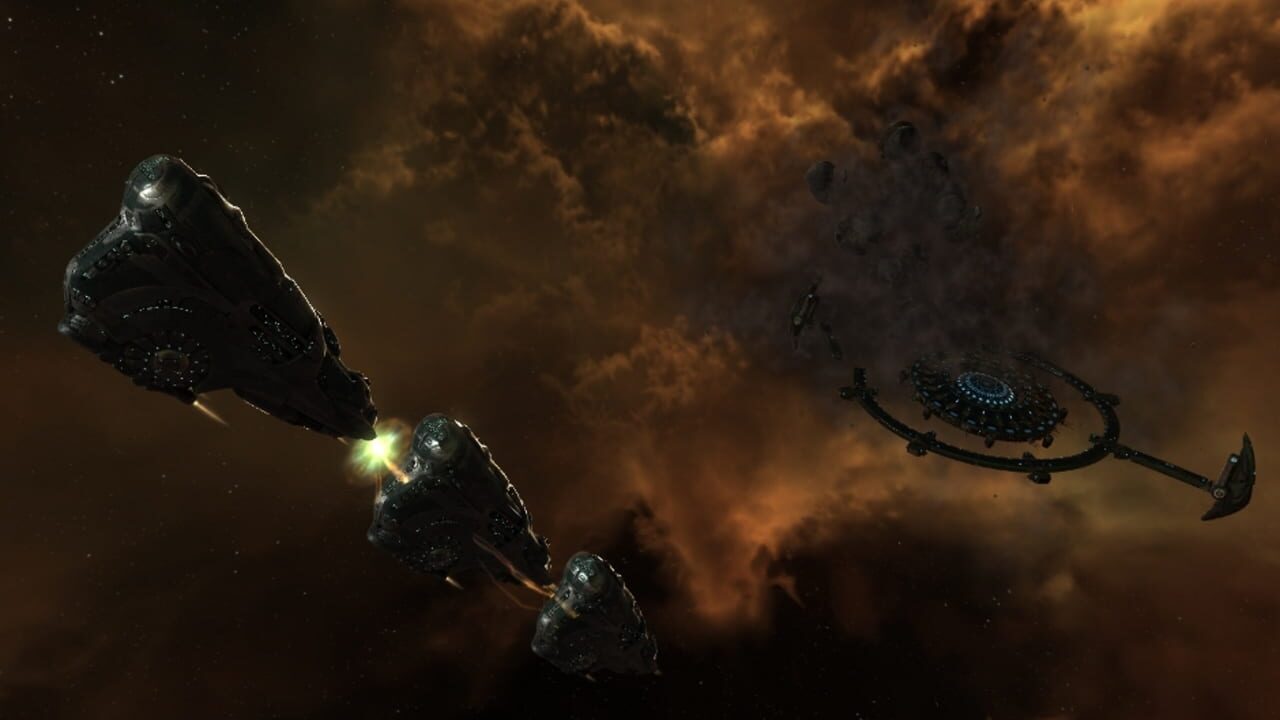
Eve Online Controller Guide 2026
Intro
Welcome to the Eve Online Controller Guide — your roadmap to flying across New Eden without breaking your keyboard. If you’re picking up a controller for eve-online, you’ve got a unique challenge on your hands. Unlike most PC titles, Eve Online wasn’t built from the ground up for gamepads. The good news? Pilots have found ways to make it work, and this guide will walk you through the ins and outs so you can jump into space with confidence.
Eve Online is a vast, player-driven sandbox MMO set across thousands of star systems. Flying a ship in this universe requires constant mouse precision, keyboard inputs, and spatial awareness. Whether you’re a capsuleer who prefers the comfort of a joystick or someone exploring alternative input methods, this guide covers what works, what doesn’t, and the community-tested setups that will get you flying without fear.
Note: Eve Online currently lacks native plug-and-play controller support found in many modern titles. Most controller setups rely on third-party mapping tools or community-developed solutions. We’ll cover the realistic options below.
Core Mechanics: What Controllers Can (and Can’t) Handle
The following table breaks down the key piloting and gameplay mechanics in Eve Online and how they map to controller input methods:
| Game Mechanic | Keyboard + Mouse (Native) | Joystick (Community Tool) | Gamepad (Limited) | Notes |
|---|---|---|---|---|
| Ship Movement (Pitch/Yaw/Roll) | Mouse look + WASD | Thrustmaster T.16000M, Logitech Wingman | XInput mapping tools | Joysticks offer the smoothest experience |
| Throttle Control | Q/E keys | Thrustmaster TH8A Shifter | Not well supported | Dedicated throttle hardware recommended |
| Target Locking | Mouse click + 1-9 hotkeys | Partially mapped | Poor | Hotkey-based targeting is fundamental |
| Module Activation | Left-click modules + hotkeys | Remappable via software | Poor | High APM makes controllers challenging |
| Navigation / Warp | Double-click system on starmap | Requires extensive remapping | Not practical | Mouse precision on the starmap is essential |
| UI Navigation | Mouse-driven menus | Possible with mapping | Difficult | Eve’s dense UI favors direct pointer control |
| Combat Maneuvering | Mouse aiming + keys | Best controller option available | Unpleasant | Requires practice and customization |
| Mining / Industry | Click-based interactions | Mapping possible | Very limited | Repetitive clicking is easier on mouse |
| Trading / Market | GUI-heavy interface | Not recommended | Poor | Mouse is practically required |
| Fleet Commands | Chat + window management | Possible but slow | Very limited | Communication tools need quick access |
Step-by-Step: Setting Up Your Controller for Eve Online
Step 1: Choose Your Hardware
Before touching any software, you need the right sticks and pedals. The community has converged on a few proven setups:
- Joystick Recommended: Thrustmaster T.16000M Force Feedback — the most popular choice in the Eve Online community. Dual mode switching between helicopter and fighter modes works surprisingly well for ship orientation.
- Throttle Recommended: Thrustmaster T.Flight Hotas One or TH8A Shifter. The TH8A is widely praised for fine throttle control during aligning to gates and docking.
- Gamepad Option: Xbox Series Controller mapped through reWASD or similar software. Viable for casual play but limited for serious PvP or high-skill activity.
Step 2: Install Mapping Software
Since Eve Online doesn’t natively recognize controllers the way AAA titles do, you’ll need middleware. The community favorites include:
- Joystick2Mouse (J2M): Opens a bridge between your joystick and mouse output. You tell J2M “move stick forward = mouse moves up,” and it translates your inputs. Free and widely used.
- vJoy: A virtual joystick driver that lets you create custom input profiles. Often paired with JoyToKey or antiMicroX for button mapping.
- reWASD: A paid solution that offers deep customization. Allows gamepad input to simulate mouse + keyboard simultaneously. Many pilots swear by this for a more comfortable experience.
- Xbox 360/One Controller Drivers: If you’re using a gamepad, ensure Windows recognizes it properly before mapping.
Step 3: Configure Ship Orientation Controls
This is the heart of your setup. In Eve Online, your ship’s orientation corresponds to mouse movement on screen:
- Pitch (Nose Up/Down): Mapped to Y-axis of joystick. Push forward = pitch down, pull back = pitch up.
- Yaw (Left/Right Turn): Mapped to X-axis of joystick. Left = yaw left, right = yaw right.
- Roll: Mapped to twist axis on the joystick. Some pilots use trigger buttons for roll instead.
- Mouse Look Equivalent: In free-fly mode, your entire camera follows the stick. Center the stick = center the view.
In J2M or your chosen software, assign these mappings clearly. Start with sensitive settings — you can always tighten them later.
Step 4: Map Your Modules and Hotkeys
Eve Online’s skill-based progression means your module loadout changes constantly. Here’s a practical hotkey strategy for controller users:
- Primary Weapon: Assign to a dedicated trigger or large face button. This should be easily reachable without letting go of the stick.
- Armor/Shield Reps: Use thumb buttons on the joystick or the top paddles if your hardware supports them.
- Afterburner / Microwarpdrive: Map to a toggle-able button rather than a hold button, since you’ll activate these frequently.
- Scanner/Targeting: Reserve a shoulder button for the targeting menu. In Eve, rapid target switching is critical, so make this button comfortable.
- Brake/Align: Crucial for proper alignment to gates. Map your braking function to a trigger or thumb button — this is one of the most important mappings for safe warp travel.
Step 5: Test in Starter Space
New Eden has a special region just for beginners called Starter Space, described as “the first non-PvP region of New Eden” where “rookie capsuleers learn and sharpen their skills through trial and error.” This is exactly where you should test your controller setup.
- Fly around idle stations
- Practice aligning to celestial objects and warping
- Test your module activation under no pressure
- Try combat against NPC agents (safety first!)
Step 6: Calibrate and Refine
Once your basic setup feels functional, spend time tuning:
- Adjust dead zones on your stick axes
- Set sensitivity curves — linear vs. exponential — based on your preference
- Create multiple profiles if you fly different ship types (frigate vs. battleship feel very different)
- Save your profiles in your mapping software so they load automatically when Eve Online starts
Tips for Controller Pilots in Eve Online
Tip 1 — Start Small. Your first ship should be something forgiving like a frigate or a light explorer. Don’t jump into a capital ship on a controller — the APM (actions per minute) requirements will overwhelm you.
Tip 2 — Embrace Free-Fly Mode Early. Free-flying your ship gives you direct camera control, which translates much better to joystick input than locked cockpit views. Toggle it with the standard free-fly key (default F) once you get comfortable.
Tip 3 — Use the Mouse When You Must. There’s no shame in keeping a mouse nearby for map navigation, market operations, and fleet coordination. Even dedicated controller users in the community use a mouse alongside their stick for certain tasks.
Tip 4 — Learn the Align and Timed Warp System. This is vital for controller users. When you warp to a destination, your ship must first align to that direction. Holding your brake button while waiting for the align meter to finish is a technique called “brake-waiting.” With a controller, this requires precise thumb trigger control — practice it in Starter Space until it’s muscle memory.
Tip 5 — Create Multiple Profiles. Different ships demand different control schemes. A frigate feels nothing like a battleship. Save separate profiles in your mapping software so you can switch instantly between ship types without fumbling through menus mid-fight.
Tip 6 — Join a Community. The Eve Online controller community is active and helpful. Join Discord servers and forums where pilots share their mapping profiles. Copying a proven setup and tweaking it to your taste is faster than starting from zero.
Tip 7 — Expect a Learning Curve. Transitioning from mouse and keyboard to a controller in Eve Online takes time. Be patient with yourself. Most pilots report 20–40 hours before things start feeling natural.
Recommended Controller Setup Summary
| Component | Recommended Choice | Why |
|---|---|---|
| Joystick | Thrustmaster T.16000M | Best community pick, dual-mode switching |
| Throttle | Thrustmaster TH8A | Fine-grained throttle control |
| Mapping Software | Joystick2Mouse (free) or reWASD (paid) | Proven translations for Eve’s input model |
| Backup Input | Standard mouse | Essential for maps, market, and UI |
FAQ
Does Eve Online support controllers natively? No. Eve Online does not have built-in controller support. You must use third-party mapping software like Joystick2Mouse, vJoy, or reWASD to translate controller inputs into mouse and keyboard commands.
What is the best controller for Eve Online? Most experienced pilots recommend the Thrustmaster T.16000M joystick paired with a Thrustmaster TH8A shifter. This combination gives you pitch, yaw, roll, and throttle control — the four axes needed for comfortable ship piloting.
Can I use an Xbox or PlayStation controller for Eve Online? Yes, but with limitations. Xbox and PlayStation controllers can work through mapping tools like reWASD or antiMicroX. However, you’ll lack independent throttle and roll control, making advanced maneuvers more difficult. Gamepads are viable for casual play and exploration but struggle in high-intensity PvP.
What is Starter Space in Eve Online? Starter Space is the beginner-friendly region of New Eden designed for new capsuleers. It is a safe zone where rookies can learn the game mechanics through trial and error without fear of PvP attacks. This is the ideal testing ground for your controller setup.
Is free-fly mode important for controller users? Yes. Free-fly mode decouples your camera from your ship’s nose, giving you full directional control that maps naturally to joystick input. Locking your camera to a cockpit view severely limits your ability to aim and maneuver with a controller.
How long does it take to get comfortable with a controller in Eve Online? Most pilots report 20–40 hours of practice before controller inputs start feeling intuitive. Starter Space is your best friend during this transition period — spend plenty of time there calibrating sensitivity and building muscle memory.
Keep exploring
- EVE Online on MMOKB — the EVE Online game hub has the full knowledge base, tools and guides.
- Read the EVE Online knowledge base — Fragger Role, Tank Role, Dps Role, Skill Training, The Industry.
- Use the EVE Online tools — Industry Calc.
- More EVE Online guides — EVE Online Alpha Mining 2026: Best Starter Ships & Fits, Eve Online Guide (beginner/2026), EVE Online Farming Builds 2026: Max ISK Guide, Eve Online Combat Guide: Ship Fitting & Tactics (2026), EVE Online Cradle of War Guide: 8 Ships, Exordium & Military, EVE Online Crafting ISK Guide: Profit with BPO/BPC (2026).
- Browse the full library — all MMOKB guides
Reviewed & verified
| Covers | eve-online |
| Last verified | November 4, 2026 |
| Accuracy | The game’s own numbers and rules — they change with patches; check in-game for live values. |
Discussion
0 commentsNo comments yet. Be the first!