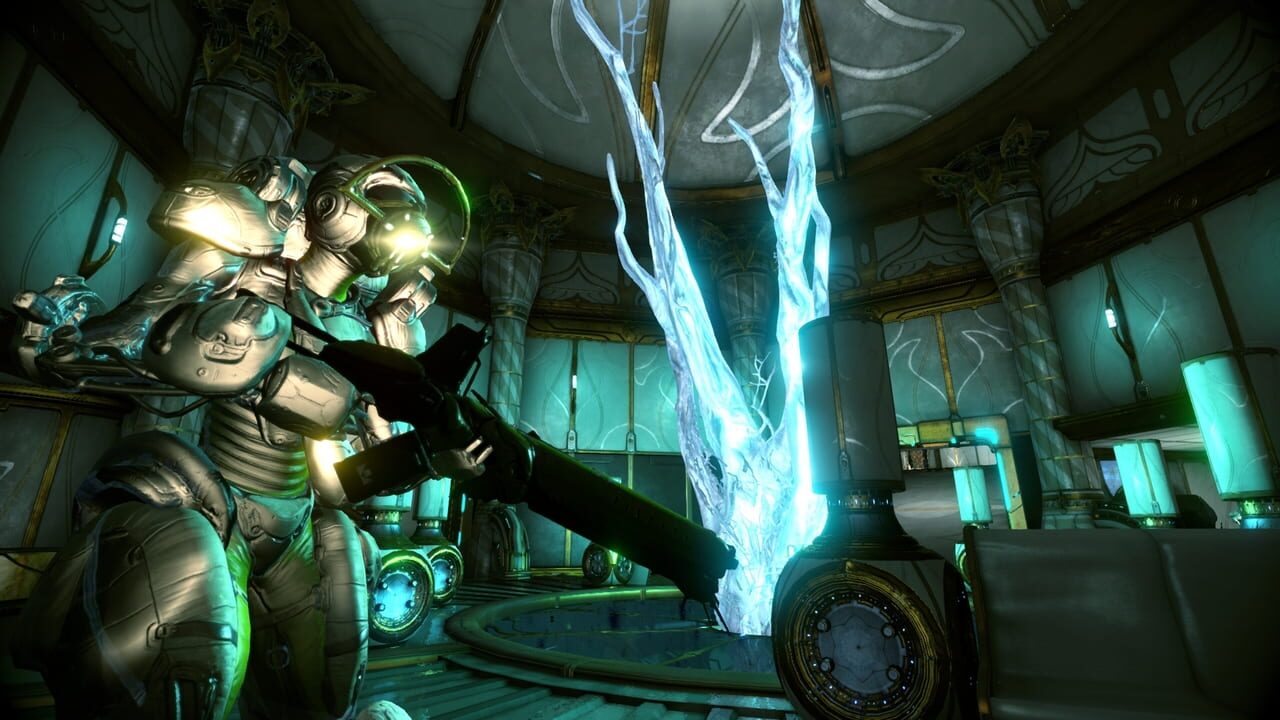
Warframe Settings & UI Guide (2026): Optimize Your View
You want your Warframe gameplay to feel smooth, crisp, and perfectly tuned. This guide walks you through every critical setting and UI option so you can stop squinting at cluttered screens and start playing like a pro. Whether you are on PC, console, or handheld, these tweaks will sharpen your aim, declutter your HUD, and lock in the performance you need during intense missions.
Why Settings Matter in Warframe
Warframe throws a lot at you visually. Enemy indicators, radar blips, mission objectives, ability effects, damage numbers, and chat windows all compete for screen real estate. If your default settings are leftover from 2013, you are flying blind. A few minutes spent reconfiguring your interface and performance options pays off in every mission that follows.
Good settings mean faster reaction times, cleaner ability combos, and less eye strain during long grinding sessions. You will spot enemies sooner, read your radar clearer, and hit your shots with confidence.
Display & Performance Settings
Head into Settings > Display to start. Here is what you need to lock in:
Fullscreen vs Windowed Borderless — Fullscreen gives the lowest input lag on PC. If you alt-tab often for Discord or a browser, Borderless Windowed is the compromise. Avoid exclusive fullscreen on weaker GPUs since it can cause stuttering when switching apps.
Render Resolution — Set this to your native monitor resolution. If performance dips, drop it to 90% before touching other settings. Lowering render resolution affects every visual element, so keep it as high as your GPU allows.
Field of View (FOV) — Warframe supports FOV between 60 and 110. Most competitive players run between 80 and 90. Higher FOV lets you see more peripheral danger but stretches textures at distance. Start at 80 and adjust up until the edges feel useful, not distracting.
Frame Rate Cap — Lock this to your monitor refresh rate or a stable number below it. Uncapped frame rates waste GPU cycles and can trigger thermal throttling mid-mission. If you run a 144Hz display, cap at 144. For 60Hz, cap at 60. Consistency beats peaks.
VSync — Turn this off. VSync adds input lag that hurts your aim in Archwing and melee encounters. If you see screen tearing, try G-Sync or FreeSync instead rather than re-enabling VSync.
HUD & Interface Customization
The HUD editor in Warframe is one of the most powerful UI tools in any FPS-looter game. Press Esc > Interface to access it.
Mission Timer Placement — Move the timer to the top center or top right. You only need a quick glance, not a stare-down. Smaller font, semi-transparent background.
Radar Size and Opacity — Shrink the radar to 30-40% opacity and position it in the bottom left or right corner. It should exist in your periphery, not dominate your view. Disable the circular border ring if it visually competes with other elements.
Damage Numbers — Turn damage numbers to Low or Off during boss fights. They clutter the screen and make it harder to track enemy health bars and ability animations. Keep them on High only during early game grinding when DPS feedback matters more.
Enemy Health Bars — Enable Show Enemy HP and set it to always display over heads. Color-code thresholds if your version supports it. Red warnings below 25% HP help you finish fights faster.
Ability Icons — Resize ability icons to 150-200% scale. You need to see charge status and cooldown timers at a glance. Stack them vertically on the bottom center of your screen for easy muscle memory mapping.
Minimap Overlays — Disable map markers for neutral NPC types. Keep only objective markers, enemy factions, and resource nodes visible. Every extra dot on your minimap is a distraction.
Control & Input Settings
Navigate to Settings > Controls and re-map aggressively.
Movement — Default WASD is fine, but verify your sprint key is comfortable. Many players prefer Space for sprint and shift their dash to X or C. Test both in the Training Grounds before committing.
Targeting System — Switch to Manual Targeting if you struggle with soft-locking onto the wrong enemy during Archwing or Orb Vallis missions. Auto-Target is generous but unreliable in chaos.
Mouse Sensitivity — Start at 8-12 for general aim. Melee combos and Archwing dogfights benefit from slightly higher sensitivity (12-16). Lower sensitivity improves precision for sniper builds but hurts close-quarters反应.
Controller Deadzones — Set left stick deadzone to 0.10-0.15 and right stick to 0.05-0.10. Too high and your movement feels sluggish. Too low and you get stick drift during idle moments.
Key Binding Confirmations — Enable Confirm Bind Change to prevent accidental overrides. You will thank yourself when you accidentally bind a critical ability to a wrong key.
Audio Settings
Audio in Warframe communicates enemy approach, ability activation, and mission alerts. Do not neglect this section.
Master Volume — Set to 80-90%. Silence kills awareness.
Music Volume — Drop to 20-30%. The soundtrack is atmospheric but drowns out critical audio cues during Corpus alarm states and Voruna pack engagements.
SFX Volume — Keep at 100%. Footsteps, reload clicks, ability hums, and enemy growls carry tactical information.
Chat Volume — Set to 50% or lower. Team comms matter but constant background chatter is noise.
Subtitles — Enable subtitles for mission briefings and Operator sequence dialogue. They appear in Settings > Accessibility.
Multiplayer & Social Settings
Matchmaking Privacy — Set to Friends Only or Invite Only if you prefer squad-based play over random drops. Random matchmaking saves time but introduces variable team skill levels.
Clan Wall Visibility — Turn off clan wall notifications during active missions. They pop over your HUD and block ability icons.
Trade Chat — Disable trade chat during combat-heavy missions. Scrolling market messages interfere with radar readability.
Quality of Life Tweaks
Auto-Loot — Enable in Settings > Gameplay. You will pick up mods and resources automatically without spamming the pickup key. This is a non-negotiable quality of life improvement for farming efficiency.
Show Frame Name on Radar — Turn this off. Enemy names clutter the radar view and make faction identification slower than simply reading the color coding.
Particle Quality — Set to Medium or Low during heavy missions like Deimos interiors or Zariman void nodes. High particle counts tank frame rates during Necramech deployments and Orokin Tower boss fights.
Anti-Aliasing — Use TAA if your GPU handles it. FXAA is faster but introduces blur. MSAA is expensive and unnecessary at higher resolutions. TAA gives the best balance of sharpness and performance.
Motion Blur — Turn it off. Motion blur obscures enemy silhouettes during high-speed melee dashes and reduces target acquisition speed.
Optimization Checklist
- Render resolution matches native display
- FOV set between 80-90
- Frame cap locked to refresh rate
- VSync disabled
- Damage numbers set to Low or Off
- Radar opacity reduced to 30-40%
- Ability icons scaled to 150-200%
- Auto-loot enabled
- Particle quality set to Medium or Low
- Motion blur disabled
- Music volume dropped below 30%
- Deadzones calibrated to comfort range
Apply these changes, save, and test in a single mission. Adjust each setting iteratively rather than overhauling everything at once. Your muscle memory needs time to adapt to new key binds and HUD positions.
Common Setting Problems and Fixes
Screen looks blurry after update — Reset render resolution and disable post-processing filters. Warframe patches sometimes reset display settings unexpectedly.
Radar shows too many dots — Filter out friendly factions and lower radar radius to 150 meters. You do not need to track allies across the entire map.
Aim feels sticky or unresponsive — Reduce mouse sensitivity in small increments of 1.0 and recalibrate controller deadzones. Stick drift causes phantom movement that ruins precision shots.
FPS drops during boss fights — Lower particle quality and disable ambient occlusion. Boss arenas accumulate visual effects that overwhelm GPU memory.
Audio cues are muffled — Increase SFX volume and decrease music volume. The audio mix prioritizes ambiance over combat sounds by default.
Related Guides
FAQ
How do I change Warframe HUD layout?
Open the HUD editor from the main menu under Interface, drag elements to new positions, resize as needed, and save your profile.
What is the best FOV setting for Warframe?
Most players use FOV 80-90 for optimal peripheral vision without excessive texture stretching at range.
Why are my Warframe frames dropping during missions?
Lower particle quality, disable motion blur, reduce render resolution to 90%, and close background applications consuming GPU memory.
How do I fix blurry text in Warframe UI?
Set render resolution to your monitor native resolution and ensure font scaling is at 100% under Accessibility settings.
Lock in your settings, test them in the field, and refine as you discover what your playstyle demands. Warframe rewards players who invest time in optimization. Your enemies will not wait for you to figure it out live.
Reviewed & verified
| Covers | warframe |
| Last verified | November 4, 2026 |
| Accuracy | The game’s own numbers and rules — they change with patches; check in-game for live values. |
Discussion
0 commentsNo comments yet. Be the first!