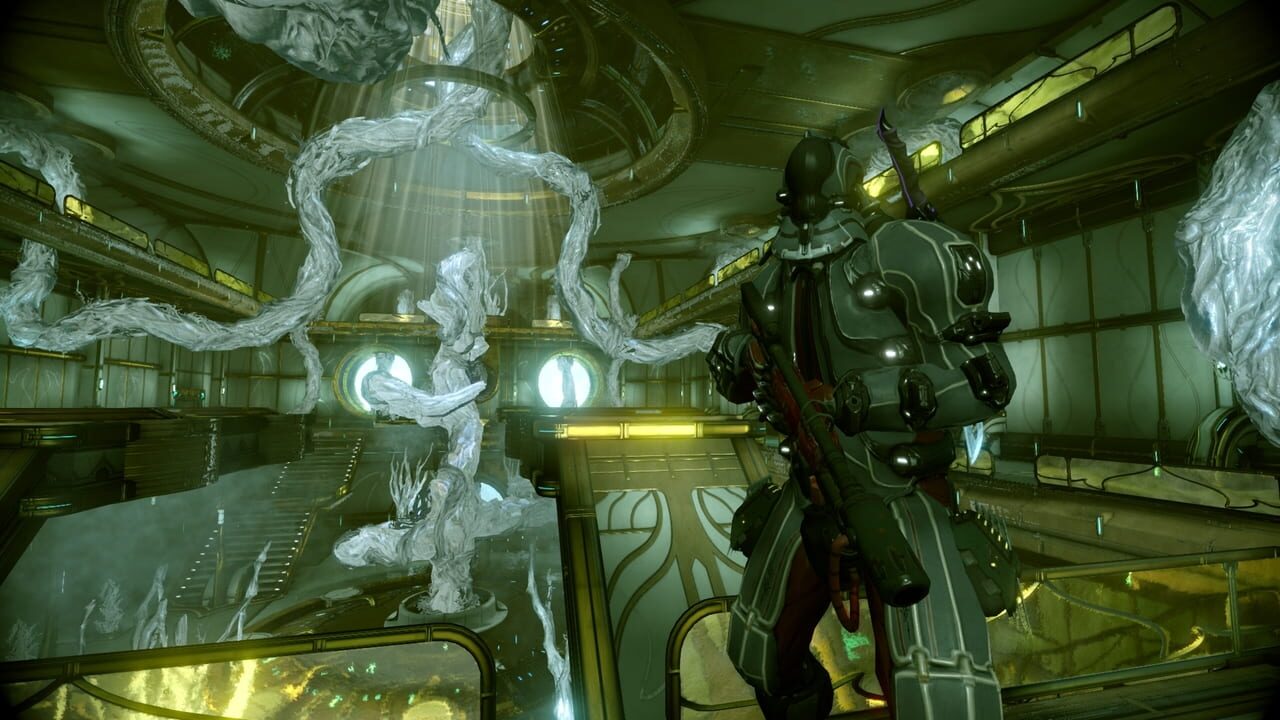
Warframe Graphics And Performance Guide
Intro
Whether you’re grinding Grineer Forests or taking on the new Icebind challenge atop Yuvan Peak, smooth frame rates matter. This Warframe Graphics And Performance Guide covers what the game can actually do, how to adjust settings for your rig, and practical fixes for stutters, low FPS, and GPU/CPU bottlenecks. The Origin System is always evolving — October events keep content flowing — but performance tips stay relevant across all seasons. Let’s get you running clean.
Core Mechanics
| Setting / Area | What It Does | Recommended Approach |
|---|---|---|
| Render Scale | Scales the internal resolution up or down | 100% default; drop to 80–90% if struggling |
| Texture Quality | VRAM usage and visual fidelity | High if you have 8+ GB VRAM; Medium otherwise |
| Shadow Quality | Shadow map resolution and draw distance | Low/Medium — biggest FPS cost for little gain |
| Post-Processing | Bloom, motion blur, AA | Turn off motion blur; keep AA on low |
| Particle Quality | Explosion, effect density | Medium/High — affects visual clarity in Orb Vallis and Plains of Eidolon |
| LOD (Level of Detail) | Distance where models simplify | Keep on; disable only as a last resort |
| Anti-Aliasing | Jagged edge smoothing | FXAA or TAA if available; skip if blurry |
| VSync | Framesync to monitor refresh | On for tearing; off for lowest input lag |
| Frame Rate Limit | Capped FPS target | Match your monitor or drop 10–15 below for stability |
Step-by-Step
Step 1: Identify Your Bottleneck
Open the in-game statistics panel (default key F9 or via Settings > Display). Look at these three numbers during active combat:
- GPU Usage — if it’s consistently at 99%, you’re GPU-bound.
- CPU Usage (per-core) — if one core is pegged near 100%, you’re CPU-bound.
- Frame Time — spikes indicate stuttering sources like asset streaming.
Warframe is historically more CPU-dependent than GPU-heavy, especially in open-world areas like Ceres, Neptune’s Plains, or newer seasonal maps. Knowing your bottleneck tells you where to focus.
Step 2: Adjust In-Game Graphics Settings
Navigate to Settings > Display. Apply changes one at a time and test in a combat situation. Here’s the priority order for maximum FPS with minimum visual loss:
- Shadow Quality → Low — Shadows are the single biggest performance hit.
- Texture Quality → High (if VRAM allows) — Textures don’t tank FPS once loaded; they eat VRAM.
- Post-Processing → Medium — Disable motion blur entirely.
- Particle Quality → Medium — Critical for reading visual cues in events like the Icebind.
- Render Scale → 100% — Drop only if necessary.
- VSync → Toggle based on preference — On removes tearing; off reduces input delay.
- Frame Rate Limit → Set to your monitor’s refresh rate or slightly below.
Step 3: Optimize System-Level Settings
- Set Warframe to High Performance in your OS GPU control panel (NVIDIA Control Panel or AMD Radeon Settings). Force the dedicated GPU, not integrated.
- Close background applications. Browsers with hardware acceleration, Discord overlay, and RGB software can steal CPU cycles Warframe needs.
- Update GPU drivers. Outdated drivers cause unexplained stutters and shader compilation hitches.
- Verify game files through your launcher if textures fail to load or the game crashes unexpectedly.
Step 4: Address Shader Compilation Stutters
Warframe compiles shaders on first launch and after major updates. During this window, expect severe stuttering. This is normal. To speed it up:
- Let the game run through a full session without interrupting.
- Avoid closing the game mid-shader compile.
- Future launches should be smooth once caching completes.
Step 5: Open-World and Event-Specific Optimization
Seasonal events like the October updates and activities such as the Icebind introduce new environmental assets, particles, and enemy effects. In these denser areas:
- Lower Particle Quality and LOD further.
- Reduce view distance if the option is available on your platform.
- Close the launcher and any overlay software before entering open maps.
Step 6: Console-Specific Notes
On PlayStation and Xbox:
- Use Performance Mode if your console supports it (typically 60 FPS target).
- Resolution Mode locks to higher output at a lower frame target.
- Keep your console firmware updated for the latest driver patches.
- Ensure adequate ventilation — thermal throttling is a common culprit for gradual FPS drops during long sessions.
Step 7: Long-Term Stability Habits
- Clear shader cache periodically if you notice worsening stutters over months of play.
- Reinstall or verify after large content updates — corrupted files silently degrade performance.
- Monitor temperatures. Sustained 85°C+ on GPU or CPU triggers throttling that no setting can fix.
Tips
- Lower shadows before anything else. The visual difference is noticeable but the FPS gain is massive.
- Disable unnecessary overlays. Discord, GeForce Experience, and XBOX Game Bar each add CPU overhead.
- Run Warframe fullscreen, not borderless. Fullscreen gives the GPU exclusive context and typically lower latency.
- If you have integrated graphics, expect significantly lower settings across the board. Focus on resolution and particle quality first.
- SSD installation helps streaming. While it won’t boost peak FPS, it eliminates texture-pop stutter and reduces load-related hitches, especially in open-world zones.
- Check Windows Game Mode and hardware-accelerated GPU scheduling. These can provide marginal gains on supported systems.
- Don’t chase 100% GPU usage. In CPU-bound scenarios like crowded open areas, 60–80% GPU usage with high frame times is normal and expected.
- Keep your in-game resolution native to your monitor whenever possible. Upscaling from a lower resolution without dedicated scaling tech introduces blur.
- If you’re on AMD, use Radeon Image Sharpening instead of upscaling when dropping render scale, to counter softness.
- If you’re on NVIDIA, consider enabling Reflex Low Latency if supported on your build — it helps with input responsiveness more than raw FPS.
Related Guides
FAQ
Q: Why does my FPS drop in certain areas but stay fine elsewhere?
A: Warframe is CPU-bound in open-world zones (Plains of Eidolon, Orb Vallis, Ceres, etc.) and in dense enemy encounters. Indoor tilesets stream less data and have fewer draw calls, so FPS is usually higher there. Seasonal events that add unique environmental complexity can also create temporary hotspots. Check your stats panel (F9) in the problem area to confirm whether it’s CPU or GPU limited, then adjust settings accordingly.
Q: My game stutters badly on first launch after an update. Is this normal?
A: Yes. Warframe compiles and caches shader data after updates. This process can take 10–30 minutes of actual gameplay and causes severe stuttering until it completes. Let the game run undisturbed through at least one full mission cycle. If stuttering persists beyond that, verify your game files and clear the shader cache folder manually.
Q: Can I trade or craft in Warframe? Will performance settings affect those systems?
A: Warframe does have a trading system between players (restricted by account level and Orokin Catalyst/Reactor item limits) and a crafting system through the Foundry. Neither system is directly affected by graphics settings — they run on the server side and don’t impose additional local rendering load. Performance settings only impact visual and frame rate behavior during active gameplay.
Q: I’m on a console. Should I prioritize Performance or Resolution mode?
A: Performance Mode is generally recommended for Warframe. The game is fast-paced, and a stable 60 FPS improves combat responsiveness, especially during challenging events like the Icebind. Resolution Mode is fine if you primarily explore and don’t mind a lower frame target, but you may notice frame pacing issues in denser areas.
Stay sharp, Tenno. Good graphics settings won’t make the Binds easier, but they’ll make surviving them a lot smoother.
Keep exploring
- Warframe on MMOKB — the Warframe game hub has the full knowledge base, tools and guides.
- Read the Warframe knowledge base — Excalibur, Nova, Wisp, Volt, Riven Modding.
- Use the Warframe tools — Plat Check.
- More Warframe guides — Warframe 1999: Arthur Gemini Skin Unlock Guide, Warframe Proto-Frames (Aoi & Arthur) endgame builds guide 2026, Warframe: 1999 Hex Syndicate Standing Farm 2026, Warframe Achievement Guide, Warframe Advanced Strategies Guide, Warframe Android Cross Save Guide.
- Browse the full library — all MMOKB guides
Reviewed & verified
| Covers | warframe |
| Last verified | November 4, 2026 |
| Accuracy | The game’s own numbers and rules — they change with patches; check in-game for live values. |
Discussion
0 commentsNo comments yet. Be the first!