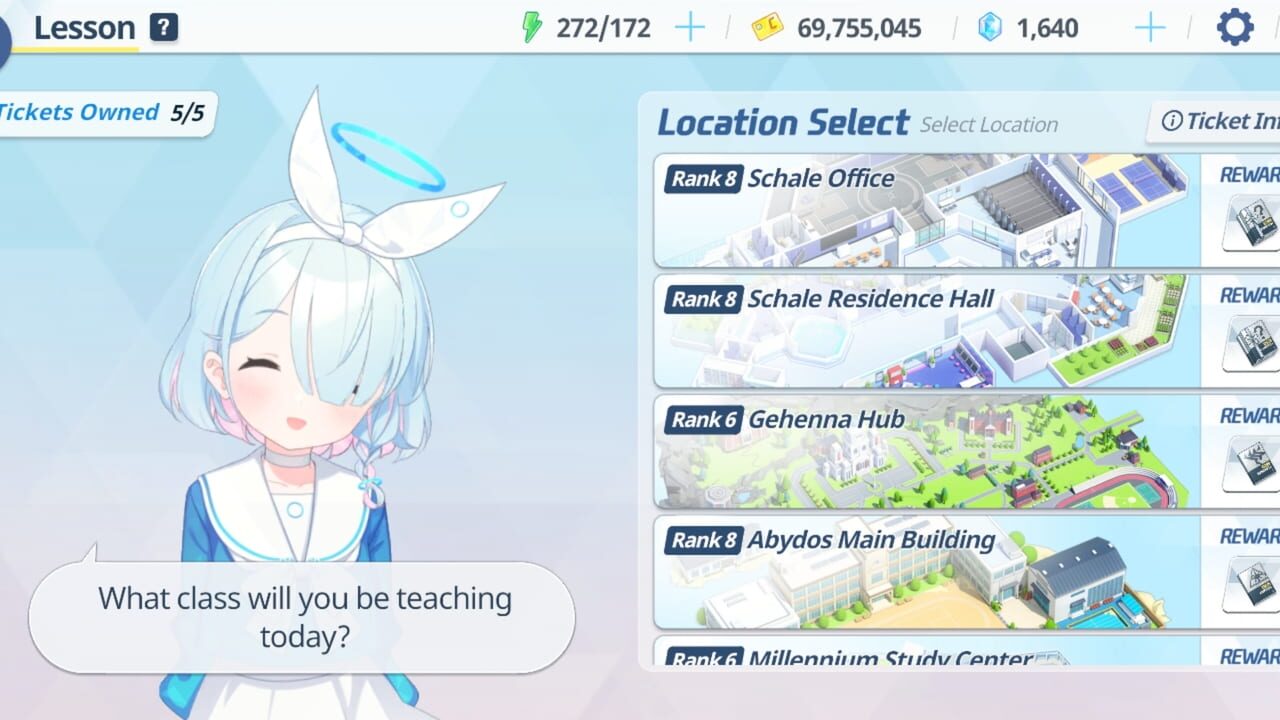
Blue Archive UI & Settings Guide
Hey there, Sensei! Welcome to Kivotos. Navigating Blue Archive’s interface can feel overwhelming at first, especially when you are deciding between mobile and PC controls or trying to find a buried setting. This guide walks you through every corner of the game interface so you know exactly where to tap, swipe, and configure without burning mental energy. You will learn how to manage your students, jump into events, handle your club, and tweak every setting to your liking, all in one read.
Core Mechanics
| UI Element | What It Does | Why It Matters |
|---|---|---|
| Main Menu Hub | Central landing screen showing credits, notifications, shop, and event banners | Your daily command center, everything launches from here |
| Story Viewport | Full-screen vertical reading pane for chapters, intermission stories, and event narratives | The story is the heart of Blue Archive; you will spend hours in this screen |
| Party Setup Screen | Drag-and-drop team composition for battles | Misaligned teams lead to wasted turns and lost stages |
| HUD (Battle) | HP bars, skill icons, SP gauge, skill queue | Read it fast; it tells you cooldowns and boss phases in real time |
| Settings Gear | Audio, display, story options, account management | Bad defaults can cause performance drops and missed notifications |
| Club / Social System | In-game messaging between club members and friends | Used for club coordination and support |
| Gacha / Exchange Screen | Premium summoning and ticket redemption menus | Key for acquiring new students and cosmetic items |
| Shop & Event Banner | Daily deals, limited-time offers, event currency exchange | Track timers carefully; limited banners disappear |
| Notification Bell | Alerts for friend activity, rewards, login bonuses | Keeps you informed of time-sensitive offers |
| Tutorial / Guide Icons | Hover prompts on newly unlocked features | Tap to dismiss or watch brief tutorials |
Step-by-Step Navigation
Step 1 — Get Oriented on the Title Screen
When you first boot Blue Archive, you will land on the login and title screen. Here is what you should know before tapping anything:
- Input Method Selector (PC/Emulator only): Choose between touch and keyboard/mouse input. If you are on PC, this switch is vital for comfortable gameplay.
- Login Button: Proceeds once your device passes the Nexon security check.
- Language Switch: You can change language mid-session from Settings if needed.
- Version Notice: Always check the patch notes screen for any hotfixes or maintenance schedules.
Tip: If the game feels sluggish on first launch, close background apps and give Blue Archive a clean slate. The game is surprisingly light but background processes can eat memory.
Step 2 — Surviving the Main Menu
After your tutorial, you will reach the main dashboard. Here are the key tabs:
| Tab Location | Icon Shape | Content |
|---|---|---|
| Top-left | Book/Scroll | Story mode, chapters, event stories, intermission stories |
| Top-center | Star/Badge | Event banners and limited-time activity |
| Top-right | Gift Box | Shop and premium exchange |
| Center-right | Grid | Party and squad management |
| Bottom-left | Megaphone | Announcements and community updates |
| Bottom-right | Cog | Settings menu |
Critical Reminder: There is no PvP arena, no player-vs-player matchmaking, no crafting system, no tradable item market, and no co-op raid mode in Blue Archive. Any community content claiming otherwise is misinformation. Blue Archive focuses entirely on PvE story progression, event battles, and school life simulation.
Step 3 — Battle HUD Breakdown
Inside a stage, the HUD displays several key elements:
- Top-left: Player and enemy HP bars. Bosses have multi-phase health indicators that change color as they enter new phases.
- Bottom-center: Your active party, showing three students at a time. Tap a student card to see detailed stats during battle preparation.
- Skill Bar (Right side): Colored icons representing each skill SP cost and cooldown. Skills auto-fire when SP reaches 100% unless you have manual override enabled in settings.
- SP Gauge (Bottom strip): Fills as students attack or take damage. Skill triggers automatically at full.
- Top-right: Stage timer and objective counter, which changes based on mission type.
Pro Move: Learn to identify skill colors because they match damage types. Red equals Physical, Blue equals Special, Green equals Magic. When a boss shows a colored shield, switch to the matching skill type for maximum damage.
Step 4 — Settings Deep Dive
Open the Settings gear from the bottom-right of the main menu and adjust these first:
Audio Settings:
- BGM Volume: Lower if you prefer voice acting over background music.
- SFX Volume: Keep at 70 to 80 percent for clear skill cues during intense battles.
- Voice Volume: Max this out, the voice acting is outstanding across English, Japanese, Korean, and Chinese dubs.
- Music/Skip Options: Enable auto-skip for repeated farming runs. Disable auto-skip for story scenes you want to experience.
Display Settings:
- Resolution/Quality: Lower if you experience frame drops on older devices.
- Camera Zoom: Adjust for comfortable battle viewing on smaller screens.
- Auto-Battle Toggle: Can be enabled per stage, but you lose control over skill timing, which matters for difficult content.
Story Settings:
- Skip Speed: Set to Always Skip for farming runs through story chapters.
- Double-Speed Mode: Great for grinding through intermission stories quickly.
- Auto-Advance: Enable during solo farming to reduce unnecessary tapping.
Account Settings:
- Link Account: Bind to a Nexon account immediately. Losing your device without a linked account can mean losing years of progress.
- Server Selection: Pick your region wisely because servers cannot be switched after initial selection.
- Data Erase: Only use this as a last resort; it wipes everything permanently with no recovery option.
Notification Settings:
- Turn on alerts for club messages, login rewards, and event starts so you never miss time-limited content.
- Disable social spam if you find it distracting during focus sessions.
Step 5 — Story and Event Navigation
Blue Archive tells its story in segmented arcs. Here is how to access them:
- Tap the Story icon in the top-left of the main menu.
- You will see Main Story, Intermission Stories, and Event Stories organized in separate sections.
- Main Story chapters are locked behind progression, so finish prior chapters to unlock new ones.
- Intermission stories provide character backstories and are highly recommended for completion; they unlock important character bonds.
- Event stories appear during limited-time events and often contain exclusive lore that expands the Kivotos universe.
Event Entry Flow:
- Tap the Event icon (top-center) to select a running event, then choose between storyline mode and difficulty-based stages.
- Events reward event points, exclusive students, and consumable materials. Check the event shop before the banner expires.
Step 6 — Party and Training Setup
Tap the Party tab (center-right) to manage your roster:
- Main Party: Three students deployed per stage. Organize by role, typically one Attack, one Special, and one Recovery student.
- Backup Party: Rotate students here for different stage requirements. Some stages demand specific skill types to break through enemy shields efficiently.
- Training Ground: Use the practice stage to experiment with team compositions without wasting resources.
- Student Affinity: Increase bond levels to unlock story episodes and passive bonuses for your roster.
Game
Blue Archive is a mobile RPG developed by NEXON Games, launched in Japan in February 2021 and worldwide in November 2021. Set in the sprawling academy city of Kivotos, players take on the role of Sensei, a tactical advisor who commands a team of students — each armed with unique skills and elemental damage types (Physical, Special, Magic). The game combines turn-based combat with gacha collection, deep narrative arcs, and recurring limited-time events.
Key facts: No PvP, no trading, and no co-op raids (students’ equipment can be crafted). Combat is purely PvE. Students are summoned through the premium gacha system using Pyroxene. Progression revolves around story chapters, event stages, and club activities. The game supports both mobile and PC via official emulator, with adjustable input settings. Server regions are locked after first login, so choose carefully. Regular updates introduce new stories, student banners, and seasonal events.
FAQ
How do I switch between mobile and PC controls in Blue Archive?
Blue Archive detects your platform automatically. On PC/emulator, go to Settings and toggle the input method between touch and keyboard/mouse. On mobile, touch controls are default.
Can I transfer my Blue Archive account between devices?
Yes, but only if you linked your account to a Nexon account before switching. Without a linked account, progress cannot be recovered.
What is the difference between Physical, Special, and Magic damage?
These are the three damage types in Blue Archive. Red icons are Physical, Blue are Special, and Green are Magic. Enemies may have shields that resist certain types, so matching your skill type to the shield color deals full damage.
How do I access event stories in Blue Archive?
Tap the Event icon in the top-center of the main menu, select the active event, and choose the Story mode tab. Event stories are only available while the event is running.
Keep exploring
- Blue Archive on MMOKB — the Blue Archive game hub has the full knowledge base, tools and guides.
- Read the Blue Archive knowledge base — Battles, Team Roles, Weapon Types, Summoning, Equipment.
- More Blue Archive guides — Blue Archive Achievement Guide 2026: 7 Proven Steps, Blue Archive Advanced Strategies Guide, Blue Archive Guide 2026: You’re a New Sensei—Start Strong Now, Blue Archive Best Builds: Farming & Meta Setup Guide (2026), Blue Archive Best Builds, Blue Archive Best Teams 2026: Weapon Classes & Roles That Carry.
- Browse the full library — all MMOKB guides
Reviewed & verified
| Covers | blue-archive |
| Last verified | November 4, 2026 |
| Accuracy | The game’s own numbers and rules — they change with patches; check in-game for live values. |
Discussion
0 commentsNo comments yet. Be the first!