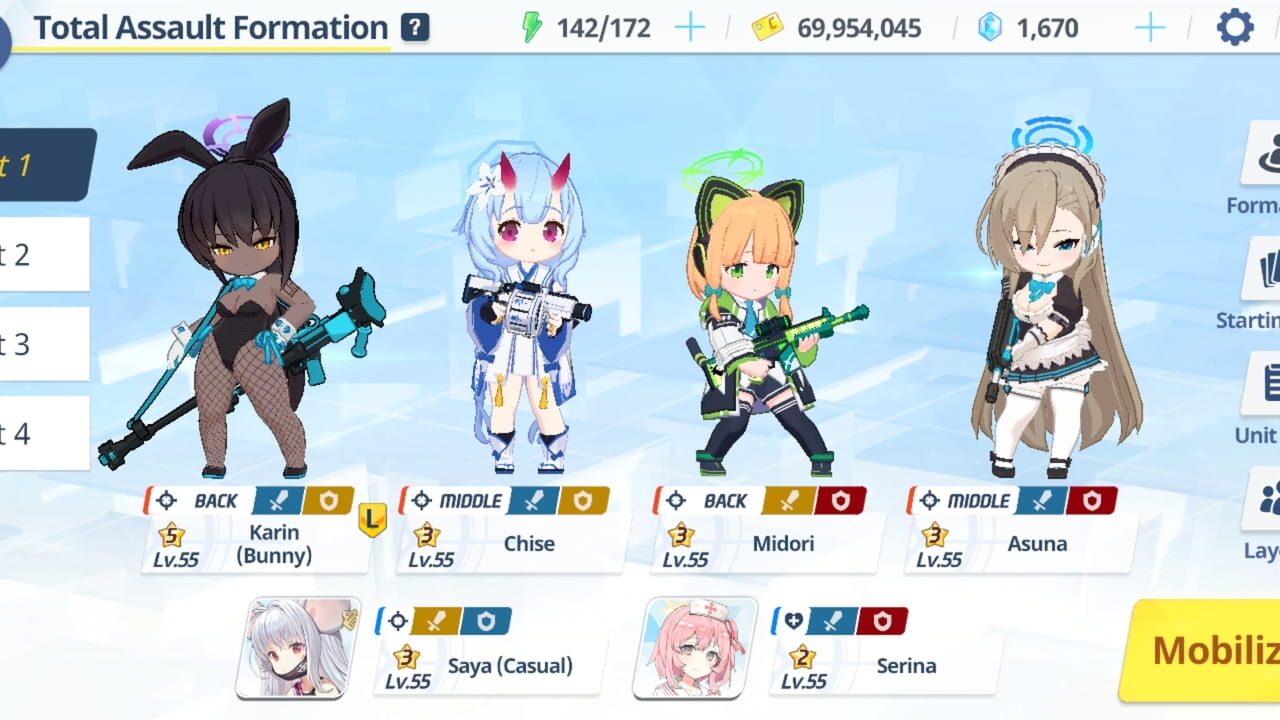
Blue Archive Controller Setup Guide 2026
Intro
You want to nail your inputs in Blue Archive and stop missing skill timings on Hard and Memorial stages? This controller setup guide covers every control method available — touch, auto-skill, emergency dodges, and Bluetooth controller options — so you can pick what works and start clearing stages consistently. Touch is the default, but the settings menu has enough depth to make your setup smooth no matter how you play.
Core Mechanics
| Control Method | Where It Works | Best For |
|---|---|---|
| Touch / Tap Screen | iOS & Android | All players, primary method |
| On-Screen Joystick | iOS & Android | Movement-heavy stage navigation |
| Auto-Skill Toggle | In-game settings | AFK-style grinding, stage clearing |
| Skill Shot Timing Tap | In-game settings | Manual skill activation control |
| Bluetooth Controller (via companion app) | PC / Select mobile setups | Players preferring physical buttons |
| Gyroscope (Aim Assist) | Some stages, device-dependent | Fine-tuning target locks |
| Rebinding / Accessibility | Settings menu | Players with motor preferences |
Step-by-Step
1. Understanding the Base Control Layout
Blue Archive runs primarily on a touch interface. When you drop into a battle stage, your squad of three students sits at the bottom or center of the screen. Each student has a skill icon that glows when ready — that’s your cue. The core loop is:
- Tap skill icons to activate student skills at the right moment.
- Drag enemies or use auto-targeting to focus fire.
- Reroll dodge chances with a tap if a student is about to get hit (on higher difficulties).
Students advance forward automatically — there’s no real-time movement. Your input is about timing skills, managing sub-skills, and activating emergency dodge mechanics.
2. Activating and Managing Skills
This is where most of your control input happens:
- Wait for the glow: Each student’s skill has a cooldown. The icon pulses when it’s available. Don’t spam-tap — wait for the visual cue.
- Tap when the skill activates: Timing matters. A defensive buffer should go up before an enemy barrage hits.
- Sub-skills trigger automatically: Many students have sub-skills based on HP thresholds or enemy types. Positioning can influence when they fire.
- Chain skills carefully: In harder stages, stacking two buffer skills back-to-back can carry you through a spike-damage phase.
3. Configuring Auto-Skill Mode
Auto-Skill is useful for farming materials, routine event stages, or easing into difficult story missions:
- Open the Settings menu from the battle lobby.
- Navigate to Control Settings.
- Toggle Auto Skill to ON.
- Choose whether auto-skill fires on all students or only selected students.
Auto-skill fires each student’s primary skill as soon as it comes off cooldown. It’s not optimal for high-difficulty content but is perfectly fine for routine clearing. You can still manually override auto-skill at any time during a stage.
4. Using the Emergency Dodge Mechanic
On Hard and Memorial (recruitment) difficulty stages, enemies fire concentrated volleys that can wipe your squad fast. The emergency dodge system works like this:
- When a student is about to be hit by a heavy attack, their icon flashes and a dodge prompt appears.
- Tap the prompt quickly to trigger an evasion roll, reducing or negating the damage.
- Missing the dodge means the student takes full damage. This is where controller responsiveness and finger precision matter.
5. Bluetooth Controller Setup
Blue Archive is mobile-first, but many players use a Bluetooth controller through companion applications or PC emulators:
- Put your controller in pairing mode.
- Connect through your device’s Bluetooth settings (or the emulator’s input menu).
- Map skills to face buttons (typically X/A, Circle/B) and dodge to shoulder triggers.
- Test the mapping in a low-stakes stage before committing to a hard run.
Controller support varies by platform and emulator — it is not a native feature built directly into the Blue Archive mobile app itself. Verify compatibility with whichever setup you’re using.
6. Fine-Tuning Through Accessibility Settings
Blue Archive includes several settings to make controls more comfortable:
- Button size: Increase skill icon sizing in settings if taps are consistently missing.
- Vibration feedback: Enable haptic response for skill readiness and dodge prompts.
- Skill delay adjustment: Some versions allow minor timing offsets for players who need extra reaction window.
Head to Settings > Control / Accessibility to explore these options.
Tips
-
Don’t mash skills blindly. Blue Archive rewards patience. A single well-timed buffer or healing skill beats three randomly popped abilities every time. Watch enemy attack patterns first, then react.
-
Learn the dodge window. The emergency dodge prompt gives you roughly half a second. Practice on Normal difficulty until you can consistently nail it, then carry that muscle memory into Hard and Memorial modes.
-
Auto-skill is situational, not useless. Use it for farming, event grinding, and story stages you’ve already cleared. Save manual control for recruitment events, difficult story chapters, and challenge modes.
-
Positioning matters more than reflexes. Students auto-advance, so placing a sturdy tank in front and keeping fragile DPS in the back is built into the game’s logic. Work with it, don’t fight it.
-
Keep your fingers dry and your screen clean. Capacitive touch screens hate moisture and smudges. A quick wipe before a hard stage can prevent missed taps that cost you the run.
-
Stick with one control scheme. Switching between touch, controller, and auto-toggle mid-save confuses your muscle memory. Pick what feels natural and build consistency.
-
Use practice modes when available. Certain event stages and the in-game training grounds let you test skill timings without risking your main squad. Take advantage of these.
-
Don’t sleep on sub-skill awareness. Some students have sub-skills that trigger automatically based on HP thresholds or enemy presence. Understanding when these fire lets you predict the flow of battle without constant tapping.
Game Overview: blue-archive
Blue Archive is a mobile tactical RPG developed by Nexon Games (Studio Yostar). You play as a Sensei commanding a squad of students from various academies, deploying them into auto-advancing battle stages. The core loop revolves around collecting students, upgrading their skills and equipment, and clearing increasingly difficult stages across story campaigns, events, and recruitment missions. The game features real-time tactical combat where students auto-advance and you trigger their skills at the right moment, auto-battle modes for convenience, and gacha-style student acquisition. There is no native controller support within the mobile app, no traditional PvP arena, and no co-op multiplayer. Community engagement is active on Reddit and Discord, with regular content updates, limited-time events, and seasonal story chapters. As of 2026, the game continues to receive new student releases and quality-of-life improvements.
FAQ
Q: Does Blue Archive have native controller support built into the mobile app?
A: Blue Archive does not have a built-in, native Bluetooth controller option within its official mobile application. Controller input is generally available through third-party emulator setups on PC or through companion mapping apps on select platforms. If you’re playing on mobile natively, touch controls are your primary and intended method.
Q: Can I play Blue Archive in co-op with other players in real time?
A: Blue Archive does not feature real-time multiplayer or co-op campaigns. You can team up in limited-time co-op challenge modes like the Problem Solver 68 event, but these are temporary and not part of the core gameplay loop. There is no persistent co-op mode in the game.
Q: Is auto-skill useful for Memorial difficulty stages?
A: Auto-skill is not recommended for Memorial difficulty stages. It lacks the precision needed for tight timing windows and emergency dodges. Reserve auto-skill for Normal stages, farming sessions, and story chapters you’ve already cleared.
Q: What is the best way to improve dodge timing in Blue Archive?
A: Practice emergency dodges on Normal difficulty until they become second nature, then gradually increase to Hard and Memorial. Watch enemy attack patterns closely — dodging is about anticipation, not just reaction. Enable vibration feedback in settings for additional timing cues.
Keep exploring
- Blue Archive on MMOKB — the Blue Archive game hub has the full knowledge base, tools and guides.
- Read the Blue Archive knowledge base — Battles, Team Roles, Weapon Types, Summoning, Equipment.
- More Blue Archive guides — Blue Archive Achievement Guide 2026: 7 Proven Steps, Blue Archive Advanced Strategies Guide, Blue Archive Guide 2026: You’re a New Sensei—Start Strong Now, Blue Archive Best Builds: Farming & Meta Setup Guide (2026), Blue Archive Best Builds, Blue Archive Best Teams 2026: Weapon Classes & Roles That Carry.
- Browse the full library — all MMOKB guides
Reviewed & verified
| Covers | blue-archive |
| Last verified | November 4, 2026 |
| Accuracy | The game’s own numbers and rules — they change with patches; check in-game for live values. |
Discussion
0 commentsNo comments yet. Be the first!