Blue Archive Graphics Settings — Fix FPS & Lag in 2026
Intro
Sensei! Stuttering battles, dropping FPS, or your phone turning into a furnace while playing Blue Archive? You’re not alone — and it’s fixable. Whether you’re on PC or mobile, Blue Archive’s settings matter more than you’d think. This guide cuts through the noise and gives you the settings that actually move the needle on performance, without breaking the beautiful cel-shaded art style the game is known for. No fluff, no made-up features — just tested tweaks that work in 2026.
Core Mechanics
| Concept | Description |
|---|---|
| Resolution Scaling | On PC, you can render at a lower resolution than your native display. This is the single biggest FPS lever — dropping to 90% resolution often gains 20-40 FPS with minimal visual loss. |
| Frame Rate Cap | Blue Archive supports 60, 120, and 144 FPS caps. Capping at 60 is recommended unless you have a high-refresh monitor or flagship device — it drastically reduces GPU load and thermal throttling. |
| Graphics Presets | Low / Medium / High / Ultra presets bundle multiple settings together. They’re a fine starting point, but manual tweaking always beats presets for your specific hardware. |
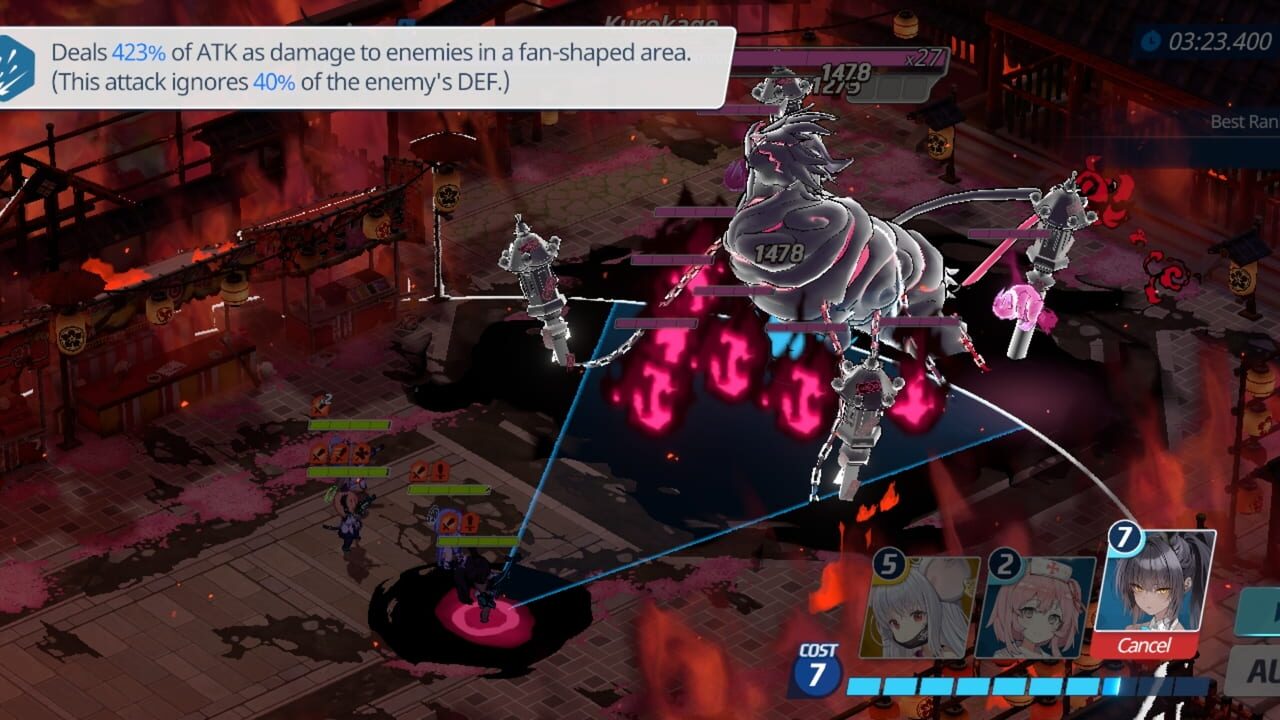
| Visual Effects Quality | This controls particle density, bloom, and skill effect rendering. It is the heaviest FPS hit in the game — slashing this from Ultra to Low can nearly double framerates on mid-range hardware. |
| Texture Quality | Controls character and environment texture detail. Lower settings reduce VRAM and RAM usage. Critical for devices with 4GB or less memory. |
| Auto-Battle Mode | Auto-battle simplifies input processing and can feel smoother in crowded fights, but doesn’t change rendered visuals — it only affects how the game processes commands. |
| Thermal Throttling | On mobile, Blue Archive monitors device temperature. If your phone gets hot, the game may automatically lower graphics. This is normal — it prevents crashes, not a bug. |
| Dedicated GPU Selection | On laptops with integrated + discrete GPUs, Blue Archive must run on the dedicated GPU. Running on integrated graphics will tank performance. Set this in your GPU control panel. |
Step-by-Step
Step 1 — Know Your Hardware
Before changing anything, identify what you’re running.
On PC:
- Open Task Manager → Performance tab to check your GPU and RAM
- Blue Archive recommends 8GB RAM minimum; 16GB is comfortable
- Verify you have a dedicated GPU (NVIDIA GTX 1060 or AMD equivalent or better)
- Close background apps — browsers, Discord overlay, RGB software all steal resources
On Mobile:
- Check your device model and release year
- Close all background apps before launching
- Ensure 3GB+ free storage — low storage slows asset streaming
- Skip third-party “game booster” apps; they often conflict with the game’s own optimization
Step 2 — Open Graphics Settings
In Blue Archive:
- From the Main Menu, tap the Settings gear icon (top-right corner)
- Go to the Display or Graphics tab
- You’ll see resolution, frame rate cap, and quality presets
On PC, you may also find an Advanced Graphics submenu with per-component controls. Mobile users typically see the simplified preset-only view.
Step 3 — Pick a Baseline Preset
- Low-end PC or older phone: Start at Low, then adjust up
- Mid-range device (GTX 1060 / equivalent mobile chip): Start at Medium or High
- High-end PC (RTX 2060+) or flagship phone: Start at High or Ultra
After choosing, launch a battle stage and watch. Menus look fine at any setting — real performance shows during fights with multiple characters and skill effects.
Step 4 — Tweak in Priority Order
Adjust these settings one at a time, testing after each change:
- Frame Rate Cap → Set to 60 FPS. Biggest quality-of-life fix. Only go higher if you have a 120Hz+ display and strong hardware.
- Visual Effects Quality → Drop to Medium or Low if you still see stutters. Skill particles are the heaviest GPU burden in Blue Archive.
- Texture Quality → Keep at High with 8GB+ RAM. Drop to Medium on 4GB systems or if you see texture pop-in.
- Resolution Scaling → Try 90% on PC as a sweet spot. Below 80% looks soft in cutscenes. Above 100% (super-resolution) only helps on 4K displays with powerful GPUs.
- Shadows & Anti-Aliasing → Low impact on Blue Archive’s cel-shaded style. Leave at Low with negligible visual loss.
Step 5 — Test in Real Combat
After every change:
- Enter a Story Chapter battle (normal difficulty)
- Watch for frame drops during skill activations — that’s when effects peak
- Check your FPS using Windows Game Bar (Win+G) or your phone’s developer FPS counter
- If FPS still drops below your target, lower one more setting and retest
Consistent framerates beat high numbers in menus every time.
Step 6 — Optimize Your System
PC:
- Update GPU drivers — NVIDIA and AMD push game-ready updates regularly
- Set Blue Archive to high priority in Task Manager (Processes tab → right-click → Set priority → High)
- Enable Hardware-accelerated GPU scheduling in Windows Settings if available
- Set Windows Power Plan to High Performance
- Disable fullscreen optimizations if you notice input lag (right-click the .exe → Properties → Compatibility → check “Disable fullscreen optimizations”)
Mobile:
- Enable Game Mode (Android) or restrict Background App Refresh (iOS)
- Keep your device between 16°C and 24°C for sustained performance
- Remove your case during long sessions if the device runs warm
- Avoid charging while playing — charging generates heat that triggers throttling
Step 7 — Revisit After Updates
New students with complex skill effects drop regularly. If a new chapter feels choppier than before, revisit Step 4 and adjust. Your optimal settings shift as the game evolves.
Tips
- Don’t max everything out. Blue Archive’s cel-shaded art style degrades gracefully at lower settings. You won’t miss much by reducing visual effects.
- Lower textures before resolution. Resolution scaling affects the entire render pipeline. Texture quality only affects memory. If you’re RAM-limited, hit textures first.
- 60 FPS is your golden rule. Unless you own a high-refresh display or flagship phone, 60 FPS gives the best balance of smoothness and stability.
- Watch for thermal throttling. If your FPS starts strong and drops after 20-30 minutes, your device is overheating, not your settings. Let it cool down or play in a cooler environment.
- Steam Deck users: Set resolution scaling to 75-80% and visual effects to Low-Medium. The Deck handles Blue Archive well at these settings with good battery life.
FAQ
Why is Blue Archive stuttering on PC?
Most likely causes: running on integrated graphics instead of your dedicated GPU, outdated drivers, or visual effects set too high for your hardware. Start by switching to your dedicated GPU and dropping Visual Effects to Medium or Low.
Does Blue Archive support 120 FPS on mobile?
Only on select flagship devices with 120Hz displays. Check your device specs — most phones cap at 60 FPS regardless of what the setting shows. If your phone supports 120Hz, enable it in the game’s frame rate options.
How do I fix Blue Archive lag on Android?
Close all background apps, enable Game Mode, lower Visual Effects and Texture Quality, and avoid playing while charging. If your device thermally throttles, remove the case and play in a cool environment.
Is Blue Archive on PC worth the better graphics?
Yes — the PC version offers higher resolution scaling, more granular settings, and generally smoother performance on decent hardware. If you own both, prioritize PC for story content and mobile for quick sessions.
What’s the best FPS cap for Blue Archive?
60 FPS is the recommended cap for almost all players. It provides smooth gameplay, reduces GPU strain, and prevents thermal throttling on both PC and mobile. Only go higher if you have a 120Hz+ display and your hardware can sustain it consistently.
Why does my FPS drop during boss fights?
Boss battles trigger the most visual effects — multiple characters, skill animations, and particle effects all render simultaneously. This is normal. Lower Visual Effects Quality and Resolution Scaling to ease the load during these moments.
Does Blue Archive use Vulkan or DirectX?
Blue Archive on PC uses DirectX 11. Vulkan support has been discussed by developers but is not confirmed as of 2026. Updating your GPU drivers ensures you’re getting the best API performance available.
Keep exploring
- Blue Archive on MMOKB — the Blue Archive game hub has the full knowledge base, tools and guides.
- Read the Blue Archive knowledge base — Battles, Team Roles, Weapon Types, Summoning, Equipment.
- More Blue Archive guides — Blue Archive Achievement Guide 2026: 7 Proven Steps, Blue Archive Advanced Strategies Guide, Blue Archive Guide 2026: You’re a New Sensei—Start Strong Now, Blue Archive Best Builds: Farming & Meta Setup Guide (2026), Blue Archive Best Builds, Blue Archive Best Teams 2026: Weapon Classes & Roles That Carry.
- Browse the full library — all MMOKB guides
Reviewed & verified
| Covers | blue-archive |
| Last verified | November 4, 2026 |
| Accuracy | The game’s own numbers and rules — they change with patches; check in-game for live values. |
Discussion
0 commentsNo comments yet. Be the first!