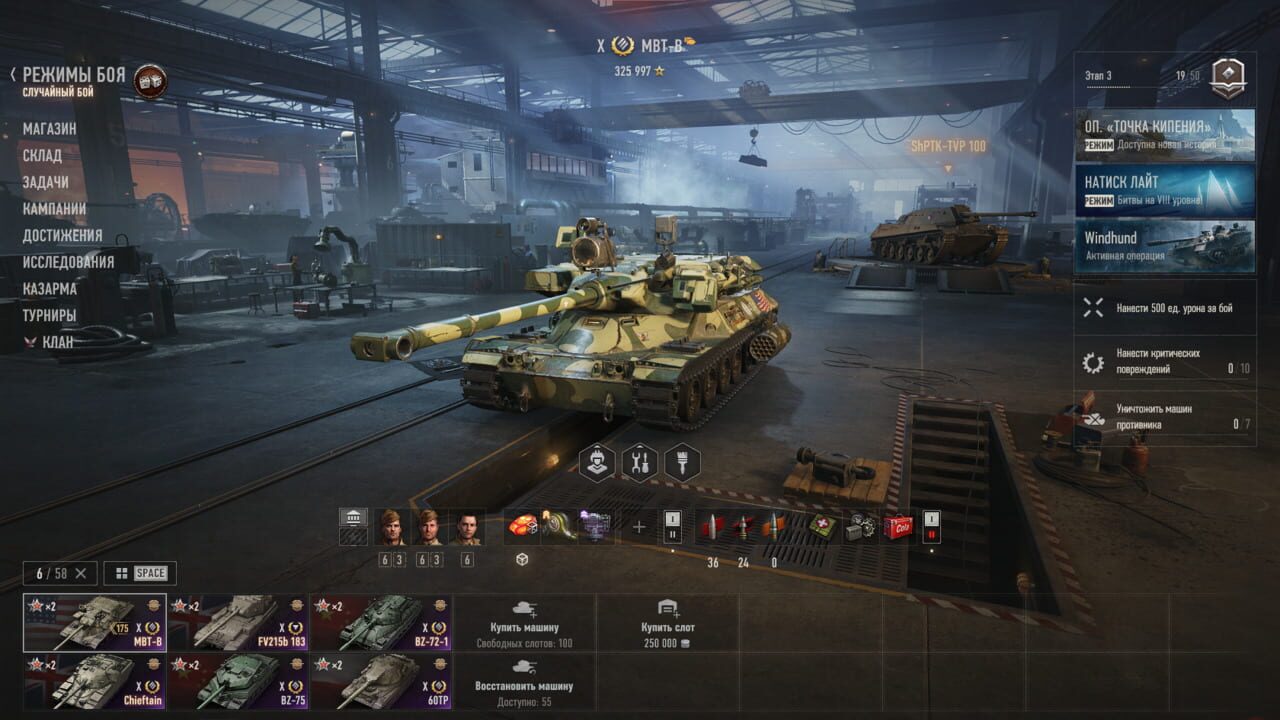
World of Tanks Settings & UI Guide 2026
Intro
Welcome, Commander! Whether you’re rolling into your first match or a veteran squeezing every fraction of clarity from your monitor, mastering your World of Tanks settings and UI choices can transform how you play. The game gives you extensive control over how your interface looks and behaves, and getting it right means you’ll spot enemies faster, fire more accurately, and waste less time squinting at cluttered screens. This guide walks you through everything you need — from HUD placement and minimap tweaks to advanced camera and graphics settings that give you a real edge. Let’s get your screen dialed in perfectly.
Core Mechanics
| Setting / Feature | What It Does | Why It Matters |
|---|---|---|
| HUD Customization | Lets you drag, resize, and reposition combat UI elements like the damage indicator, minimap, shell timer, and reload meter. | A clean, personalized HUD reduces screen clutter and keeps critical info where your eyes naturally fall during battles. |
| Minimap Options | Controls minimap size, zoom level, friend/enemy icon visibility, and whether terrain is shown. | The minimap is your primary intel tool — knowing how to optimize it means better map awareness and positioning. |
| Camera Settings | Includes camera shake intensity, FOV (field of view), camera delay, and first-person vs. third-person view preferences. | Camera feel directly affects your ability to track moving targets and judge distances accurately. |
| Control Scheme | Covers keyboard binds, mouse sensitivity, and steering modes (tank, car, direct). | Controls that match your muscle memory mean faster reaction times and more precise aim. |
| Graphics Settings | Includes resolution, texture quality, shadow detail, anti-aliasing, and performance mode options. | Proper graphics tuning balances visual clarity with frame rate — both are essential for competitive play. |
| Audio Settings | Manages volume levels for engine noise, gunshots, ambient sounds, and voice chat. | Audio cues like engine identification and footstep direction can give you tactical information the minimap alone won’t provide. |
| Combat Log & Statistics | Lets you toggle detailed battle logs, damage dealt, XP earned, and post-battle stat breakdowns. | Understanding your combat log helps you review mistakes and improve decision-making after every match. |
| Signal & Notification Settings | Controls pop-up notifications for battle results, friend activity, and in-game events. | Too many notifications can distract during action; too few and you miss important info. Finding balance is key. |
Step-by-Step
Step 1 — Open Your Settings Menu
From the main garage screen, click the gear icon (Settings) typically located in the upper-right corner of your interface. This opens a vertical tab panel on the left side with categories including Control, Graphics, Sound, Interface, and more. Some settings also have quick-access toggles directly on your battle HUD — look for the small wrench or gear symbol that appears during combat.
Step 2 — Customize Your HUD Layout
Navigate to the Interface tab. Here you’ll find every on-screen element you see during a battle:
- Drag-and-drop repositioning: Most HUD widgets can be clicked and dragged to new locations. Test a few positions across different maps to find what feels natural for your playstyle.
- Opacity sliders: If an element feels too glaring, reduce its opacity. Many commanders lower the brightness of damage indicators and shell timers so they don’t distract from your aim.
- Visibility toggles: Turn off anything you don’t use. If you never check your radio operator’s signal, hide that widget. Less clutter equals faster information processing.
Start with these widgets recommended to keep visible:
- Reload bar or shell count (center-bottom or just below crosshair)
- Minimap (top-right corner by default — keep it there)
- Tank health indicator (top-left or near your vehicle portrait)
- Damage numbers (optional — some prefer them off to reduce visual noise)
Step 3 — Configure Your Minimap
Still in the Interface tab, scroll to the minimap section. Key options:
- Minimap size: Choose between small, medium, or large. Larger minis give more detail but take up screen space. Most competitive players prefer medium or large.
- Zoom level: Adjust how zoomed in the minimap shows terrain. A tighter zoom reveals more detail at your position; a wider zoom shows more of the battlefield.
- Show terrain: Toggle whether hills, buildings, and obstacles appear on the mini. Keeping this ON is generally recommended — it gives you instant situational awareness.
- Enemy markers: You can customize how enemy blips appear. Turning on icon mode shows tank silhouettes instead of dots, which helps you instantly identify what type of vehicle is at a given location.
- Friendlies: Similarly, toggle whether allied tanks show as icons or dots. Icons help you recognize ally roles at a glance.
Step 4 — Dial In Your Controls
Head to the Control tab. This is where you build your personal command setup:
- Steering mode: You have three options:
- Tank steering — classic WASD-style movement where W accelerates forward and S reverses. Most recommended for new players.
- Car steering — W and S handle both acceleration and braking; A and D steer. Can feel more intuitive for some.
- Direct steering — keys directly control track speed. Advanced option for maximum control, but has a steep learning curve.
- Mouse sensitivity: Adjust with a simple slider. Lower sensitivity (around 3–5) gives you finer aim control; higher sensitivity lets you turn your turret faster. Most serious players settle somewhere in the lower-middle range.
- Key rebinding: Click any action (fire, reload, swap ammo, radio message, etc.) and press your desired key. Avoid bindings that conflict with movement keys. Common recommendations:
- Fire: Left mouse button (default)
- Reload: R (default)
- Swap ammo: V or number keys
- Radio signals: Number row or Numpad
- Mouse wheel behavior: Decide whether scrolling cycles through shells, changes camera distance, or does something else entirely. Shell cycling via scroll wheel is the most popular choice.
Step 5 — Optimize Your Camera
Also under Interface, find the Camera subsection:
- Camera shake: Reduces or eliminates the screen bounce when your tank moves or gets hit. If you’re sensitive to motion or get dizzy easily, crank this down.
- FOV (Field of View): Wider FOV lets you see more of the world around you, which helps with peripheral awareness. However, a very wide FOV can make distant targets appear smaller and harder to spot. A moderate FOV (around 90–110) is a solid starting point.
- Camera delay: Adds a slight lag to camera movement to smooth out jitters. Most players keep this at zero for the most responsive feel.
- First-person vs. third-person: Toggle between views. Third-person gives better situational awareness; first-person offers a more immersive aiming experience. Some commanders switch between them depending on the tank class.
Step 6 — Fine-Tune Your Graphics
Go to the Graphics tab:
- Resolution: Always match your monitor’s native resolution for the sharpest image.
- Texture quality: Higher textures make surfaces look crisper at range. If you struggle to spot camouflaged enemies, bump this up — but only if your PC can handle it.
- Shadow detail: Shadows can help you spot hidden enemies (a turret emerging from darkness), but they can also obscure them. Find the middle ground — medium shadows are a common sweet spot.
- Anti-aliasing: Smooths out jagged edges on objects. Enable if your GPU can spare the performance; skip it on weaker systems.
- Post-processing effects: Includes bloom, depth of field, and motion blur. Most competitive players turn these off to keep the visual field as clean as possible.
- Performance mode: On lower-end machines, enabling performance mode can lock your FPS cap and reduce background processing for a smoother experience.
Set your graphics to a stable 60+ FPS if possible — consistent framerates matter more than pretty visuals in competitive play.
Pro Tips
- Save multiple profiles. Set up separate profiles for different playstyles — one for heavy tanks that prioritize wide FOV and minimap visibility, another for tank destroyers that favor reduced camera shake and tighter sensitivity.
- Test on unfamiliar maps first. Before jumping into ranked, run through a few casual matches with your new settings to make sure everything feels right.
- Keep audio balanced. Many players overlook audio. Make sure engine sounds and gunfire are loud enough to hear — you can always mute voice chat if it distracts you.
- Use the training ground. The firing range is perfect for dialing in mouse sensitivity and camera settings without pressure.
- Less HUD, more focus. If you’re consistently missing shots or losing track of the battlefield, try hiding unnecessary widgets. Every pixel matters in close-range engagements.
FAQ
What is the best HUD layout for World of Tanks? Place your minimap in the top-right corner, reload bar centered just below your crosshair, and tank health in the top-left. Hide damage numbers and radio indicators if you don’t use them. A clutter-free screen lets you focus on aiming and positioning.
How do I improve my minimap reading in World of Tanks? Enable terrain display, use icon mode for both friends and enemies, and set your minimap to medium or large size. Practice glancing at the minimap every few seconds during matches to build map awareness over time.
What camera settings should I use for better aim? Set camera shake to low or off, use a FOV between 90–110, and disable camera delay for the most responsive feel. Switch to first-person view if you find it helps with long-range precision shots.
How do I lower input lag in World of Tanks? Disable post-processing effects, turn off anti-aliasing, set shadows to medium, and cap your FPS slightly above your monitor’s refresh rate. Use direct storage mode if available and close background applications.
Conclusion
Getting your World of Tanks settings and UI dialed in is one of the highest-ROI improvements a commander can make. You don’t need expensive hardware or years of experience — just a few minutes tweaking your HUD, minimap, camera, and controls can noticeably sharpen your performance. Start with the basics, save a profile, and iterate as you learn what works for your playstyle. Good luck out there, Commander!
Keep exploring
- World of Tanks on MMOKB — the World of Tanks game hub has the full knowledge base, tools and guides.
- Read the World of Tanks knowledge base — Light Tank, Medium Tank, Heavy Tank, Tank Destroyer, Spg.
- More World of Tanks guides — World of Tanks Achievement Guide 2026: 16 Verified Tips, World of Tanks Tactics 2026 — Armor Positioning & Crew Builds, World Of Tanks Beginner Guide 2026: Master the Battlefield, World of Tanks Best Builds: Farm Silver Fast with These Tips (2026), World Of Tanks Best Classes Tier List 2026, World of Tanks 2026 Guide: Everything You Need.
- Browse the full library — all MMOKB guides
Reviewed & verified
| Covers | world-of-tanks |
| Last verified | November 4, 2026 |
| Accuracy | The game’s own numbers and rules — they change with patches; check in-game for live values. |
Discussion
0 commentsNo comments yet. Be the first!