World of Tanks FPS: 8 Graphics Fixes for 2026
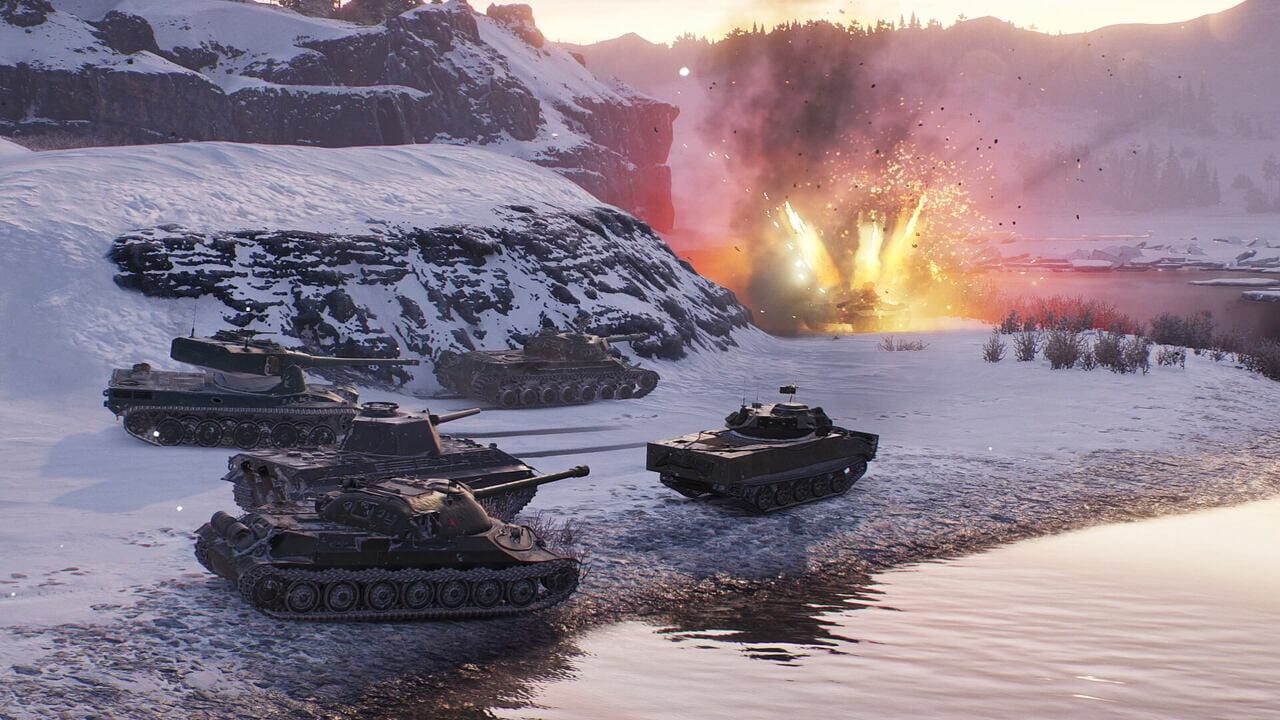
Commanders, if your tank renders like a pixelated mess mid-brawl or your framerate drops right when the fight heats up, this World of Tanks graphics settings guide will fix that. World of Tanks is a free-to-play tank combat title on PC via the standalone client and Steam. It runs on everything from budget rigs to high-end machines, but squeezing out smooth gameplay means tuning your visuals, not just cranking them to Ultra and hoping for the best. This guide walks you through the exact settings to adjust so you stop blaming your GPU and start winning duels. Let’s roll.
Core Mechanics: Performance Settings Table
| Setting | What It Does | Low Spec Impact | High Spec Impact | Recommended |
|---|---|---|---|---|
| Graphics Quality | Master control for texture detail, model complexity, and effects | Drops visual fidelity significantly but boosts FPS | Looks sharp with high frame rates | Start at Medium, adjust up |
| Texture Resolution | Controls the detail level of applied textures on tanks, terrain, and objects | Textures appear blurry and muddy | Crisp surface detail on all vehicles | 1080p screens: High; 4K: Ultra |
| Shadow Quality | Renders dynamic shadow maps for tanks, buildings, and terrain | Shadows are sparse or disabled entirely | Full shadow maps cast realistic lighting | Medium on most rigs; High if GPU is strong |
| Anti-Aliasing | Smooths jagged edges on models and terrain | Sharp, blocky edges everywhere | Clean, smooth outlines on everything | TAA or SMAA for best balance |
| Particle Effects | Controls visibility and quality of explosions, smoke, and tracer rounds | Explosions look flat and simple | Detailed fireballs and smoke clouds | Medium — full is fine if FPS allows |
| Depth of Field | Blurs background/foreground elements to simulate camera focus | No blur effect at all; everything stays sharp | Cinematic blur on distant or close objects | Turn off — it can obscure spotting |
| God Rays / Light Shafts | Adds volumetric light rays through gaps in terrain and structures | Clean, no light scattering | Dramatic atmospheric lighting | Turn off if FPS is low |
| Post-Processing | Color grading, bloom, and tonal adjustments on the final image | Flat, less saturated look | Rich color and subtle bloom highlights | Medium to High |
| Terrain Detail | Controls how far and how detailed the ground renders | Terrain looks flat past a short distance | Detailed grass, rocks, and dirt up to the horizon | High if your GPU has VRAM to spare |
| Fullscreen vs. Borderless | Determines how the game window is displayed | Borderless can reduce input lag slightly | Fullscreen gives the best performance baseline | Fullscreen for max FPS |
| FPS Cap | Locks the maximum frames per second the game renders | Limits FPS to a set number | Can cap at 60, 120, or unlimited | Match your monitor’s refresh rate |
| Windows Game Mode | OS-level setting that prioritizes the game process | Prevents background apps from stealing resources | Lets the game take priority over system tasks | Enable for smoother gameplay |
Step-by-Step: Optimizing Your World of Tanks
Step 1 — Know Your Hardware Baseline
Before you touch a single setting, figure out what you’re running. Open Task Manager (Ctrl+Shift+Esc), launch World of Tanks, and sit in a battle for a few minutes. Watch your CPU, GPU, and RAM usage. If your GPU sits at 95–99%, you’re GPU-bound — lower the graphics-heavy settings. If your CPU is maxed out while your GPU idles, your CPU is the bottleneck — focus on render distance and terrain detail instead. Knowing where the pressure is tells you exactly what to cut rather than randomly dumping every setting to Low.
You can find your GPU and CPU model names by opening Task Manager, clicking the Performance tab, and reading the labels in the top right corner of each graph. Write these down so you know exactly what kind of machine you’re working with when you return to the graphics settings menu. This baseline check takes two minutes and saves you from wasting time on settings that won’t help your specific hardware.
Step 2 — Set the Right Display Mode
Head to Settings > Graphics and pick your display mode. Choose Fullscreen if FPS is your priority. Fullscreen gives the game exclusive control of your monitor and typically delivers 5–15% more framerate than Borderless Windowed. Borderless is handy if you Alt-Tab constantly, but it costs performance. On a multi-monitor setup, fullscreen is even more critical since extra displays steal GPU cycles and divide your visual attention away from the game.
If you play on a laptop with dual graphics (integrated plus dedicated GPU), make sure World of Tanks is assigned to the discrete GPU. You can set this in your NVIDIA Control Panel or Windows Graphics Settings. Running on integrated graphics will severely limit your FPS regardless of in-game settings. A dedicated GPU assignment alone can add 10–20 FPS on entry-level laptops.
Step 3 — Adjust the Master Graphics Quality Slider
Start by setting the master Graphics Quality slider to Medium. This one setting adjusts a bundle of options at once and gets you a workable baseline fast. Play a couple of battles and watch your FPS counter. Stable? Bump it to High. Stuttering? Drop it to Low and move to Step 4 for finer control.
The master slider is a quick way to get close to your target framerate, but it doesn’t give you granular control. After finding a good baseline, go through the individual settings in Step 4 to squeeze out every remaining frame without sacrificing too much visibility. Many players find that Medium is the sweet spot for ranked matches where spotting matters more than pretty visuals.
Step 4 — Tweak Individual Settings for Maximum FPS
Once you’ve found your baseline, fine-tune each option in this priority order. These settings hit FPS hardest while keeping the game playable:
- Shadows — Set to Medium or turn off. Shadows are one of the biggest drains and won’t cost you tactical information.
- Particle Effects — Set to Medium. You still need to see enemy hits and explosions clearly for spotting.
- Depth of Field — Turn off completely. Purely cosmetic and it can hide spotted enemies in the blur effect.
- God Rays — Turn off. Zero gameplay value, pure atmosphere that eats GPU cycles.
- Terrain Detail — Drop to Medium if you’re still losing frames. This controls ground detail distance.
- Anti-Aliasing — Pick TAA. Most efficient method with clean edges and minimal FPS cost.
- Texture Resolution — Push this as high as your VRAM allows. Blurry tanks are annoying and this setting barely dents framerate.
- Post-Processing — Set to Medium or High. Nice color depth without a major performance hit.
If you are still struggling after this, try lowering Shadow Quality to Low and disabling terrain detail entirely. Those two settings tend to be the heaviest remaining culprits on older hardware. Test each change individually so you know exactly which setting moved the needle.
Step 5 — Configure the FPS Cap
Cap your framerate to match your monitor’s refresh rate. 60Hz monitor? Cap at 60. 144Hz? Cap at 144. This stops your GPU from wasting power on invisible frames, which actually improves stability and keeps thermals down. Unlimited FPS sounds great but often causes screen tearing and jagged frametimes that feel worse than a locked framerate.
If your monitor is older or you’re playing competitive ranked battles, consider capping slightly below your refresh rate. For example, cap at 55 FPS on a 60Hz monitor. This leaves headroom for unexpected frame dips so you never actually hit the ceiling and cause stuttering. A small buffer like this makes a noticeable difference in long matches.
Step 6 — Optimize Windows for Gaming
Your OS matters. Enable Windows Game Mode in Windows Settings so World of Tanks gets priority over background processes. Kill unnecessary overlays — Discord overlay, Xbox Game Bar, and NVIDIA GeForce Experience overlay all steal CPU cycles. Close browser tabs, streaming software, and anything you aren’t using. Every background process is a cycle your CPU doesn’t have for the game.
Also disable hardware-accelerated GPU scheduling in Windows Graphics Settings if you notice stuttering. Some players report smoother gameplay with it turned off for World of Tanks specifically, though results vary by system configuration. Keep your Windows update history clean — a recent feature update can sometimes introduce performance regressions that a settings tweak cannot fix.
Step 7 — Keep Drivers Updated
World of Tanks benefits from current graphics drivers. Both NVIDIA and AMD release performance patches regularly, and outdated drivers are one of the most common causes of unexpected FPS drops. Check your GPU manufacturer’s website at least once a month and install any available driver updates. A fresh driver install can also resolve visual glitches that look like performance problems but are actually rendering bugs.
If you recently installed a new driver and your FPS dropped instead of improving, try rolling back to the previous version. Driver issues are unpredictable, and the latest version is not always the best one for every game. Use the NVIDIA Driver Recovery or AMD cleanup utility if you need to cleanly remove an old driver before installing a new one.
Step 8 — Verify Installation Integrity
If your FPS is still worse than expected after all the steps above, the game files may be corrupted. Launch the World of Tanks launcher, go to Settings, and run a file verification. This scans your installation and replaces any damaged or missing files. It takes about 10–15 minutes depending on your drive speed but can restore performance that was lost to silent file corruption.
Also check your hard drive health if you run World of Tanks from an HDD rather than an SSD. Loading times, stuttering during map transitions, and texture pop-in are common on mechanical drives. An SSD upgrade is one of the highest-impact hardware changes you can make for this game.
FAQ
Why is my World of Tanks FPS lower on a high-end PC?
High-end PCs can still struggle if the game is CPU-bound. Background processes, outdated drivers, thermal throttling, or running the game on integrated graphics instead of your dedicated GPU can all explain low FPS on powerful machines. Follow the hardware baseline check in Step 1 to identify your bottleneck.
Does turning off shadows hurt my competitive performance?
No. Shadows do not reveal enemy positions or provide tactical information in World of Tanks. Turning them off or lowering them to Medium improves FPS with zero gameplay penalty. Many top-tier commanders play with shadows disabled or at Low.
How much FPS can I gain by switching to Fullscreen mode?
Expect a 5–15% improvement by switching from Borderless Windowed to exclusive Fullscreen. Borderless mode forces Windows to compose the desktop on top of the game, which adds overhead. Fullscreen gives the game direct access to your display output.
Should I cap my FPS at 60 or leave it unlimited?
Capping your FPS at your monitor’s refresh rate improves stability and reduces heat. Unlimited FPS can cause screen tearing and inconsistent frametimes that feel worse than a smooth locked framerate. Cap at 60 for a 60Hz monitor, 120 for 120Hz, or slightly below your refresh rate for a safety buffer.
My FPS drops only during big battles with many explosions. What should I lower?
Particle Effects is the main culprit during heavy firefights. Lower it to Medium or Low. Shadow Quality and Post-Processing also spike in cost when multiple dynamic lights and explosions are on screen simultaneously. Reducing those two settings will smooth out those moments significantly.
Can World of Tanks be played on a Chromebook or Linux?
World of Tanks runs on Windows, Xbox, and PlayStation; it does not have a native Linux or Chromebook build. You can play it on any of those platforms, with performance depending entirely on the hardware.
Is there a difference in performance between the official launcher and Steam version?
No meaningful performance difference exists between the official Wargaming launcher and the Steam version. Both deliver the same build of the game. Choose whichever launcher you prefer based on convenience, overlay features, or achievement tracking.
How often should I re-check my graphics settings?
Re-check your settings whenever you install a major driver update or a new game patch. Updates from Wargaming or your GPU vendor can shift performance characteristics. Run the baseline check from Step 1 after any significant update to catch regressions early.
Will increasing my resolution help or hurt FPS?
Increasing your resolution will hurt FPS significantly. A 4K resolution requires roughly four times the rendering work of 1080p. If you want higher resolution, pair it with higher graphics presets only if your GPU has enough VRAM and headroom. Otherwise, stick to 1080p or 1440p for the best balance of clarity and framerate.
Keep exploring
- World of Tanks on MMOKB — the World of Tanks game hub has the full knowledge base, tools and guides.
- Read the World of Tanks knowledge base — Light Tank, Medium Tank, Heavy Tank, Tank Destroyer, Spg.
- More World of Tanks guides — World of Tanks Achievement Guide 2026: 16 Verified Tips, World of Tanks Tactics 2026 — Armor Positioning & Crew Builds, World Of Tanks Beginner Guide 2026: Master the Battlefield, World of Tanks Best Builds: Farm Silver Fast with These Tips (2026), World Of Tanks Best Classes Tier List 2026, World of Tanks 2026 Guide: Everything You Need.
- Browse the full library — all MMOKB guides
Reviewed & verified
| Covers | world-of-tanks |
| Last verified | November 4, 2026 |
| Accuracy | The game’s own numbers and rules — they change with patches; check in-game for live values. |
Discussion
0 commentsNo comments yet. Be the first!