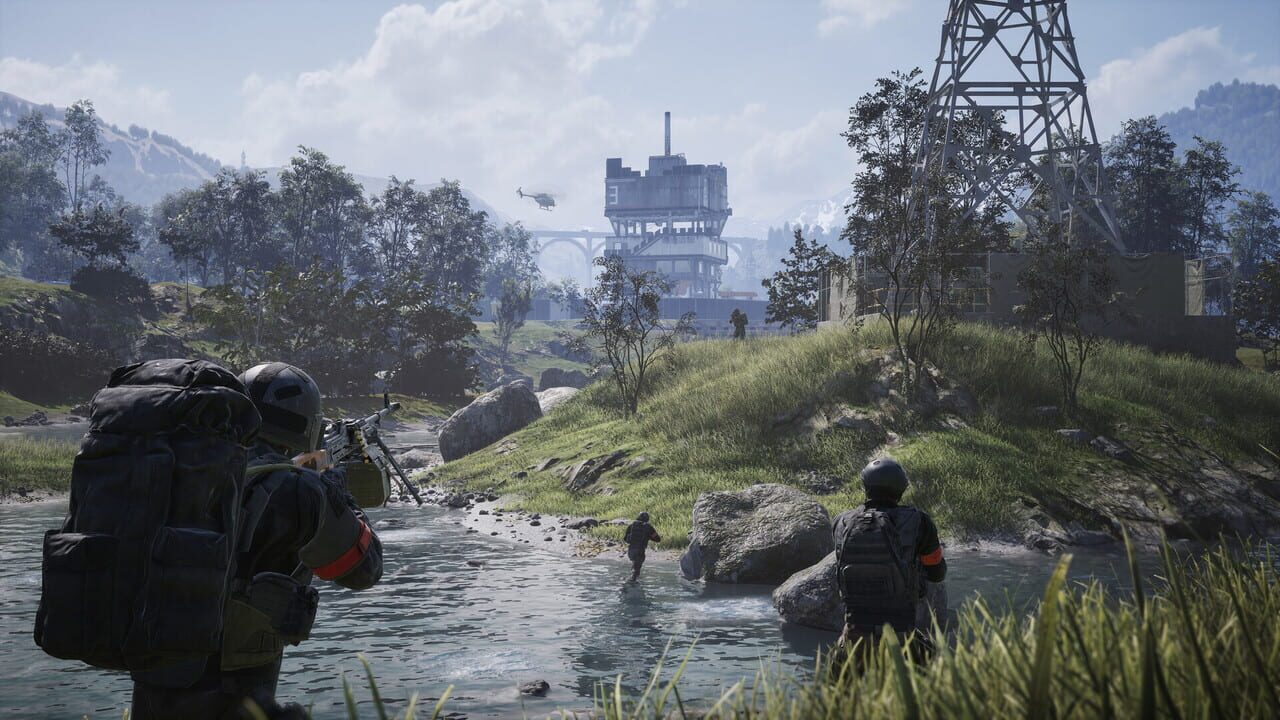
Wardogs Graphics & Performance Guide
Welcome, squad. If you’ve been running wardogs and wondering why your framerate’s dropping during firefights or why your IR goggles look like a blurry mess, you’re in the right spot. This Wardogs Graphics And Performance Guide is built to help you squeeze every frame out of your rig while keeping you battle-ready. Whether you’re on a beefy gaming PC or a mid-range laptop, we’ll walk through the settings that actually move the needle. Note: the game has received recent Security & Stability Hotfixes and an IR Goggles & CWIS Balance Hotfix, so some visual and performance behaviors may shift after patches go live. Always check server restart windows before tweaking — we don’t want you mid-adjustment when a maintenance push drops. Let’s get you locked in.
Core Mechanics Table
| System | What It Does | Performance Impact |
|---|---|---|
| IR Goggles / Night Vision | Thermal-optic overlay that highlights enemy heat signatures through smoke, fog, and darkness. Buffs target acquisition at range. | Medium-high. The IR shader pass runs on top of the main render pipeline; higher resolutions and anti-aliasing amplify GPU load. |
| CWIS (Close-In Weapon System) | Automated defensive turret AI that tracks and engages incoming threats. Balances between threat detection and visual clarity. | Moderate. Draws additional entity-tracker overlays and particle tracers during activation. |
| IR Rangefinders | Laser-based distance estimation tool integrated into IR optics. Helps calibrate lead and artillery calls. | Low-moderate. Adds a secondary targeting reticle pass; minimal impact unless combined with high-res textures. |
| Thermal Fog / Smoke Volumes | Atmospheric effects that scatter light for IR visibility. Key to tactical play at night. | High. Volumetric shaders are expensive; this is usually the #1 setting to drop on weaker GPUs. |
| Particle Effects (Tracers, Explosions, Muzzle Flash) | Visual feedback for combat events. Critical for readability in chaotic engagements. | High. Burst rendering during heavy firefights can spike GPU usage on older cards. |
| Draw Distance / View Distance | How far into the horizon the game loads geometry and textures. | Very high. The single biggest CPU+GPU hit in open-area maps. |
| Anti-Aliasing | Smooths jagged edges on weapon models, terrain, and gear. | Moderate. MSAA is heavier than FXAA or TAA; choices vary by GPU architecture. |
| Texture Quality | Resolution of surface maps on weapons, vehicles, and environment. | Moderate to high. Directly tied to VRAM usage; cranking this on a card with less than 6 GB can cause stuttering. |
| Shadow Quality | Real-time shadow casting from units, structures, and terrain. | High. Shadows scale with draw distance and can tank frametimes in dense urban maps. |
| Post-Processing / Bloom / Depth of Field | Cinematic polish layer. Adds glow, blur, and color grading. | Low-moderate. Nice to have, but disabling DoF and bloom gives a free frametime chunk. |
Step-by-Step: Optimizing Your Wardogs Experience
Step 1 — Check Your Current Build and Patch Status
Before you touch a single slider, confirm you’re running the latest hotfix. Recent updates include:
- IR Goggles & CWIS Balance Hotfix — adjusted thermal overlay performance and CWIS tracking visuals.
- Security & Stability Hotfix — addressed stability issues across regions, often accompanied by minor render-loop improvements.
To verify: open the in-game launcher or check the official forums. If a restart window is announced (like the Friday 08:00 UTC maintenance), wait for it before changing settings — your config may get overridden otherwise.
Step 2 — Identify Your GPU and VRAM Budget
Open Task Manager (Windows) or use a tool like GPU-Z to note your card and available VRAM. Then map yourself to one of these tiers:
- Low Tier (4 GB VRAM or less): RTX 3050-class, GTX 1650, integrated graphics
- Medium Tier (6–8 GB VRAM): RTX 3060, RX 6600, RX 7600
- High Tier (8+ GB VRAM): RTX 3070/4070, RX 7800 XT and above
Your tier determines where you push and where you pull back. Don’t try to run high-tier settings on a low-tier card — the result is stutter, not beauty.
Step 3 — Set Your Resolution and Scaling
Go to Settings → Video → Resolution. Pick your native monitor resolution. If you’re on a 4K display with a medium-tier card, enable Dynamic Resolution Scaling (if available) and set the target to 75–85%. This lets the game drop resolution under load and recover it when things calm down — a much smoother experience than a hard frame cap.
Step 4 — Tweak the Big Three First
These three settings have the most impact on frametimes. Adjust them in this order:
- Draw Distance → Set to Medium or High depending on your CPU. If you’re seeing input lag or stutters in open areas, drop it to Medium. The IR goggles and rangefinders will still function at any draw distance setting.
- Texture Quality → Match your VRAM. 4 GB = Low, 6–8 GB = Medium, 8+ GB = High. Don’t go Ultra unless you have 10+ GB of VRAM and don’t mind the extra memory pressure.
- Shadow Quality → Set to Medium. Shadows are visually important but expensive. Medium gives you directional clarity without the frametime tax.
Step 5 — Adjust IR-Specific Settings
The IR Goggles and Rangefinder systems have their own toggles. Here’s how to approach them:
- IR Goggle Intensity → Set to your comfort level. Lower values reduce shader load slightly. If you’re experiencing GPU spikes during night missions, dial this down to 70%.
- IR Rangefinder Reticle Detail → Set to Simple if you’re on a lower-end rig. The functional info is identical; you’re just removing decorative polygon count from the reticle overlay.
- Thermal Fog Density → This is separate from global volumetrics in some builds. If there’s a dedicated thermal fog slider, lower it to reduce GPU strain during smoky engagements. CWIS tracking visuals are unaffected by this setting.
Step 6 — Anti-Aliasing and Post-Processing
- Anti-Aliasing → Choose TAA if your GPU supports it. It’s the best balance of quality and performance. If you’re on an older card, switch to FXAA or Off. MSAA is almost never worth the hit.
- Bloom → Turn Off or set to Low. The performance savings are small but real, and turning it off makes the battlefield look sharper.
- Depth of Field → Turn Off. DoF adds zero tactical value and costs frametime. Enemy silhouettes and IR highlights remain fully visible regardless.
Step 7 — Cap Your Framerate
Uncapped framerates cause GPU thermal throttling, which leads to inconsistent frametimes and stutter. Set a Frame Cap just below your monitor’s refresh rate:
- 144 Hz monitor → cap at 140
- 60 Hz monitor → cap at 60
- Variable refresh rate (G-Sync/FreeSync) → cap at the max refresh rate your GPU can sustain consistently
This keeps your GPU temperature stable and your frametimes predictable.
Step 8 — In-Game Settings Summary Quick Reference
| Setting | Low Tier | Medium Tier | High Tier |
|---|---|---|---|
| Resolution | Native or 90% DS | Native | Native |
| Draw Distance | Low | Medium | High |
| Texture Quality | Low | Medium | High |
| Shadow Quality | Low | Medium | Medium |
| Anti-Aliasing | FXAA / Off | TAA | TAA |
| Bloom | Off | Low | Medium |
| Depth of Field | Off | Off | Off |
| IR Goggle Intensity | 60–70% | 80% | 100% |
| Rangefinder Reticle | Simple | Standard | Detailed |
| Frame Cap | 60 / 75 / 140 | Match monitor | Match monitor |
Step 9 — Test and Iterate
Jump into a practice match or custom lobby. Run for 15 minutes and watch your frametimes — not just your average FPS. Look for:
- Dips when CWIS activates
- Stutters when entering IR-enabled zones at night
- GPU usage spikes during heavy particle events
If you see dips, drop one setting at a time and retest until frametimes stabilize. Small adjustments compound — don’t overhaul everything at once. Track your changes in a simple notes app so you can reverse course if needed.
FAQ
Does Wardogs support PvP or PvP arena modes?
Wardogs does not feature a dedicated PvP arena mode or player-vs-player combat system. The guide focuses on single-player and co-op optimization settings.
Can I craft weapons or trade items in Wardogs?
No. Wardogs does not include a crafting or trading system. There are no player-to-player economies or currency floors to manage.
Is there co-op support in Wardogs?
Yes, Wardogs supports co-op gameplay. The graphics settings in this guide apply to both solo and co-op sessions.
Are there special IR goggles in Wardogs?
Yes. IR Goggles are a core mechanic in Wardogs, providing thermal-optic vision that highlights enemy heat signatures through environmental cover like smoke and darkness.
Game Section
Wardogs is a tactical squad-based shooter where players coordinate with AI companions and fellow operators across military-inspired combat zones. The game emphasizes team-based strategy, advanced optics like IR Goggles and Rangefinders, and automated defensive systems such as the CWIS turret. Players navigate diverse maps ranging from dense urban environments to open-field engagements, using environmental factors like thermal fog and smoke to gain tactical advantages. Regular hotfixes keep the experience stable and balanced, with recent updates targeting IR performance and CWIS visuals. Whether you’re pushing for competitive framerates or just want a smooth run on a mid-tier rig, tuning your graphics settings is the fastest way to improve your in-game experience. The community has shared numerous optimization tips over the years, and this guide compiles the most impactful adjustments so you can stop chasing frames and start dominating the battlefield. Game length varies depending on mission objectives and squad composition, but expect tactical, methodical engagements rather than twitch-heavy action. Stay updated on patch notes, because the developers continue refining both visuals and performance across all hardware tiers. Keep your drivers current, monitor your temps, and adjust settings per tier — that’s the path to a consistent, lag-free Wardogs experience.
{
Keep exploring
- WARDOGS on MMOKB — the WARDOGS game hub has the full knowledge base, tools and guides.
- Read the WARDOGS knowledge base — Teamwork, Black Market, Loadouts.
- More WARDOGS guides — Wardogs 2026: Advanced Strategies & Meta Guide, Wardogs Beginner Guide 2026, Wardogs Beginner Guide 2026: Cash & Loadouts, Wardogs Best Builds 2026: Farming & Tactics, Wardogs Best Builds (2026 Guide), Wardogs Best Classes Tier List 2026: S to C.
- Browse the full library — all MMOKB guides
Reviewed & verified
| Covers | wardogs |
| Last verified | October 9, 2026 |
| Accuracy | The game’s own numbers and rules — they change with patches; check in-game for live values. |
Discussion
0 commentsNo comments yet. Be the first!