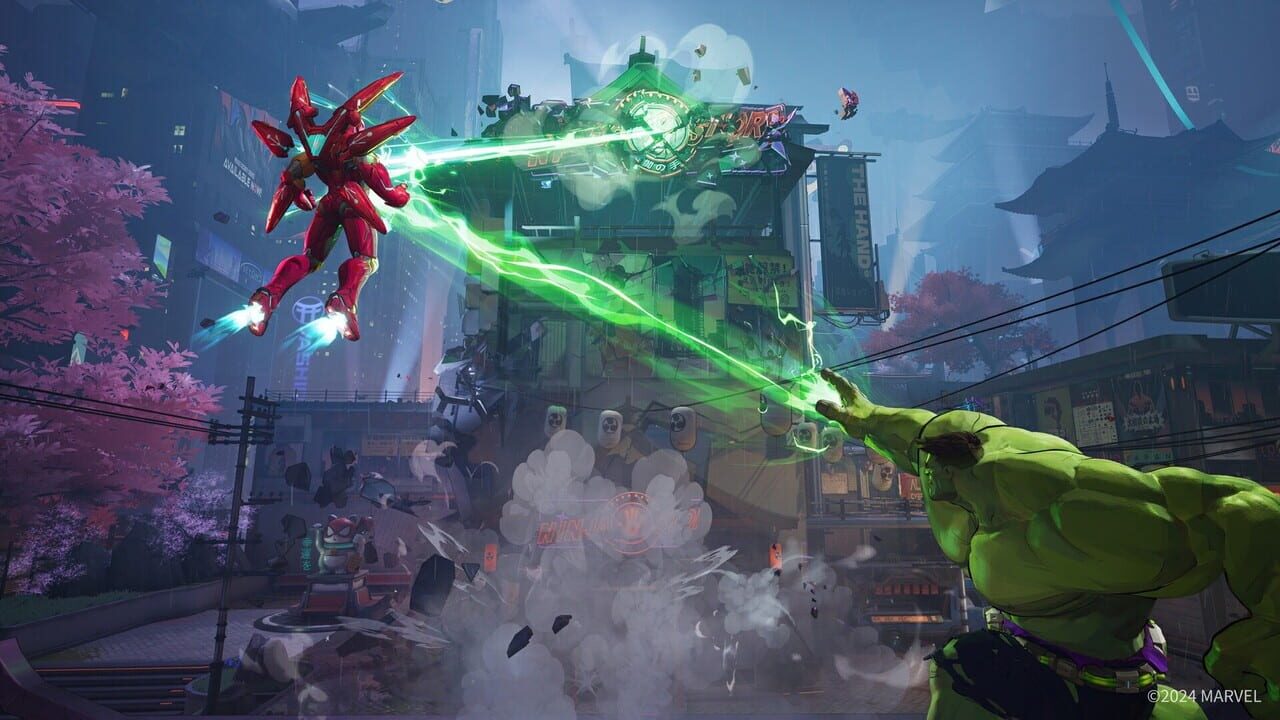
Marvel Rivals Graphics Settings: 10 Tweaks for Max FPS (2026)
Intro
Hey Rivals! If you’ve been dying to tear through the multiverse in Marvel Rivals but your frames are stuttering or your screen looks like a blurry mess, you’re in the right place. This Marvel Rivals Graphics And Performance Guide is here to help you squeeze every last frame out of your rig while keeping the game looking gorgeous. Whether you’re on a beefy gaming PC or a modest setup, tweaking your graphics settings can make or break your ability to land those clutch headshots and combo ultimates. Let’s get you locked and loaded.
Core Mechanics Table
| Setting | What It Does | Performance Impact | Visual Quality Impact |
|---|---|---|---|
| Resolution | Controls the number of pixels rendered on-screen | High → Low | Massive improvement to sharpness |
| Rendering Scale | Scales the internal render resolution independently of display resolution | High impact on FPS | Subtle or drastic clarity changes |
| Graphics Preset | Bundles settings into Easy / Low / Medium / High / Ultra | Quick toggle across multiple options | Balances visual fidelity vs. performance |
| VSync | Syncs frame output to monitor refresh rate | Reduces input lag when off; can cap FPS | Eliminates screen tearing |
| Anti-Aliasing | Smooths jagged edges on 3D models and environments | Medium performance cost | Improves visual cleanliness |
| Texture Quality | Determines detail level of surface textures | Low impact on most GPUs | Affects how detailed walls, heroes, and maps look up close |
| Shadow Quality | Controls shadow resolution, softness, and distance | High impact on FPS | Shadows look sharper and more realistic at higher settings |
| Effect Quality | Governs particle effects, skill visuals, and ability feedback | Very high impact in team fights | Skill effects look more detailed and vibrant |
| Post-Processing | Includes bloom, motion blur, depth of field, color grading | Medium impact | Affects overall “look” and atmospheric feel |
| Draw Distance | How far into the world geometry and objects are rendered | Medium-High impact | Impacts visibility of distant enemies and map details |
| Frame Rate Cap | Limits maximum FPS output | Prevents GPU overwork, smooths frame pacing | No direct visual change |
| DLSS / FSR | AI/upscaling technologies to boost FPS | Major FPS boost at high quality | Minor quality tradeoff depending on mode |
Recommended Performance Profiles
| Profile | Target | Best For | Key Settings |
|---|---|---|---|
| Competitive | 144+ FPS | Ranked play, high-refresh monitors | Low effects, medium shadows, DLSS Quality |
| Balanced | 60–120 FPS | Most mid-range PCs | Medium preset, TAA, FSR/DLSS on |
| Visual | 30–60 FPS | Cinematic casual play | High/Ultra preset, native resolution |
Step-by-Step
Step 1 — Know Your Hardware Before You Tinker
Jump into Marvel Rivals and head to Settings > Graphics. The game will auto-detect your GPU and suggest a baseline. Take a second to note what your system specs actually are. If you’re running a GTX 1660, you’re not going to max everything out like someone with an RTX 4090. Knowing your card saves you from guessing and lets you target the right settings from the start.
Step 2 — Start With the Graphics Preset
Pick a preset that roughly matches your hardware:
- Ultra for high-end rigs (RTX 3080/4080 or newer)
- High for mid-high setups (RTX 3060 Ti / RX 6700 XT class)
- Medium for solid 1080p/1440p gaming (RTX 2060 / RX 5700 class)
- Low/Easy for entry-level or integrated graphics
This gives you a working foundation so you’re not starting from zero. From here, you’ll fine-tune individual settings.
Step 3 — Tweak the FPS Killers First
Some settings in Marvel Rivals hit your framerate harder than others. Hit these first:
- Effect Quality — Turn this down before anything else. Team fights with multiple ultimates and abilities light up the screen, and this setting is the biggest drain. Lowering it from Ultra to Medium can free up massive FPS in chaotic moments.
- Shadow Quality — Drop this to Medium or Low. Shadows look nicer at high, but they cost a lot and rarely help you spot enemy players.
- Draw Distance — Set to Medium. Higher doesn’t meaningfully improve competitive visibility, and lower saves GPU cycles.
- Post-Processing — Turn off Motion Blur and Depth of Field if you can. They add cinematic flair but hurt clarity and performance. Leave Bloom if you like the look.
Step 4 — Dial In Anti-Aliasing and Textures
- Anti-Aliasing: Use TAA or FXAA. MSAA looks great but is extremely expensive. TAA gives you a clean image at a fraction of the cost.
- Texture Quality: This is safe to keep on High or Ultra if your GPU has enough VRAM (6GB+). Textures are mostly a VRAM consumer, not a framerate consumer. If you’re under 6GB VRAM, drop to Medium.
Step 5 — Enable Upscaling (DLSS / FSR)
If you’re on an NVIDIA card, enable DLSS and pick the Quality or Balanced mode. If you’re on AMD or Intel, use FSR. These technologies render the game at a lower internal resolution and upscale it, giving you a huge FPS gain with minimal visual loss — especially at 1440p and 4K. Set it to Quality first and see if you’re happy with the result.
Step 6 — Set Your Frame Rate Cap
If your monitor is 60Hz, cap at 60. If it’s 144Hz, cap at 144 (or slightly below to leave headroom). Capping prevents your GPU from maxing out unnecessarily, which keeps temperatures lower and can actually make frametimes more consistent. Go into Settings and set the FPS limit accordingly.
Step 7 — Toggle VSync Based on Your Setup
- Low-latency GPUs (RTX 30/40 series, RX 6000/7000): Turn VSync off and rely on your GPU driver’s low-latency mode (NVIDIA Reflex / AMD Anti-Lag).
- Older GPUs or shared integrations: Turn VSync on if you notice screen tearing. The input lag penalty is worth it for a stable image.
Step 8 — Benchmark and Iterate
Play a custom match or jump into a practice room. Run for 10–15 minutes and watch your FPS counter. Note where it drops — is it during ability-heavy fights? Is it when you’re looking at shadow-heavy areas? Adjust one setting at a time and retest. Don’t change five things at once and wonder what worked.
Tips
-
Keep the NVIDIA Game Ready Driver (or AMD Adrenalin) updated. Performance patches frequently include fixes for specific titles, and Marvel Rivals gets updates that can benefit from latest drivers.
-
Close background apps. Browsers, Discord overlay, and RGB software can eat CPU and GPU resources. Shut them down before launching.
-
Use Windows Game Mode. It’s a free FPS boost that prioritizes Marvel Rivals for CPU/GPU allocation. Right-click the game in your library and toggle it on.
-
Don’t ignore thermal throttling. If your GPU or CPU hits 90°C+, it’ll downclock and your FPS will crater. Clean your fans, improve case airflow, or lower your clock speeds slightly with a custom curve.
-
Resolution scaling is your secret weapon. If you’re on a 4K monitor and struggling, dropping Rendering Scale to 80–90% can give you 20–40 extra FPS with barely noticeable quality loss. Pair this with DLSS/FSR for best results.
-
Lower particle effects for competitive play. When five ultimates are flying at once, high effect quality turns your screen into a fireworks show that hides enemy heroes. Prioritize visibility over beauty.
-
Check your display connection. Make sure you’re plugged into your GPU, not your motherboard. A common rookie mistake that halves your possible framerate.
-
Use the in-game benchmark if available. Some builds of Marvel Rivals include a benchmark tool. Run it, note your average and 1% lows, and compare across setting changes.
-
Your monitor’s refresh rate matters. A 144Hz panel will benefit far more from high FPS than a 60Hz panel. Match your settings to what your monitor can actually display.
-
Save multiple profiles. Create one profile for ranked (prioritize FPS and visibility) and one for casual (prioritize visuals). Switch between them instantly without rebuilding your config.
FAQ
Q1: What’s the best graphics preset for a mid-range PC? Go with Medium as your starting point, then bump Effect Quality down to Low and Shadows to Medium. This typically delivers a stable 60–100 FPS on cards like the RTX 3060 or RX 6600.
Q2: Does DLSS hurt visibility in Marvel Rivals? No — set DLSS to Quality mode and you’ll barely notice any difference. Avoid “Performance” or “Ultra Performance” modes in competitive play, as they can blur hero outlines at distance.
Q3: Why is my FPS dropping only during team fights? That’s almost always Effect Quality. Abilities and ultimates generate massive particle loads that crush framerate. Drop Effect to Low or Medium and you’ll see an immediate and dramatic improvement during fights.
Q4: Should I turn VSync on or off in Marvel Rivals? Turn it off if you have a modern GPU (RTX 30/40 or RX 6000/7000 series) and use your driver’s low-latency feature instead. Turn it on only if you have an older card or notice distracting screen tearing.
Keep exploring
- Marvel Rivals on MMOKB — the Marvel Rivals game hub has the full knowledge base, tools and guides.
- Read the Marvel Rivals knowledge base — Vanguard, Duelist, Strategist, Roster.
- More Marvel Rivals guides — Marvel Rivals Achievements: 2026 Step-by-Step Completion Guide, Marvel Rivals Advanced Strategies Guide, Marvel Rivals Builds & Farming Guide 2026, Marvel Rivals Best Builds, Marvel Rivals Boss Guide 2026: Proven Strategies, Marvel Rivals Combat Guide 2026: 5 Pro Tips for Dominating.
- Browse the full library — all MMOKB guides
Reviewed & verified
| Covers | marvel-rivals |
| Last verified | November 4, 2026 |
| Accuracy | The game’s own numbers and rules — they change with patches; check in-game for live values. |
Discussion
0 commentsNo comments yet. Be the first!