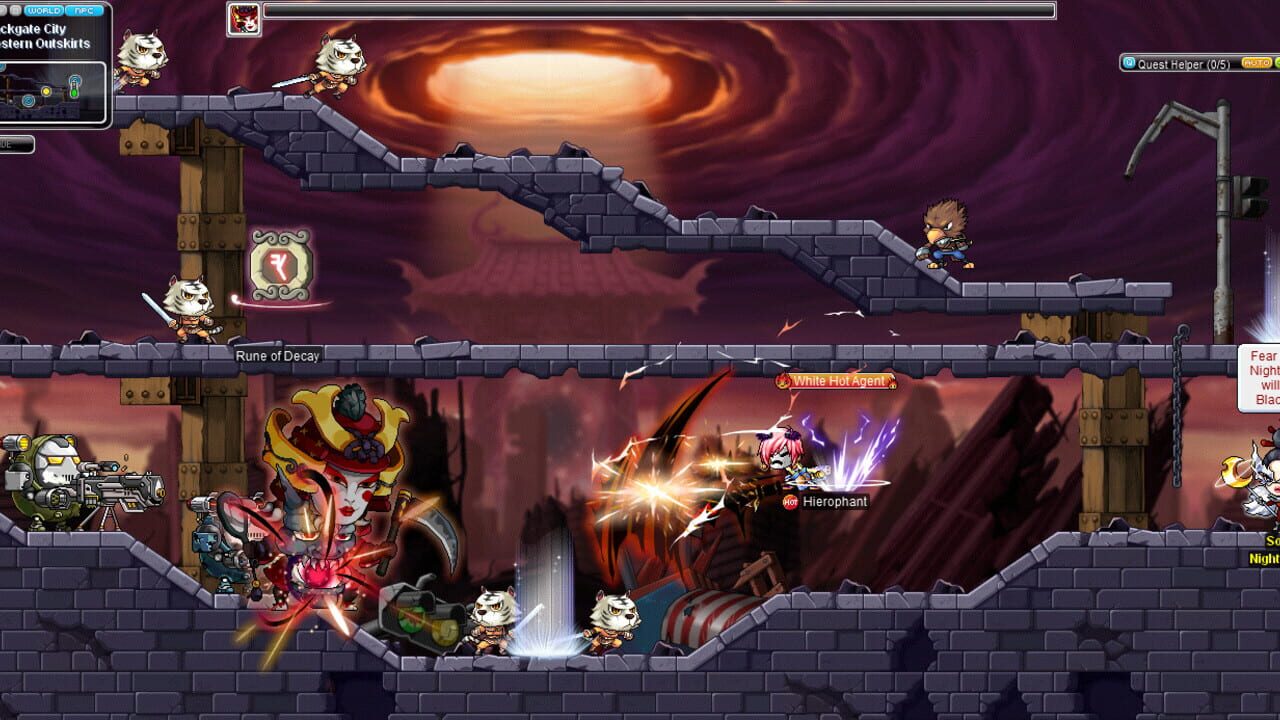
Maplestory Controller Guide
You want to tear through Maplestory on a controller instead of a keyboard? Fair enough — couch grinding hits different, and more players are picking up a pad every day. This Maplestory Controller Guide covers the full setup, skill mapping, movement techniques, boss strategies, and the daily grind so you can level without finger cramps. Whether you’re fresh off maintenance or you’ve been rerolling for months, this guide meets you where you are. Let’s get your thumbs moving.
Maplestory Quick Overview
Maplestory is a side-scrolling MMORPG by Nexon that drops you into a colorful fantasy world where you pick a character class, grind monsters for EXP and mesos, level up, unlock skills, and take on increasingly tough bosses. The game runs on a real-time combat loop — no turn-based waiting, just constant movement, dodging, and button-mashing skills in the right rhythm. You play solo or group up with others for harder content, explore dozens of themed maps from the starting town of Henesys all the way to endgame zones, and chase after rare drops from legendary boss encounters. The core loop is simple: level up, gear up, push harder, repeat.
Step 1 — Set Up Your Controller
The first decision is platform. Maplestory’s official Nexon clients have included controller support on select builds, but the coverage is patchy. Some players run it through PC emulators or third-party web-layer clients that add deeper controller customization. Here’s how to get started:
- Pick your platform — native client, emulator, or third-party launcher.
- Connect your Xbox or PlayStation controller via USB or Bluetooth.
- Launch Maplestory and navigate to the input or settings menu. If you’re on a community client, check its dedicated controller config page for deeper options.
- Run a quick input test in a safe map before jumping into active grinding.
Note: Controller support varies by client version. After any maintenance window — scheduled or unscheduled — log back in and confirm your bindings still respond correctly. Client updates occasionally reset or reshuffle default mappings.
Step 2 — Calibrate Your Sticks
Controller drift ruins sessions fast. Before you commit to a grind, calibrate:
- Enter a low-threat map like the starting area or any town zone.
- Push the left stick fully in every direction until the game registers the full range.
- Test the right stick for camera control if your client supports it.
- Adjust the deadzone in settings if you notice stick drift — even a slight upward tilt should not move your character when you’re not touching the stick.
Calibration is quick and it pays off immediately. You do not want to chase a rogue NPC across the screen because your deadzone was set too loose.
Step 3 — Map Your Skills
This is the most important step. Your skill layout defines your combat flow, and bad mapping will slow you down from minute one.
| Game Action | Default Xbox Button | Default PS Button | Notes |
|---|---|---|---|
| Move | Left Stick | Left Stick | 8-directional with tilt |
| Jump | A / Cross | X / Cross | Single-tap for normal jump |
| Skill 1 | Y / Square | Triangle / Square | Your primary damage skill |
| Skill 2 | B / Circle | O / Circle | Secondary ability |
| Skill 3 | X / X | Square / X | Tertiary ability |
| Skill 4 | RB / R1 | R1 / R1 | Utility or defensive skill |
| Dash / Dodge | LT / L2 | L2 | Hold to dash through enemies |
| Skill Window | Button combo | Button combo | Opens full skill browser |
| Inventory | D-pad or assigned | D-pad or assigned | Depends on client setup |
Tip: Community clients vary on default layouts. Spend 10 minutes testing combos in a safe zone before committing to a build. Your muscle memory will thank you later.
Step 4 — Build Strategy for Controllers
Maplestory offers dozens of character classes, each with unique playstyles. On controller, you’ll want a build that rewards simple inputs and forgiving positioning.
Best beginner-friendly classes for controllers:
- Aran — High mobility, directional attacks feel natural on a stick, and her skill rotation is straightforward. Great for learning boss mechanics while staying mobile.
- Evan — Multi-element skills cover crowd control and burst damage. Your skill bar fits neatly into four buttons, making combos intuitive.
- Dawn Warrior — Solid survivability with sword skills that align well with button mapping. Good tanky playstyle for new players.
- Bishop — Pure support class. Position yourself, spam heals and buffs, and let your party carry. Minimal mechanical stress on a pad.
Avoid classes that demand rapid directional inputs or tight timing windows unless you’re comfortable with controller precision. Stick to builds that reward spacing and rhythm over fast reflexes.
Step 5 — Boss Strategies on Controller
Boss fights in Maplestory require pattern recognition and timely dodges. Here’s how to approach them on a pad:
- Learn the attack patterns. Watch the first two runs without fighting back. Memorize when bosses wind up, which directions they strike, and how long the stun window is after each sequence.
- Use dash defensively. Map your dodge to LT/L2 and hold it to burst through enemy attacks. This is your lifeline in most encounters.
- Keep your camera tight. Bind camera zoom or use the right stick to keep the boss centered. A tight frame makes timing dodges significantly easier.
- Stack survivability. Equip HP potions, link stones, and equips that boost defense. Controller players have less precision than keyboard veterans — trade DPS for survivability early on.
- Group up for hard bosses. Maplestory supports party play for boss encounters. Having a Bishop or Courier in your party dramatically reduces the pressure on your own positioning.
Step 6 — Daily Grind Optimization
The daily routine in Maplestory can eat hours. Controllers make long sessions more comfortable, but you still want to optimize for efficiency.
Recommended daily checklist:
- Complete daily quest givers (NPCs with yellow exclamation marks)
- Run the daily boss dungeon if available
- Finish event quests during active events
- Collect mesos from mob captures and cash quest rewards
- Check the in-game mail for gift items and system mail
Map your daily quest NPC locator to a dedicated button so you can navigate to each town quickly without switching between menus constantly.
Common Issues & Fixes
| Issue | Fix |
|---|---|
| Stick drift causing unwanted movement | Recalibrate deadzone; lower the value in settings |
| Skills not responding on first press | Verify bindings are not conflicting; remap in settings |
| Camera spinning uncontrollably | Disable right-stick camera or reduce sensitivity |
| Character stuck clipping through walls | Increase collision detection in client settings |
| Button lag or input delay | Close background apps; switch to wired USB connection |
| Map not loading after travel | Restart client; clear cache if your client supports it |
Controller Tips You Won’t Find Elsewhere
- Hold, don’t tap. Maplestory skills often benefit from charge timing. Holding Y/Square for a charged shot deals more damage than rapid tapping.
- Use the D-pad for utilities. Remap your portal key, item use, and map toggle to the D-pad for instant access during combat.
- Disable auto-follow for NPCs. It forces unnecessary movement and wastes stick calibration. Walk manually instead.
- Save multiple controller profiles. If you switch between casual grinding and boss rushes, create separate bind profiles and swap between them.
- Practice in the Monster Park. This instanced area lets you test skills against waves of monsters without risk. Use it to lock in your comfort settings.
FAQ
Q: Can I play Maplestory on controller natively? A: Yes. Nexon has added controller support to certain Maplestory clients. Availability depends on your region and client version.
Q: What is the best class for controller players? A: Aran is widely considered the best controller-friendly class due to its mobility and forgiving skill rotation.
Q: Does Maplestory support online multiplayer on controller? A: Yes. Maplestory is an MMO and supports multiplayer regardless of input method.
Q: How do I fix controller drift in Maplestory? A: Recalibrate your sticks in the game’s input settings and lower the deadzone value to reduce unwanted movement.
Table of Contents
| Section | Topic |
|---|---|
| 1 | Set Up Your Controller |
| 2 | Calibrate Your Sticks |
| 3 | Map Your Skills |
| 4 | Build Strategy for Controllers |
| 5 | Boss Strategies on Controller |
| 6 | Daily Grind Optimization |
| 7 | Common Issues & Fixes |
| 8 | Controller Tips |
| FAQ | Frequently Asked Questions |
Keep exploring
- MapleStory on MMOKB — the MapleStory game hub has the full knowledge base, tools and guides.
- Read the MapleStory knowledge base — Warrior, Mage, Thief, Bowman, Pirate.
- More MapleStory guides — MapleStory 6th Job: Bishop HEXA Matrix Optimization Guide, MapleStory Beginner Guide 2026: Your First 100 Levels, MapleStory 2026 Best Builds, Farming Spots & Tips, MapleStory Best Builds 2026: Top Classes & Stats, Maplestory Best Classes Tier List 2026, Maplestory Boss Guide 2026: Raid Mechanics & DPS Builds.
- Browse the full library — all MMOKB guides
Reviewed & verified
| Covers | maplestory |
| Last verified | November 4, 2026 |
| Accuracy | The game’s own numbers and rules — they change with patches; check in-game for live values. |
Discussion
0 commentsNo comments yet. Be the first!