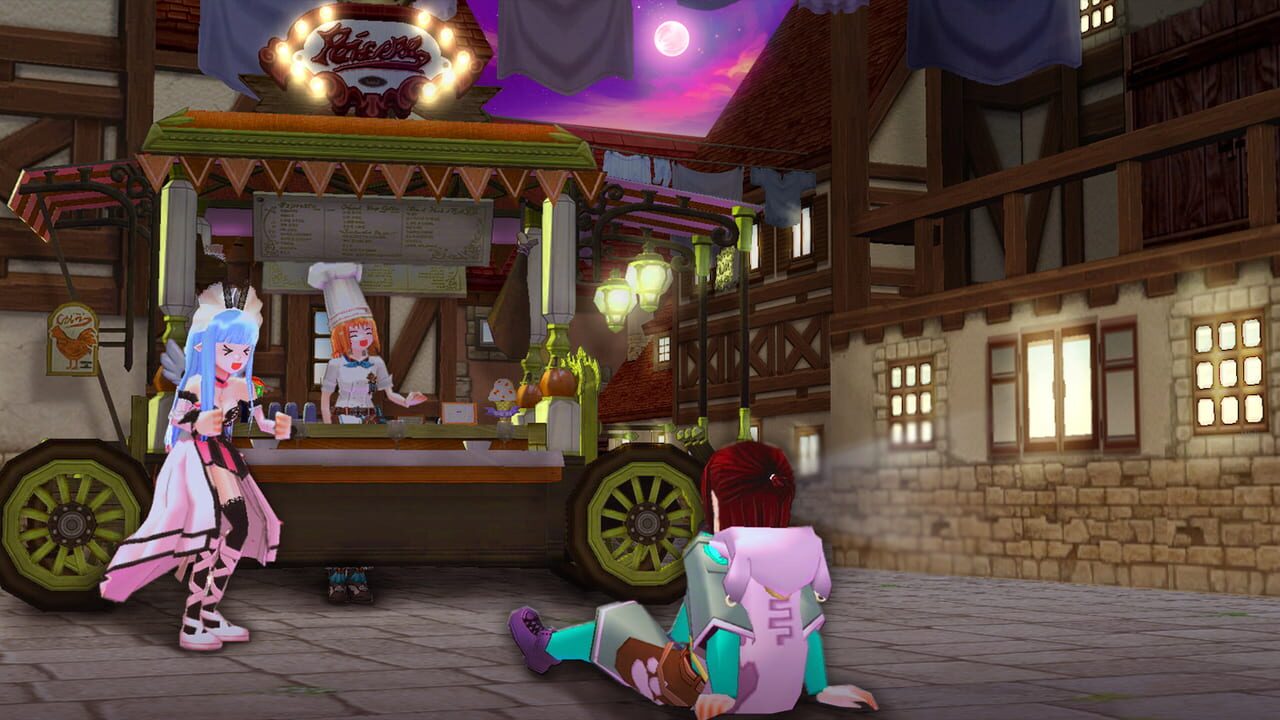
Mabinogi UI Settings Guide
Intro
Welcome to your ultimate Mabinogi UI and Settings Guide! Whether you’re a returning veteran or a brand-new adventurer stepping into the world of Erinn, having your interface dialed in can seriously improve your comfort and efficiency. This guide walks you through everything from window layout to keybinds, chat preferences, and audio balance — all tailored to the current state of the game. Let’s get your screen looking clean and your controls feeling natural!
Core Mechanics
| Setting Category | What It Controls | Priority |
|---|---|---|
| Window Layout | Draggable/resizeable panels like Inventory, Quest, Character, and Map | ⭐⭐⭐⭐⭐ |
| Key Bindings / Hotkeys | Assigning actions to keyboard shortcuts | ⭐⭐⭐⭐⭐ |
| Chat Settings | Chat channels, popup toggles, channel visibility | ⭐⭐⭐⭐ |
| Camera Controls | Zoom, rotation, angle snapping, movement feel | ⭐⭐⭐⭐ |
| Graphics Settings | Resolution, window mode, effects quality | ⭐⭐⭐⭐ |
| Sound Settings | Music/SFX volume, voice volume, mute toggles | ⭐⭐⭐ |
| Minimap & Radar | Minimap size, location marker style, waypoint navigation | ⭐⭐⭐⭐ |
| UI Scale / Font Size | Overall interface scaling for readability | ⭐⭐⭐⭐ |
| Notification Banners | System messages and event banner display | ⭐⭐⭐ |
| Auto-Walk Settings | Auto-movement tolerance and path tolerance | ⭐⭐⭐ |
Step-by-Step
1. Setting Up Your Window Layout
Mabinogi uses a fully draggable, resizeable window system. Here’s how to make it work for you:
- Open any panel — Click on Inventory (default
I), Quest (defaultQ), Character, or the Map to bring it up. - Drag by the title bar — Click and hold the top bar of any window, then drag it anywhere on screen. Rearrange them to your liking.
- Resize windows — Hover over any edge or corner of a window until your cursor changes to a resize arrow, then drag to adjust.
- Collapse panels — Click the
-button on any window to collapse it into a small tab, saving screen space. - Lock / Unlock layout — In the Options menu, look for a “Lock Windows” option. Toggle it ON when you’re happy with your layout so nothing shifts accidentally.
- Reset if needed — If things get messy, open Options → UI, and there should be a “Reset Window Layout” button to return everything to default positions.
Pro tip: Many players keep their Map in the top-left, Quest log top-right, Inventory at the bottom-left, and Character sheet bottom-right. Keep important panels within your primary monitor view to reduce eye strain.
2. Key Bindings & Hotkey Bars
Mabinogi gives you multiple hotkey bars that you can customize freely.
- Open Options → Key Bind (or press the shortcut to open the settings menu).
- Navigate categories — Skills, Movement, Items, Social, and UI tabs let you browse all bindable actions.
- Click a binding to change it — A prompt will ask for your new key. Some keys may be reserved; Mabinogi will warn you if there’s a conflict.
- Multiple hotkey bars — Use
Ctrl + Number (1–9)to switch between hotkey bar sets. This is essential for skill-heavy builds. - Drag to reorder — On some keybind screens, you can click and drag actions to rearrange the bar layout.
- Save and confirm — After making changes, don’t forget to click Apply or Save. Closing without saving is a common rookie mistake!
Recommended keybinds for beginners:
- Move away from WASD only — assign skills to
1–0,Q,E,Ffor quick access. - Bind commonly-used items (healing potions, stat-enhancing food) to easy-to-reach keys.
- Consider binding “Toggle Run” to a comfortable key so you don’t have to hold Shift while moving.
3. Chat Settings
Chat is central to the Mabinogi social experience. Getting it configured right prevents clutter and missed messages.
- Open Options → Chat Settings.
- Channel toggles — You can enable/disable individual chat channels (Global, Guild, Party, Whisper, etc.). Turn off channels you never use to reduce spam.
- Pop-up notifications — Some channels have popup prompts. You can disable popups for channels where you don’t want constant interruptive banners.
- Chat window grouping — Options let you group chat by channel or interleave it. Grouping keeps things organized; interleaving is better for fast-paced conversations.
- Text size and color — Adjust font size for readability. Many players increase it slightly for longer play sessions.
- Name color customization — You can set personal colors for your own name across channels, making it easier to spot your messages.
4. Camera Controls
A comfortable camera makes exploration and combat so much smoother.
- Open Options → Camera / Controls.
- Camera distance — Adjust how far the camera zooms out. A wider view helps with navigation; a closer view is better for detailed tasks.
- Rotation speed — Set how fast the camera rotates when you use the right mouse button or camera keys. Faster rotation is great for tight spaces.
- Angle snapping — Some players prefer snapping to preset angles; others prefer free rotation. Toggle this based on your preference.
- Collision / wall clipping — There may be an option for reducing camera collision with terrain. If available, enabling this prevents the camera from getting stuck behind walls.
- Autocam toggle — For auto-walk or simple exploration, you can sometimes let the camera follow automatically. Test it during low-stakes movements.
5. Graphics Settings
Mabinogi runs on a relatively lightweight engine, so most systems can handle solid graphics.
- Open Options → Graphics / Display.
- Resolution — Set to your monitor’s native resolution for the sharpest image.
- Windowed / Fullscreen — Choose whichever suits your workflow. Windowed mode is great for alt-tabbing; fullscreen offers the best performance.
- Refresh rate — Set to match your monitor (60Hz, 120Hz, etc.) for smooth visuals.
- Effects quality — Lower this if you’re experiencing frame drops. Particle effects (skill visuals, weather) are the biggest hitters.
- Shadow quality — Shadows can be demanding; consider turning them down or off on older hardware.
- UI scaling — If text looks tiny on a high-DPI monitor, increase the UI scale slider. Mabinogi supports scaling adjustments.
6. Sound Settings
Don’t sleep on audio — it adds immersion and helps with gameplay awareness.
- Open Options → Sound / Audio.
- Master Volume — Set your overall output level.
- Music Volume — Mabinogi’s soundtrack is iconic. Keep it moderate so it doesn’t drown out SFX.
- SFX Volume — Combat sounds, footstep audio, and ability cues live here. Crank this up if you rely on audio feedback.
- Voice Volume — Character voice lines and NPC dialogue go here. Adjust to taste.
- BGM vs. SFX separation — Some versions let you tweak the balance. Find the sweet spot for your headphones or speakers.
- Mute options — Quick mute toggles for Music, SFX, and Voice are often accessible from the main sound menu.
7. Minimap & Radar
The minimap is your best friend for navigation and event tracking.
- Open Options → Minimap / Radar.
- Minimap size — Drag to resize. A larger minimap shows more detail; a smaller one takes up less screen.
- Location markers — Enable/disable markers for points of interest, dungeons, NPCs, and events. During active events, special markers may appear to guide you to event zones and objectives.
- Marker icons — Customise which types of POIs show on your minimap. You can prioritise dungeons, quests, or social markers based on your playstyle.
- Radar overlay — Some players prefer an always-on radar overlay; others hide it and only check the minimap on demand. Toggle per your preference.
FAQ
Q: How do I reset my Mabinogi UI to default? A: Open Options → UI and click the “Reset Window Layout” button. This restores all panels to their factory positions and sizes.
Q: How do I change keybinds in Mabinogi? A: Go to Options → Key Bind, select the action you want to change, and press your new key. Use Ctrl+Number to switch between multiple hotkey bars.
Q: Can I lock my window layout in Mabinogi? A: Yes. In Options, look for the “Lock Windows” toggle. Enable it to prevent panels from shifting during gameplay.
Q: How do I adjust the camera in Mabinogi? A: Navigate to Options → Camera / Controls. You can adjust zoom distance, rotation speed, angle snapping, and wall-clipping options to suit your playstyle.
Q: Why does my Mabinogi look blurry on a high-DPI screen? A: Increase the UI scaling slider in Options → Graphics / Display. This enlarges interface elements without affecting the game world resolution.
Keep exploring
- Mabinogi on MMOKB — the Mabinogi game hub has the full knowledge base, tools and guides.
- Read the Mabinogi knowledge base — Talents, Rebirth, Life Skills, Races.
- More Mabinogi guides — Mabinogi Achievement Guide 2026: All Badges & Rewards, Mabinogi Advanced Strategies Guide 2026: Builds & Farming, Mabinogi Fatigue Life Skill Builds 2026 — 2nd Person Guide, Mabinogi (farming/2026) — You Need These Best Builds Now, Mabinogi Best Builds 2026: 5 Proven Combinations, Mabinogi Classes Tier List 2026: Which One Should You Main?.
- Browse the full library — all MMOKB guides
Reviewed & verified
| Covers | mabinogi |
| Last verified | November 4, 2026 |
| Accuracy | The game’s own numbers and rules — they change with patches; check in-game for live values. |
Discussion
0 commentsNo comments yet. Be the first!