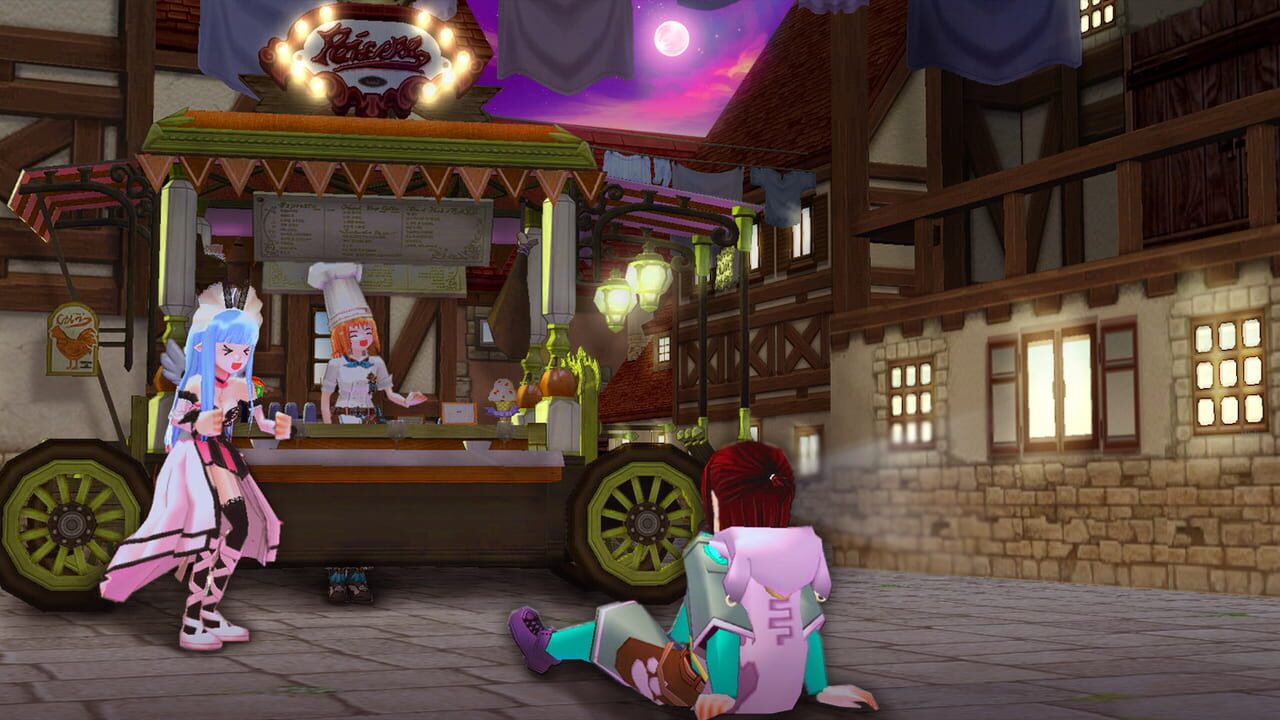
Mabinogi Macro & Hotkey Guide: 6 Pro Tips for 2026
Intro
Welcome, adventurer! If you’re spending your days grinding mobs, mastering life skills, or just trying to get through Erinn without clicking everything by hand, this Mabinogi Macro & Hotkey Guide is exactly what you need. Mabinogi has a surprisingly deep hotkey system that can save you tons of time once you get it dialed in. Whether you’re juggling combat skills, weaving life skills, or automating repetitive tasks, learning how to set up hotkeys and macros inside the game will make your daily routine way smoother. Let’s get your fingers moving efficiently so you can focus on what makes Mabinogi so addictive — the adventure itself.
Core Mechanics
| Feature | Description | Key Notes |
|---|---|---|
| Action Bars | Mabinogi uses multiple action bars where you can assign skills, items, and abilities | Default bars are accessible via number keys; you can switch between them |
| Hotkey Binding | Every skill and ability can be bound to a specific keyboard key | Press ESC → Settings → Key Bindings to customize |
| Macro System (Built-in) | Mabinogi includes a macro feature that lets you chain multiple actions together into a single command | Accessible through the Macro window (default key assignment varies; check settings) |
| Auto-Play / Combat Assist | The game offers auto-combat features that let your character fight or gather without manual input | Toggle on/off during various activities including mob combat and some life skills |
| Life Skill Automation | Certain life skills have automation options that reduce tedious clicking | Check each life skill interface for auto-gather or auto-craft toggles |
| Keybind Profiles | You can save and switch between different hotkey layouts for different playstyles | Useful if you play both combat and crafting roles |
Step-by-Step
Setting Up Your Action Bar Hotkeys
- Open the Settings Menu — Press
ESCto open the main menu, then click on Settings (or Options). - Navigate to Key Bindings — Find the Key Bind or Hotkey tab. Here you’ll see every assignable action in the game listed out.
- Assign Your Keys — Click on any action (skill, item, or ability) and press the key you want to bind it to. Mabinogi supports most keyboard keys, including function keys (F1–F12) and modifier combinations (Ctrl+Key, Alt+Key).
- Save Your Profile — After customizing, make sure to save your keybind profile. You can name it something memorable like “Combat” or “Crafting.”
- Test It Out — Jump into a low-risk area or start a casual session to make sure everything fires when you press your keys.
Using the Built-In Macro System
- Open the Macro Window — Look for the Macro button on your UI (usually on the right-side panel) or search for it in the Settings menu under a “Macro” tab.
- Create a New Macro — Click the New or + button to start a fresh macro sequence.
- Add Actions to Your Macro — You can add skills, item uses, and other commands one by one. Think of it like building a chain: Action 1 triggers, then Action 2, and so on.
- Set Delays Between Commands — This is crucial. Add small delays (a fraction of a second) between actions so the game can process each command properly. Too fast and the macro might glitch; too slow and it’s just inefficient.
- Bind the Macro to a Key — Once your macro is built, assign a hotkey to it just like you would with any regular skill.
- Save and Test — Save the macro and give it a quick test on a dummy mob or in a safe zone before relying on it during intense sessions.
Enabling Auto-Play and Automation
- Auto-Combat — When engaging enemies, look for the Auto toggle button near your skill bar or action panel. Click it to let your character auto-attack and use skills on their own. You can usually configure which skills auto-play through a sub-menu.
- Life Skill Auto — When you’re gathering materials or crafting, check the respective interface panels for Auto-Gather or Auto-Craft options. These let your character continue the activity without constant manual clicks.
- Configure Auto Settings — Some automation features let you set conditions — like “use this skill when HP drops below 50%” or “gather until inventory is full.” Spend a few minutes tuning these so the automation works how you want it to.
- Monitor Your Character — Even with auto-play on, keep an eye on your character. Things can go wrong (pathing issues, unexpected events), and being nearby means you can take over manually if needed.
Creating Keybind Profiles for Different Roles
- Switch to Profile Mode — In the Key Bind settings, you should see an option to create or switch profiles.
- Build a Combat Profile — Assign all your battle skills, potions, and movement hotkeys to quick-access positions (number row, QWER, etc.).
- Build a Life Skill Profile — Reassign your hotkeys to match the skills and actions you use most while crafting, farming, or gathering.
- Profile Quick-Switch — Set up a fast way to toggle between profiles mid-session. Some players bind a key to cycle through saved profiles.
- Always Save — Before switching, double-check that each profile is saved correctly. Nothing’s worse than losing a custom layout.
Tips
- Keep Your Most-Used Skills Accessible — Put your primary combat or gathering skills on the number row (1–9) or near your pinky-friendly keys (Q, W, E, R). Muscle memory is real, and so is pain from searching for keys during a boss fight.
- Use Function Keys for Secondary Actions — Bind utility skills, emotes, or less-frequently-used abilities to F-keys or modifier combos to keep your main bar clean and clutter-free.
- Don’t Overstuff Your Macros — A macro with 15 actions is probably worse than two clean macros with 5–7 each. Keep them short and purposeful for better reliability.
- Add Small Delays — If your macro seems to skip actions or act jittery, increase the delay between commands by 0.1 to 0.3 seconds. Mabinogi processes commands in real time, and the server needs a moment to catch up.
- Test During Low-Stakes Moments — Never roll out a brand-new macro or keybind setup during a serious dungeon run or an important event. Try it first during a casual wander or a low-level grind spot.
- Backup Your Profiles — If Mabinogi lets you export or save keybind profiles, do it. Clearing cache, reinstalling, or updating settings can sometimes reset your work.
- Combine Auto-Play with Hotkeys — The best setup marries automation with manual override. Let auto-play handle the routine, but keep your hotkeys ready so you can jump in and take control the second something goes sideways.
- Watch for Updates — Nexon occasionally adjusts keybind menus or macro features with updates. If something that used to work stops working, check patch notes or community forums before assuming it’s on your end.
FAQ
Q: Can I use third-party macro software with Mabinogi? A: While technically some players have used external tools, Mabinogi’s terms of service and anti-cheat measures may flag or ban accounts using unauthorized third-party automation. It’s always safest to stick with the built-in macro and auto-play features provided directly in the game. Don’t risk your account for convenience.
Q: Why doesn’t my macro execute all the actions I added? A: This is usually a timing issue. If the delays between macro actions are too short, the game may drop or skip commands. Try increasing the delay between each action by 0.2 seconds. Also, make sure none of the actions in your macro require target selection — untargeted auto-macros work far more reliably than ones needing you to click specific enemies or objects.
Q: How do I rebind keys if I hate the defaults? A: Head to ESC → Settings → Key Bindings. From there, you can rebind virtually any action to any key on your keyboard. Make sure to save your changes afterward.
Q: Can I use macros for PvP or arena combat? A: Mabinogi does not support PvP arenas or player-vs-player combat as a core game mode. The built-in macro system is intended for PvE combat, life skill automation, and general utility. No PvP-specific macro rules apply since the mode doesn’t exist.
Q: Does Mabinogi support crafting or trading macros? A: Life skill automation (auto-gather, auto-craft) is available through the game’s built-in features. However, player trading between accounts is not supported in Mabinogi, so no trading macros are possible. Stick to in-game automation tools only.
Keep exploring
- Mabinogi on MMOKB — the Mabinogi game hub has the full knowledge base, tools and guides.
- Read the Mabinogi knowledge base — Talents, Rebirth, Life Skills, Races.
- More Mabinogi guides — Mabinogi Achievement Guide 2026: All Badges & Rewards, Mabinogi Advanced Strategies Guide 2026: Builds & Farming, Mabinogi Fatigue Life Skill Builds 2026 — 2nd Person Guide, Mabinogi (farming/2026) — You Need These Best Builds Now, Mabinogi Best Builds 2026: 5 Proven Combinations, Mabinogi Classes Tier List 2026: Which One Should You Main?.
- Browse the full library — all MMOKB guides
Reviewed & verified
| Covers | mabinogi |
| Last verified | November 4, 2026 |
| Accuracy | The game’s own numbers and rules — they change with patches; check in-game for live values. |
Discussion
0 commentsNo comments yet. Be the first!