Mabinogi Graphics Settings: 7 Tweaks to Boost FPS
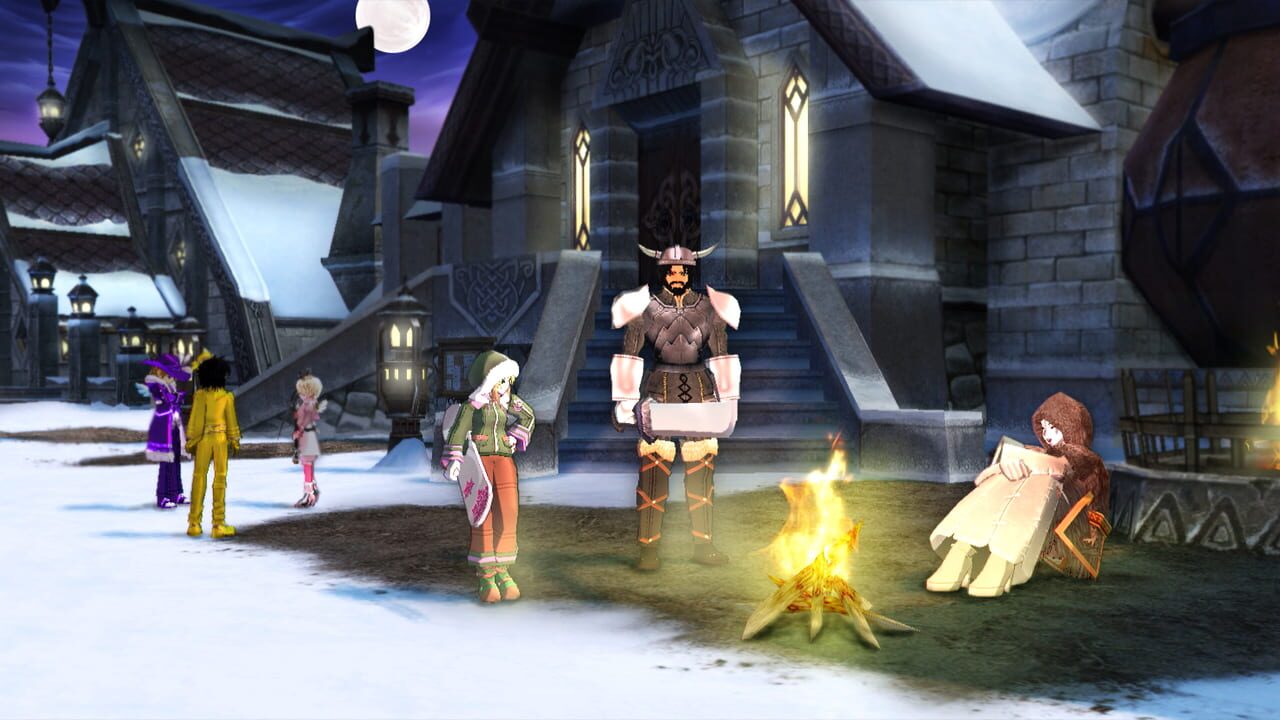
Yo, adventurer! Welcome to your ultimate Mabinogi Graphics And Performance Guide — the one-stop shop for making Erinn run smoother than a perfectly executed skill combo. Whether you’re rocking a potato rig or a beast-mode gaming PC, this guide will help you squeeze every last frame out of Mabinogi so you can focus on what matters: hunting mobs, completing quests, and living your best ermine-loving life. Mabinogi has been around since the mid-2000s, which means its proprietary graphics engine shows its age. That’s totally fine — it’s part of the charm — but it also means there’s room to optimize. We’ll walk you through everything: understanding the engine, tweaking your settings, diagnosing lag, and keeping your FPS buttery smooth even during busy events like the Erinn Adventure Pass or Milletian VIP Hotday gatherings. No fluff, just solid, tested advice from someone who’s spent way too many hours in Erinn. Let’s get you running at max performance!
Core Mechanics
| Mechanic | What It Means | How It Affects Performance |
|---|---|---|
| 3D Engine (Nexon Custom) | Mabinogi uses a proprietary 3D engine with anime-styled character models, particle-heavy spell effects, and large open-world zones. | Older engine = less efficient multithreading. Single-core CPU bottlenecks are common during busy scenes. |
| Resolution & Aspect Ratio | Native resolution scaling and multiple aspect ratios supported (16:9, 16:10, 4:3 with black bars). | Higher resolutions scale particle effects and shadow density. 1080p is the sweet spot; anything above strains GPU unnecessarily. |
| Texture Quality | Controls the resolution and detail level of world and character textures. | High textures increase VRAM usage significantly. On cards with less than 4 GB VRAM, this causes stuttering in towns like Kamasylvia or Meirynaich. |
| Shadow Quality | Real-time dynamic shadows for characters, trees, and structures. | The biggest FPS killer in Mabinogi. Shadows are computed per-object and don’t scale well in crowded areas. |
| Particle Effects | Spell flashes, weather, event fireworks, skill trails, etc. | Dense particle rendering — especially during events — can tank your FPS. This is often overlooked but highly impactful. |
| NPC/Player Rendering Distance | How far you can see before character models pop in. | Lower values reduce draw calls. Useful in high-traffic zones where hundreds of players congregate. |
| Anti-Aliasing | Smoothes jagged edges on 3D models. | FXAA and MSAA options exist. AA adds GPU overhead but makes the anime art style look cleaner. |
| Frame Cap / V-Sync | Limits maximum FPS output. | Matching your monitor’s refresh rate via V-Sync eliminates screen tearing but can add input lag. Frame caps prevent GPU overwork. |
| Background Processes & Memory | Mabinogi’s launcher and web components consume notable RAM. | Closing browsers, Discord overlays, and streaming apps frees up RAM and CPU cycles that Mabinogi can use instead. |
| Network Latency (Ping) | Not purely graphical, but network lag mimics graphical stuttering. | High ping causes rubberbanding and delayed animations. Use wired connections whenever possible; Wi-Fi introduces variable latency. |
Step-by-Step Optimization
Step 1: Know Your Hardware Baseline
Before touching a single setting, figure out what you’re working with. Mabinogi doesn’t require a ton of power, but it also doesn’t scale gracefully on everything.
- Minimum Specs (roughly): Intel Core i3 / AMD equivalent, 4 GB RAM, DirectX 9-compatible GPU with 1 GB VRAM, 10 Mbps internet.
- Recommended Specs: Intel Core i5 / AMD Ryzen 5, 8 GB+ RAM, GTX 1060 / RX 580 class GPU with 4 GB+ VRAM, 25+ Mbps internet.
- Use tools like HWMonitor or MSI Afterburner to check your CPU, GPU, and RAM headroom before launching.
Step 2: In-Game Graphics Settings — The Right Config
Launch Mabinogi and head to Options > Graphics. Here’s the ideal setup for most players:
- Resolution: Set to your monitor’s native resolution. If you’re on a 1440p monitor and your GPU is mid-range, 1080p is fine — the visual difference is negligible in Mabinogi’s art style.
- Fullscreen vs. Windowed: Fullscreen (or fullscreen borderless) gives the lowest input lag and best performance. Windowed mode adds Windows desktop composition overhead.
- Texture Quality → Medium: You won’t notice much drop from High in Mabinogi’s stylized world, but Medium saves VRAM and prevents stuttering in texture-heavy zones.
- Shadow Quality → Low or Off: This is your single biggest FPS gain. Shadows are the heaviest graphical load, and turning them off or lowing them often doubles your frame rate in towns.
- Particle Effects → Medium: Keep this balanced. Low can make spells look flat; High will eat your FPS during skill-heavy combat or event firework displays.
- Anti-Aliasing → FXAA or Medium MSAA: FXAA is lightweight. If you prefer cleaner edges and have a decent GPU, try 2x or 4x MSAA — but don’t go beyond that.
- Draw Distance / View Range → Medium: Mabinogi’s world isn’t huge, so high draw distance rarely helps and only hurts performance.
- V-Sync → On if you have tearing; Off if you prioritize lowest latency. Some players prefer V-Sync off for snappier feel.
Step 3: Launcher & Background Cleanup
Mabinogi’s launcher (and the underlying web components it uses) can be a resource hog. Before launching:
- Close your browser. Chrome and Edge can eat 2-4 GB RAM alone. Mabinogi only needs a fraction of that.
- Disable Discord overlay. The in-game overlay adds noticeable overhead and is a common cause of random stutters.
- Close streaming software (OBS, XSplit, etc.) unless you’re actively broadcasting. These are huge FPS killers.
- Disable hardware acceleration in any web-based companions if you use browser apps alongside the game.
- Restart your PC before long sessions. Mabinogi’s launcher can leak memory over time, and a fresh boot keeps things clean.
Step 4: Windows-Level Tweaks
Small OS tweaks make a big difference for older games like Mabinogi:
- Set Mabinogi to High Priority: Open Task Manager > Details tab > right-click Mabinogi process > Set priority to High. This tells Windows to prioritize the game over background tasks.
- Enable Hardware-Accelerated GPU Scheduling (HAGS): Go to Windows Settings > System > Display > Graphics settings. Toggle HAGS on. This is a Windows 10/11 feature and helps the GPU manage memory more efficiently.
- Update your GPU drivers: Never skip driver updates. Even though Mabinogi uses an older engine, modern drivers include performance improvements and bug fixes that help.
- Disable fullscreen optimizations: Right-click the Mabinogi shortcut > Properties > Compatibility > check “Disable fullscreen optimizations.” Some players report smoother performance this way.
- Power plan: Set Windows power plan to High Performance. This prevents the CPU from throttling down during gameplay.
Step 5: Network Optimization
Performance isn’t just about FPS — it’s about responsiveness too. A frozen screen could be your GPU or your internet.
- Use Ethernet. Wi-Fi is fine for casual play, but a wired connection reduces packet loss and jitter, which directly reduces perceived lag.
- Close bandwidth-heavy apps. Cloud backups, downloads, and video streams will kill your ping.
- Choose the right server. If Mabinogi offers multiple regional servers, pick the one geographically closest to you for the lowest ping.
- Flush DNS periodically. Open Command Prompt as admin and run
ipconfig /flushdnsto clear stale entries.
FAQ
Q: Why is my Mabinogi FPS so low?
A: The most common culprits are high shadow quality, too many background apps, outdated GPU drivers, or running the game on integrated graphics instead of your dedicated GPU. Start by lowering shadows to Low or Off and closing your browser.
Q: Does Mabinogi support GPU upscaling (DLSS/FSR)?
A: No, Mabinogi does not currently support DLSS or FSR. Your best bet is lowering internal resolution slightly (e.g., 90% scaling) while keeping the display resolution the same, which some players find visually acceptable.
Q: Is Mabinogi free to play?
A: Yes, Mabinogi is free to play on PC. There is an optional subscription (VIP) that provides quality-of-life bonuses like expanded storage and extra inventory slots, but gameplay is fully accessible without paying.
Q: How do I fix stuttering in crowded towns like Kamasylvia?
A: Stuttering in dense areas is usually caused by high NPC rendering distance and heavy shadow calculations. Lower both settings, close background apps, and ensure your GPU isn’t thermal throttling. Wired internet also helps reduce lag spikes.
Final Tips
The #1 rule for Mabinogi optimization: shadows are your enemy. Turn them off or to Low, and watch your FPS climb. Combine that with background cleanup and Windows-level tweaks, and you should see a noticeable improvement across the board. If you’re still struggling, consider dropping your resolution to 90% — Mabinogi’s art style hides the difference better than most games. Happy adventuring!
Keep exploring
- Mabinogi on MMOKB — the Mabinogi game hub has the full knowledge base, tools and guides.
- Read the Mabinogi knowledge base — Talents, Rebirth, Life Skills, Races.
- More Mabinogi guides — Mabinogi Achievement Guide 2026: All Badges & Rewards, Mabinogi Advanced Strategies Guide 2026: Builds & Farming, Mabinogi Fatigue Life Skill Builds 2026 — 2nd Person Guide, Mabinogi (farming/2026) — You Need These Best Builds Now, Mabinogi Best Builds 2026: 5 Proven Combinations, Mabinogi Classes Tier List 2026: Which One Should You Main?.
- Browse the full library — all MMOKB guides
Reviewed & verified
| Covers | mabinogi |
| Last verified | November 4, 2026 |
| Accuracy | The game’s own numbers and rules — they change with patches; check in-game for live values. |
Discussion
0 commentsNo comments yet. Be the first!