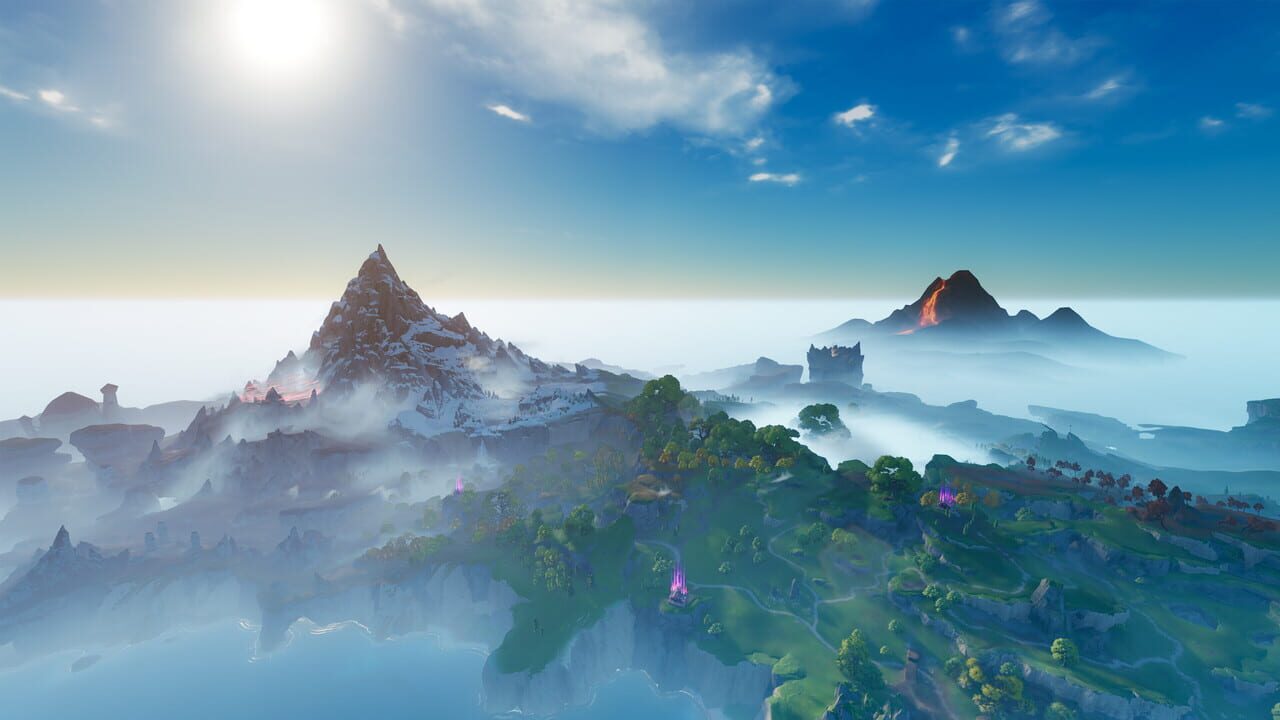
Aniimo Graphics And Performance Guide
Intro
Hey there, Pathfinders! Whether you’re sprinting through Astra City or grinding in Operation: Egg Heist, nothing kills the vibe faster than choppy framerates or a visual experience that looks like it was rendered on a toaster. This Aniimo Graphics And Performance Guide is here to help you squeeze every last frame out of your rig so you can focus on what actually matters — playing the game. Since Aniimo launched, the dev team has been actively listening to community feedback about performance, and they’ve shipped tweaks that make a real difference. We’ll walk you through the graphics settings that matter most, how to troubleshoot common hiccups, and the tips that separate smooth 60-FPS gameplay from a slideshow. Let’s get you optimized.
Core Mechanics Table
| Setting | What It Controls | Best For Low-End PCs | Best For High-End PCs |
|---|---|---|---|
| Resolution | Pixel output resolution | 1280×720 or native minimum | Native display resolution |
| Render Scale | Internal rendering resolution multiplier | 75–80% | 100% or slightly above |
| Texture Quality | Detail level of surface textures | Low or Medium | High or Ultra |
| Shadow Quality | Fidelity and count of shadow maps | Off or Low | High |
| Post-Processing | Bloom, motion blur, depth of field, ambient occlusion | Minimal | Maximum |
| Frame Rate Cap | Maximum FPS limiter | Uncapped (if stable) or 60 | Match monitor refresh rate |
| V-Sync | Syncs FPS to monitor refresh | Off (reduces input lag) | On (eliminates tearing) |
| Anti-Aliasing | Smooths jagged edges | SMAA or TAA | TXAA or MSAA |
Step-by-Step
Step 1: Check Your Current Hardware Profile
Before tweaking anything, you need to know what you’re working with. Open Aniimo’s in-game settings and head to the About or System Info section if available. Note your GPU model, VRAM, CPU, and RAM. This baseline will help you decide which settings are worth pushing and which ones are dragging you down. If you’re unsure of your hardware, run a quick spec check in Windows using msinfo32 or a tool like GPU-Z.
Step 2: Access the Graphics Settings Menu
Launch Aniimo and navigate to Settings > Graphics. You’ll find a full suite of visual options here. If the menu layout has shifted since launch, keep an eye on the Aniimo Dev Dispatch updates — the team has been known to reorganize settings for clarity based on player feedback.
Step 3: Set Resolution and Render Scale First
Resolution is the single biggest factor in performance. If you’re struggling to maintain a stable frame rate, drop your resolution one step below native (e.g., from 1440p to 1080p). If you want to keep your native resolution but still gain performance, adjust Render Scale down to around 80%. This renders the game at a lower internal resolution and upscales it, which often looks nearly identical while significantly reducing GPU load. Avoid going below 70% — the image becomes noticeably soft.
Step 4: Dial in Texture Quality
Texture quality has a moderate impact on performance but a heavy impact on VRAM usage. If you have 8 GB of VRAM or less, set textures to Low or Medium. Games that stream open worlds like Aniimo can eat VRAM quickly, and running out causes stuttering as the system swaps data to your regular RAM. If you have 12 GB+ of VRAM, High or Ultra is safe.
Step 5: Adjust Shadows and Post-Processing
Shadows are one of the most expensive graphical features in any title. Dropping shadow quality from High to Low or turning shadows off entirely can yield a noticeable frame rate bump with relatively little visual penalty — especially in darker areas where low-quality shadows are harder to spot. Similarly, Post-Processing effects like ambient occlusion, bloom, and depth of field look great on high-end rigs but can choke mid-range hardware. Start by turning these to Low and gradually increase if performance allows.
Step 6: Configure Anti-Aliasing
Anti-aliasing smooths out jagged edges. TAA (Temporal Anti-Aliasing) is usually the best balance of performance and visual quality for most players. SMAA is a lighter option for lower-end systems. MSAA looks the sharpest but is very demanding — skip it unless you’re on a high-end GPU. Note that some anti-aliasing methods can introduce a slight blur, so experiment to find your sweet spot.
Step 7: Set Frame Rate Options and V-Sync
Head to the Performance or Advanced section of the graphics menu. If you have a high-refresh-rate monitor, set your frame rate cap to match it (144 Hz, 165 Hz, etc.). If your GPU can’t consistently hit that target, cap it slightly below — for example, 90 FPS on a 120 Hz monitor can feel smoother than fluctuating between 60 and 120. Turn V-Sync off for the lowest input lag, especially in fast-paced moments. If you notice screen tearing and can’t tolerate it, turn V-Sync on — the input lag penalty is worth it for some players.
Step 8: Apply, Test, and Iterate
Click Apply and jump into a dense area of the game — a populated hub area or a busy scene from Operation: Egg Heist with lots of visual effects. Watch your FPS counter. If it’s stable and you’re happy with the image quality, you’re done. If not, go back and adjust one setting at a time, testing after each change. This methodical approach prevents you from making a bunch of changes and then not knowing which one actually helped.
Step 9: Update Drivers and Game Files
Performance isn’t just about in-game settings. Make sure your GPU drivers are up to date — NVIDIA and AMD regularly release driver updates that include game-specific optimizations. Additionally, if Aniimo has launched any patches or dispatch updates since your last play session, make sure the game is fully updated. The dev team has mentioned in the Aniimo Dev Dispatch Vol. 1 that performance improvements are an ongoing priority, so staying current means you get the latest optimizations automatically.
Tips
- Close background apps. Browsers, Discord overlay, RGB software, and other utilities can eat CPU and GPU resources. Close anything you don’t need while playing.
- Use fullscreen mode. Borderless windowed mode is convenient but can add overhead. Exclusive fullscreen typically delivers better performance in most scenarios.
- Keep your PC cool. Thermal throttling is a silent FPS killer. Make sure your GPU and CPU fans are spinning freely and that your case has adequate airflow.
- Set Aniimo as a high-priority process. In Windows Task Manager, right-click the Aniimo process > Go to details > Set priority to High. This is a small trick that can help prevent the OS from deprioritizing the game during heavy multitasking.
- Disable Windows Game Bar and recording features if you’re not using them. These background recording tools consume GPU resources and can cause stutters.
- Monitor your temperatures and FPS. Tools like MSI Afterburner or the Xbox Game Bar overlay can show you real-time stats. If you see sudden FPS drops, check whether your GPU is thermal throttling.
- Don’t max everything out blindly. Higher settings don’t always mean better visuals — sometimes medium or high settings look nearly identical to ultra but run significantly smoother. Find your personal balance.
- Check the Aniimo community forums for hardware-specific recommendations. Other Pathfinders often share settings that work well for specific GPU and CPU combos, which can save you trial and error.
- If you experience stuttering, try lowering texture quality first. Stutters are often caused by VRAM exhaustion or asset streaming hiccups, and texture quality is the fastest fix for both.
- Watch for Dev Dispatch updates. The team has been actively shipping performance-related fixes and settings adjustments since launch. What doesn’t work today might be better tomorrow after an update.
FAQ
Q1: Aniimo is running poorly on my setup. Where do I even start?
Start by checking your hardware against the game’s requirements, then follow the step-by-step in this guide — begin with resolution and render scale, then work your way down through shadows, textures, and post-processing. Keep an eye on your FPS after each change so you can identify which settings have the biggest impact on your specific rig. Also, make sure your GPU drivers are current and that Aniimo is updated to the latest patch.
Q2: I’m getting screen tearing. Should I turn on V-Sync?
Yes — V-Sync is the most straightforward fix for screen tearing. It syncs your game’s frame rate to your monitor’s refresh
Keep exploring
- Aniimo on MMOKB — the Aniimo game hub has the full knowledge base, tools and guides.
- Read the Aniimo knowledge base — The Aniimo, Twining, Pathfinder, Co Op Quests, Pvp.
- Use the Aniimo tools — Codes, Team Planner, Tier List, Type Chart.
- More Aniimo guides — Aniimo Strategies 2026: Operation Egg Heist Tips, Bailite Aniimo Guide 2026: Base Stats, Skills & Evolution Path, Baleetle Aniimo Earth Stats, Skills, Evolution & Spawn Guide, Aniimo Beginner Guide 2026, Aniimo Beginner Guide (2026): Best Starter, Free Prismana & Catching, Besauce Aniimo Guide: Stats & Evolution (2026).
- Browse the full library — all MMOKB guides
Reviewed & verified
| Covers | aniimo |
| Last verified | October 13, 2026 |
| Accuracy | The game’s own numbers and rules — they change with patches; check in-game for live values. |
Discussion
0 commentsNo comments yet. Be the first!