Aion 2 Settings 2026: HUD, Keybinds & Graphics
Game Overview
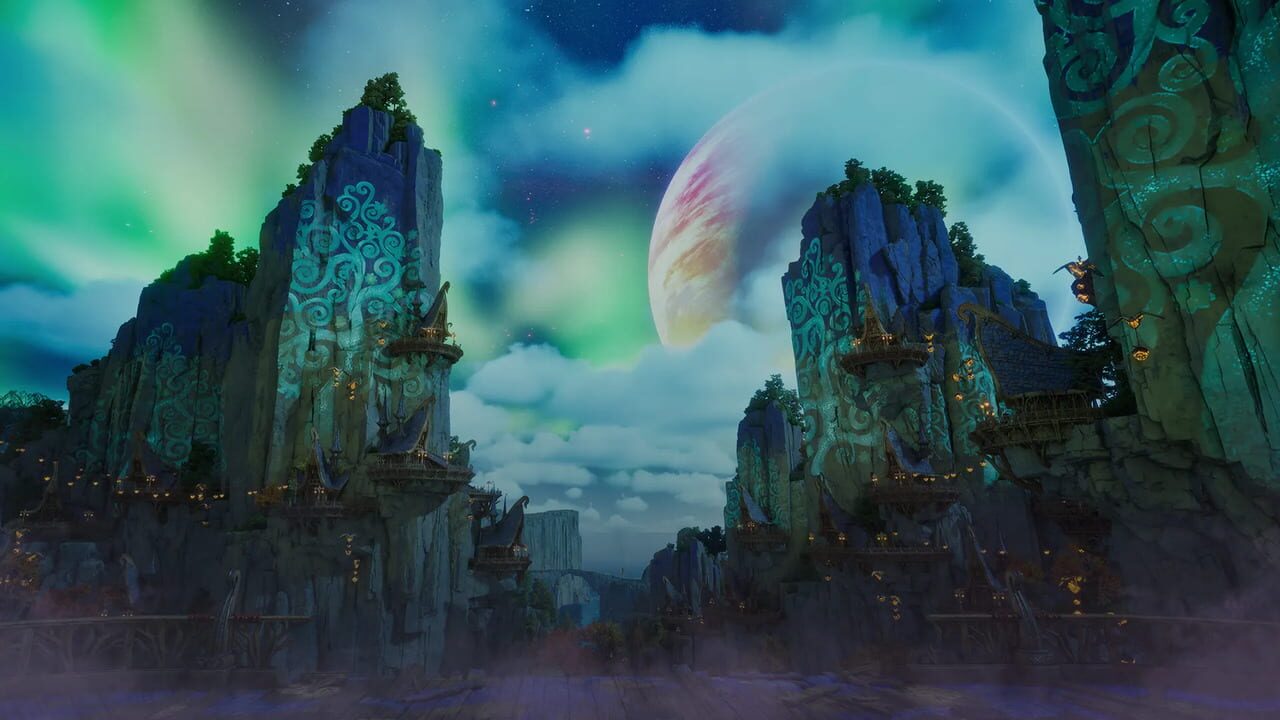
Aion 2 is NCSoft’s sequel to the long-running Aion franchise, returning to the vertical world of Atheim where the Asmodians and Elyos clash across floating islands and deep underground realms. Aerial combat defines the experience — you fight skyborne and on foot across massive battlegrounds, huge raid dungeons, and open-world zones. The game builds on the original Aion foundation with refined combat pacing, modernized graphics rendering, and improved UI systems. Getting your HUD, keybinds, and graphics dialed in isn’t optional; a messy interface costs lives in fast-paced encounters.
Note: Aion 2 launched free-to-play on October 5, 2026. Menus, settings options, and quality-of-life features described below follow conventions from the original Aion and may shift with future updates. Always verify in-game.
Core Mechanics
| Feature | Description |
|---|---|
| HUD Layout | Minimap, quest log, action bars, chat, skill tooltips — all drag-repositionable |
| Action Bars | Multiple pages, slot sizing, icon toggles, grouping |
| Quest Tracker | Active objective panel with adjustable anchor position |
| Minimap & World Map | Resize minimap, toggle markers, fullscreen map access |
| Camera Settings | Distance, rotation speed, zoom range, terrain collision |
| Font & Text Scaling | UI font size, damage number scale, chat readability |
| Graphics & Performance | Textures, shadows, particles, draw distance, AA |
| Keybinds | Full rebinding for skills, abilities, macros, navigation |
| UI Theme & Colors | Accent colors for windows, bars, tooltips, quest text |
| Character Creation | Appearance sliders at startup (release-dependent) |
Step-by-Step
Step 1 — Accessing the Main Settings Menu
Press Escape or click the Gear icon (⚙) in the lower-left corner. You’ll see tabs for Interface, Audio, Graphics, Gameplay, Keybinds, and Character. Every tab offers a Reset to Default button — use it to start fresh anytime.
Step 2 — Configuring Your HUD
Your HUD is your battlefield dashboard. Keep it clean or lose track of everything.
- Go to the Interface tab.
- Adjust:
- Minimap visibility — lower opacity or hide it if it crowds your view
- Action bar anchor — dock top, bottom, left, or right edge
- Quest tracker anchor — upper-left or floating for raid-focused play
- Name plates — toggle above NPCs and hostile mobs
- Drag any panel directly on screen to reposition. Panels snap to invisible grid lines for neat alignment.
- Click Apply to save changes.
Step 3 — Customizing Action Bars and Keybinds
Slow fingers lose fights. Lock in your bindings now.
- Navigate to the Keybinds tab.
- Search the full list of actions, skills, and abilities.
- Click any action and press your desired key combo. A solid default layout:
- Q, E, F — utility and movement skills
- 1–9 — primary attack rotation
- Spacebar — jump / mount
- Ctrl + 1–6 — secondary action bar pages
- Go to Interface → Action Bar for visual tweaks:
- Toggle Show Icons on or off
- Adjust Icon Size (small, medium, large)
- Enable Skill Cooldown Overlays if available
- Build custom macros in the Macro section and bind them to any key.
Step 4 — Camera and Movement Settings
A clean view of the battlefield separates you from the rest.
- Open Settings → Gameplay.
- Under Camera Settings:
- Camera Distance — pull back for a wider field of view or push in for precision targeting
- Rotation Speed — controls how fast your camera pivots during combat
- Collision Toggle — disable terrain clipping for tight corners and aerial maneuvers
- Sprint Sensitivity — fine-tune acceleration response for smoother movement
- In the Targeting subsection:
- Enable Auto-Target Nearest Enemy for faster engagements
- Toggle Show Enemy HP Bars above mob heads
Step 5 — Graphics and Performance Tuning
Frame rate is king. Dial it in or get left behind.
- Go to the Graphics tab in Settings.
- Adjust these sliders:
- Texture Quality — High for modern GPUs; Medium for older hardware
- Shadow Detail — biggest FPS drain; drop to Low or Off in busy zones
- Particle Effects — controls spell and ability visual intensity
- Draw Distance — higher = longer sightlines but lower FPS
- Anti-Aliasing — disable for max performance
- Motion Blur — most competitive players turn it off
- Click Apply Presets for one-click configs: Low, Medium, High, Ultra.
Step 6 — UI Color and Theme Personalization
Make the interface feel like yours.
- Go to Settings → Interface → UI Theme.
- Pick from preset palettes or create a Custom Theme if the option is available.
- Adjust accent colors for windows, skill bars, tooltips, and quest text.
- Save named presets so you can swap between playstyles instantly.
Step 7 — Accessibility and Quality-of-Life Settings
These tweaks improve daily play significantly.
- In Settings → Interface:
- Toggle Damage Number Opacity if numbers overwhelm your screen
- Adjust Loot Window Auto-Open Delay if available
- In Audio:
- Separate sliders for Music, SFX, and Voice
- In Gameplay:
- Toggle Show Quest Rewards Preview before completing objectives
- Enable Auto-Loot settings if the game supports them
Step 8 — Character Creation and Appearance
Final release-dependent — verify in-game.
- At character creation, invest time in appearance. Your faction identity matters.
- Adjust skin tone, facial features, hair, and body proportions using the provided sliders.
- Check preview angles thoroughly before confirming — some games lock appearance after creation.
10 Pro Tips for Aion 2 Settings
- Save multiple UI layouts. If you raid and then switch to open-world exploration, having separate HUD profiles lets you swap instantly.
- Minimap transparency. Lower the minimap opacity to 40–60% so you still see terrain without visual clutter.
- Turn off unnecessary name plates. In crowded hubs, disabling NPC name plates dramatically improves readability during fights.
- Disable motion blur for faster target tracking in fast-paced combat.
- Use macro names. Label your macros clearly so you can identify abilities at a glance during intense encounters.
- Benchmark before committing. If Aion 2 includes a benchmark tool, run it at different preset levels to find your sweet spot.
- Test camera distance early. Aerial combat in Aion 2 demands good spatial awareness — set your camera far enough back to track enemies mid-flight.
- Group action bar skills logically. Put burst skills together, then utility, then escape tools — your muscle memory will thank you.
- Use contrast themes. High-contrast UI themes improve visibility during chaotic raid boss mechanics.
- Reset to default if stuck. If a setting feels broken, hit Reset to Default on that tab — it saves hours of confusion.
Related Guides
- Aion 2 Graphics And Performance Guide
- Aion 2 Lore And World Guide
FAQ
How do I reset all Aion 2 settings to default?
Open the main Settings menu and look for a Reset to Default button at the bottom of each tab. This restores Interface, Graphics, Audio, and Keybind settings to their factory defaults. Use this if your custom layout breaks or feels off.
What are the best Aion 2 graphics settings for low-end PC?
Start with the Low preset, then manually raise Texture Quality to Medium if your GPU can handle it. Set Shadows to Off or Low — they are the biggest performance hit. Disable Anti-Aliasing and Motion Blur. Keep Draw Distance at Medium. Target 60 FPS for smooth aerial combat.
Can I rearrange my Aion 2 action bars freely?
Yes. Go to Interface → Action Bar and enable free-move mode. Drag bars to any screen edge or position them independently. You can also resize icons and toggle cooldown overlays for a cleaner setup.
How do I optimize Aion 2 keybinds for aerial combat?
Map your core flight skills to easy-access keys like Q, E, F, and 1–6. Reserve Spacebar for mount/jump, use Ctrl+1–6 for secondary bar pages, and bind crowd-control escapes to modifiers. Practice rotations in a safe zone before jumping into raids.
Aion-2 Guide Summary
You need clean settings to dominate in Aion 2. Reposition your HUD panels so critical info stays in view without blocking your combat space. Lock in keybinds that match your muscle memory — especially flight and attack combos. Tune graphics to your hardware so you maintain frame rate during chaotic battles. Test camera distance early since aerial combat demands spatial awareness. Save multiple UI layouts for different playstyles, disable motion blur, and group your action bars logically. Aion 2 rewards players who invest time in settings because a messy interface costs lives in fast-paced encounters across Atheim.
Keep exploring
- AION 2 on MMOKB — the AION 2 game hub has the full knowledge base, tools and guides.
- Read the AION 2 knowledge base — Gladiator, Templar, Assassin, Ranger, Sorcerer.
- More AION 2 guides — Aion 2 Achievement Guide: Verified Tips & Fixes (2026), Aion 2 Boss Guide 2026: Builds & Tactics, Aion 2 Beginner Guide: Your First Week, System by System, Aion 2 Farming Guide: Abyss Sessions, Weeklies, and Efficient Grinding, Aion 2 Best Builds: What to Build Around in 2026, Aion 2 Classes & Tier List 2026: All 8 Launch Classes Ranked.
- Browse the full library — all MMOKB guides
Reviewed & verified
| Covers | aion-2 |
| Last verified | November 4, 2026 |
| Accuracy | The game’s own numbers and rules — they change with patches; check in-game for live values. |
Discussion
0 commentsNo comments yet. Be the first!