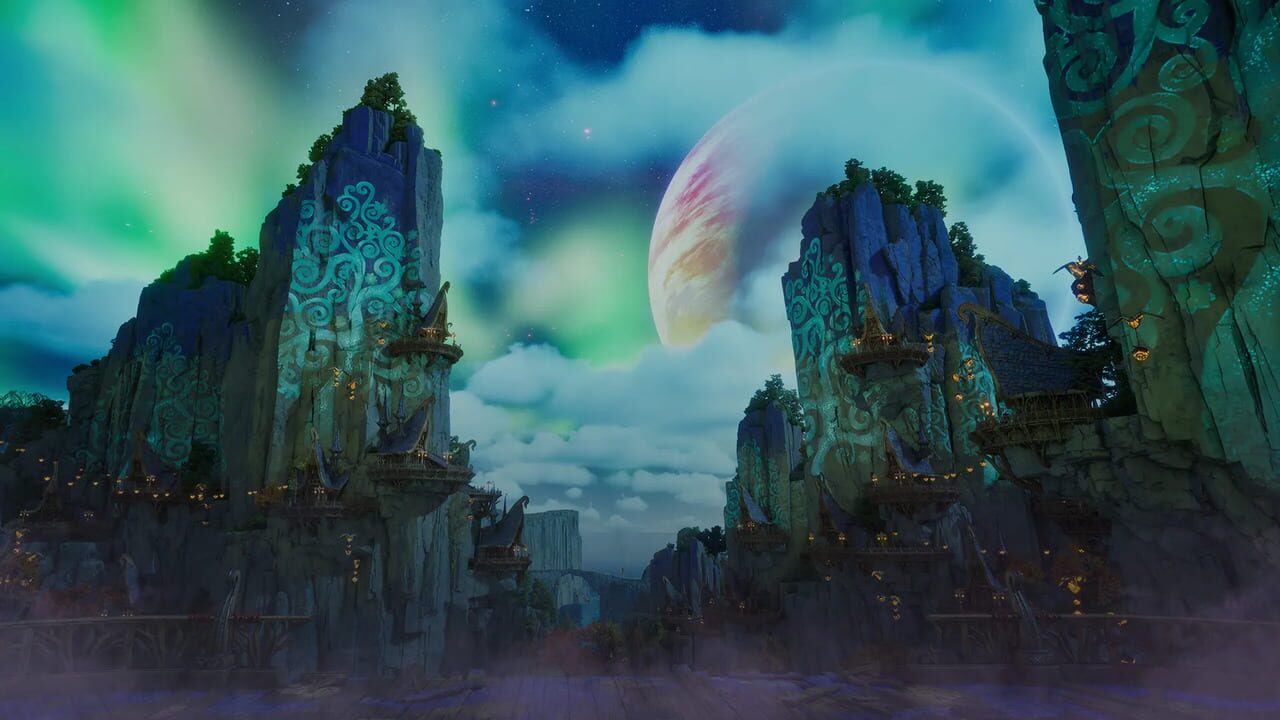
Aion 2 FPS Guide 2026: Best Graphics Settings
Intro
Aion 2 demands solid hardware to deliver its gorgeous aerial combat and sweeping faction battles. If you’re chasing higher framerates without sacrificing visual quality, this guide walks you through every setting — from shadows to draw distance — so you can find the perfect balance for your rig. Whether you’re running a budget GPU or a high-end setup, these tweaks will help you lock in smooth, stable FPS in both crowded towns and intense large-scale battles.
About Aion 2
Aion 2 is an MMORPG developed by NCSoft, continuing the Aion franchise that has been around since 2008. It features aerial combat, massive faction warfare between the Elyos and Asmodians, and open-world exploration across stunning zones. The game runs on a modernized engine that scales across hardware tiers while rewarding careful graphics tuning to hit steady framerates in large-scale battles and densely populated areas.
Key Features:
- Aerial combat and land-based faction warfare between the Elyos and Asmodians
- Open-world zones with dynamic world events and boss spawns
- Deep character customization across multiple classes
- Large-scale siege combat and instanced dungeon content
- Stylized visuals that scale well across different hardware levels
Core Mechanics
| Concept | What It Means | How It Affects You |
|---|---|---|
| Graphics Presets | Pre-configured bundles (Low, Medium, High, Ultra) | Quick starting point your system can handle |
| Resolution | Pixel dimensions rendered (1920x1080, 2560x1440, etc.) | Higher = sharper but GPU-heavy |
| Vertical Sync (VSync) | Syncs framerate to monitor refresh rate | Reduces tearing; may add input lag |
| Anti-Aliasing | Smooths jagged edges on models and terrain | Visual boost; costs GPU resources |
| Shadow Quality | Detail and resolution of in-game shadows | Heaviest GPU hitter; major FPS impact |
| Texture Quality | Resolution of surface materials | VRAM hungry at high settings |
| Particle Effects | Visual flair for spells and abilities | Causes stutters in large battles |
| Draw Distance | How far geometry and objects render | CPU+GPU load in open areas |
| Frame Rate Cap | Limits maximum FPS to a set number | Reduces GPU strain and heat |
| Window Mode | How the game renders its display window | Affects alt-tab and latency |
| Motion Blur | Post-processing blur effect during movement | Purely cosmetic; unnecessary performance tax |
| Post-Processing | Bloom, color grading, depth of field effects | Minor FPS impact but improves visuals |
Step-by-Step
Step 1 — Know Your Hardware Baseline
Before touching a single setting, you need to know exactly what you’re working with:
- Check your GPU: Press
Win + R, typedxdiag, hit Enter. Go to the Display tab. Note your graphics card name and VRAM amount. - Check your CPU: Same window — System tab. Note processor name and speed.
- Check your RAM: Still in dxdiag, find total physical memory on the System tab.
- Benchmark current performance: Launch Aion 2 and use MSI Afterburner or the Windows Game Bar (
Win + G) to get a baseline FPS reading in a busy area. - Note your monitor’s refresh rate: Check your monitor specs — 60Hz, 144Hz, or higher. This matters when choosing a frame cap.
Write these specs down. You’ll reference them throughout the optimization process.
Step 2 — Launch Aion 2 and Open Graphics Settings
- Start Aion 2 and log in to the game world.
- Press
Escto open the main menu. - Navigate to Settings > Graphics (or Video depending on your client build).
- Take a screenshot of your current settings before making any changes — you can always revert to this baseline.
- Note your current average FPS in a crowded zone for comparison later.
Step 3 — Set Your Resolution
- Find the Resolution dropdown in the Graphics menu.
- Select your monitor’s native resolution. Most modern setups: 1920x1080 (Full HD). Higher-end monitors: 2560x1440 (QHD) or 3840x2160 (4K).
- Tip: Running below native resolution makes everything look blurry and soft. Only drop resolution if you’re severely FPS-constrained and nothing else helps.
- Apply the change and observe the visual difference. If it looks worse than it feels better, hit Undo and revert.
Step 4 — Choose a Starting Preset
Your starting preset depends on your GPU tier:
- High-end GPU (RTX 3060 Ti / RTX 4060 or better): Start at High. You have headroom for selective upgrades to Ultra later.
- Mid-range GPU (GTX 1660 Super / RTX 3050): Start at Medium-High. You’ll need to turn shadows and particles down for stability.
- Budget GPU (GTX 1050 Ti, GTX 1650, integrated graphics): Start at Low-Medium. Prioritize performance over aesthetics.
Apply your preset, launch into the world, and play for five minutes in a busy area — a town center, dungeon entrance, or world boss spawn point. Watch your FPS and note any stuttering.
Step 5 — Tweak the Heavy Hitters
Adjust these settings one at a time, testing after each change so you know exactly which setting moved the needle:
Shadows — Drop from High → Medium → Low → Off. This is almost always the single biggest FPS gain per setting point. Shadows are extremely GPU-intensive in Aion 2, especially in outdoor zones with complex terrain. In urban areas and dungeons, the visual difference is minimal.
Particle Effects — Lower this when engaging in large-scale faction battles or crowded dungeons. Spell effects and ability animations are particle-heavy and cause disproportionate stutters in chaotic fights. At Low or Medium, battles still look impressive without the framerate hit.
Draw Distance / View Distance — Lowering this helps CPU-bound systems most. If your FPS drops more in open fields than in dungeons or cities, draw distance is your primary bottleneck. Setting this to Medium often provides a great balance.
Anti-Aliasing — Turn off or set to the lowest option if you’re GPU-limited. AA smooths jagged edges but costs significant GPU power. The visual improvement is noticeable but not essential for competitive play.
Texture Quality — If you have 4GB or more VRAM, keep this at High or Ultra. Below 4GB VRAM, Medium is safer — low textures can cause stuttering as the system swaps data in and out of VRAM.
Post-Processing / Bloom / Depth of Field — These are pure visual polish options. Disable or lower them freely with minimal FPS impact compared to shadows and particles.
Step 6 — Configure Advanced Options
- VSync: Turn ON if you notice screen tearing during fast camera movements. Turn OFF if you want the lowest possible input lag for PvP. The FPS difference between on and off is usually negligible.
- Frame Rate Cap: Match your monitor’s refresh rate — 60 FPS for 60Hz, 144 FPS for 144Hz. Capping your FPS prevents the GPU from working harder than necessary, reducing heat and power draw.
- Window Mode: Borderless Windowed is recommended for most players — it allows instant alt-tabbing without restarting. Exclusive Fullscreen can squeeze out a few extra FPS on some systems but makes alt-tabbing slower.
- Motion Blur: Keep this OFF. It’s purely cosmetic and adds blur on top of whatever framerate you already have, making low FPS feel even worse.
- Ambient Occlusion: If available, set to Low or Off. It adds depth to corners and crevices but costs GPU cycles without meaningfully improving gameplay visibility.
Step 7 — Optimize Your PC Outside Aion 2
Settings inside the game are only half the battle. Your system-wide configuration matters just as much:
- Update your GPU drivers. Outdated drivers are one of the most common causes of poor game performance. Visit NVIDIA or AMD’s website and download the latest driver for your specific card.
- Close background applications. Browsers with many tabs, Discord overlay, streaming software, and RGB control apps all consume CPU and GPU cycles. Close anything you don’t need.
- Set Windows Power Plan to High Performance. Search for “Power Options” in Windows and select High Performance mode. This prevents the CPU from throttling down during gameplay.
- Disable hardware-accelerated GPU scheduling if it causes issues. Some users report better stability with this feature turned off in Windows Settings.
- Ensure your game is installed on an SSD. Loading textures and geometry from an HDD creates stuttering that no graphics setting can fix. An SSD eliminates this bottleneck entirely.
- Set Aion 2’s process priority to High. Open Task Manager, go to Details, find the Aion 2 executable, right-click it, and set priority to High. Do not set it to Realtime — that can cause system instability.
Recommended Settings by GPU Tier
| GPU Tier | Preset | Shadows | Particles | Draw Distance | VSync | Texture Quality |
|---|---|---|---|---|---|---|
| High-End (RTX 4070+) | High | Medium | Medium | High | Off | Ultra |
| Mid-Range (RTX 3060) | High | Low | Low | Medium | Off | High |
| Budget (GTX 1650) | Medium-Low | Off | Low | Medium | On | Medium |
| Integrated Graphics | Low | Off | Off | Low | On | Low |
Aion 2 Minimum and Recommended Requirements
| Requirement | Minimum | Recommended |
|---|---|---|
| OS | Windows 10 64-bit | Windows 10/11 64-bit |
| CPU | Intel Core i3-6100 / AMD Ryzen 3 1200 | Intel Core i5-10400 / AMD Ryzen 5 3600 |
| RAM | 8 GB | 16 GB |
| GPU | GTX 1050 Ti 4GB / RX 570 4GB | RTX 3060 12GB / RX 6600 XT 8GB |
| VRAM | 4 GB | 8 GB+ |
| Storage | 100 GB SSD | 100 GB SSD (NVMe preferred) |
| Internet | Broadband connection | Broadband connection |
Related Guides
- Aion 2 Lore And World Guide
- Aion 2 Mistakes To Avoid Guide
FAQ
What graphics settings give the most FPS in Aion 2?
Shadows and particle effects provide the largest FPS gains. Turning shadows off or to Low and particles to Low can double your framerate on mid-range hardware.
Is Aion 2 CPU or GPU intensive?
Aion 2 is primarily GPU-intensive, but draw distance and crowd density in large-scale battles can stress the CPU. Most players should prioritize GPU upgrades first.
Should I use VSync in Aion 2?
Turn VSync off for the lowest input lag in PvP and fast combat. Turn it on only if you experience noticeable screen tearing on your monitor.
Does resolution affect FPS more than settings in Aion 2?
Yes. Dropping from 1440p to 1080p typically yields a larger FPS improvement than any single graphics setting change. Start with resolution as your first lever.
Why does my FPS drop in towns but stay stable in solo dungeons?
Towns have high player counts, dense particle effects from abilities and chat bubbles, and heavy draw distance loads. These factors spike CPU and GPU usage simultaneously, causing the stutters you feel.
Final Thoughts
Optimizing Aion 2 is about finding the settings your hardware can sustain during the worst moments — crowded faction battles, world boss events, and siege combat. Start with the presets above for your GPU tier, then fine-tune shadows and particles first. Remember to keep your drivers updated and your PC cooled, because thermal throttling will undo every optimization you’ve made.
Test each change individually, track your FPS, and build a profile that stays stable at 60+ FPS during the heaviest encounters. That is the benchmark that matters.
Keep exploring
- AION 2 on MMOKB — the AION 2 game hub has the full knowledge base, tools and guides.
- Read the AION 2 knowledge base — Gladiator, Templar, Assassin, Ranger, Sorcerer.
- More AION 2 guides — Aion 2 Achievement Guide: Verified Tips & Fixes (2026), Aion 2 Boss Guide 2026: Builds & Tactics, Aion 2 Beginner Guide: Your First Week, System by System, Aion 2 Farming Guide: Abyss Sessions, Weeklies, and Efficient Grinding, Aion 2 Best Builds: What to Build Around in 2026, Aion 2 Classes & Tier List 2026: All 8 Launch Classes Ranked.
- Browse the full library — all MMOKB guides
Reviewed & verified
| Covers | aion-2 |
| Last verified | November 4, 2026 |
| Accuracy | The game’s own numbers and rules — they change with patches; check in-game for live values. |
Discussion
0 commentsNo comments yet. Be the first!