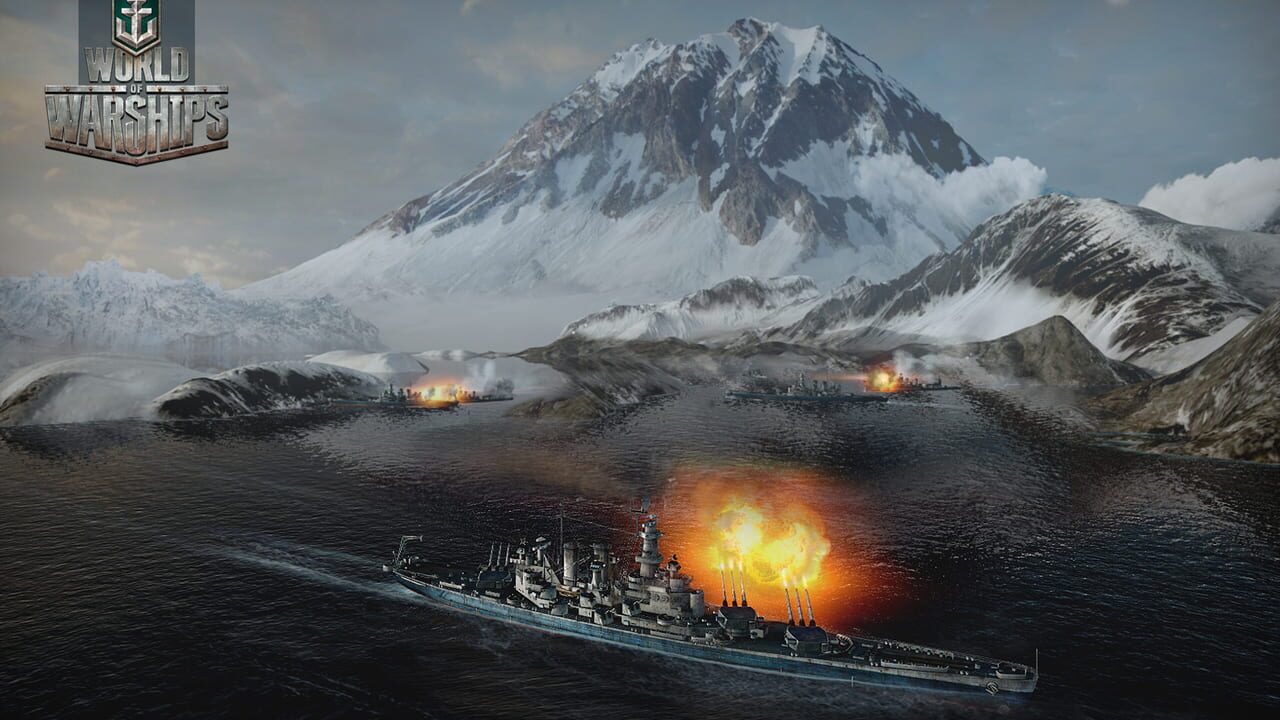
World Of Warships Graphics Settings Guide 2026
Intro
Hey captains! This World Of Warships graphics settings guide will help you squeeze every last FPS out of the game while keeping those ships looking sharp. Whether you’re rocking a high-end rig or squeezing through on integrated graphics, this guide will help you find the sweet spot between visual fidelity and smooth combat performance. In World Of Warships, frame pacing and stable framerates matter just as much as gunnery and positioning — lag spikes during a big salvo exchange can literally cost you a battle. We’ll walk through every adjustable setting, explain what each one does to your GPU and CPU, and help you dial in a config that runs buttery-smooth on your specific hardware. Let’s get those framerates up and the battleships looking cinematic!
Core Mechanics
| Setting | What It Controls | Performance Impact | Visual Impact | Recommended Priority |
|---|---|---|---|---|
| Texture Quality | Resolution and detail of ship hulls, water, clouds, and terrain surfaces | Medium-High (VRAM-dependent) | High — blurry textures break immersion on large battleships | Medium |
| Shadow Quality | Real-time shadow casting from ships, structures, and terrain | Medium-High | High — affects depth perception in combat | Medium |
| Anti-Aliasing | Smoothing of jagged edges (MSAA, TAA, or FXAA) | Low-Medium | Medium — reduces aliasing on ship edges and UI | Low |
| Draw Distance | How far into the horizon the game renders geometry and water | Medium | Medium — distant ships and effects fade in/out gradually | Medium |
| Particle Effects | Explosions, fire, smoke, tracer rounds, and water splashes | Medium-High | High — visually dense during combat | High |
| Water Quality | Reflections, caustics, wave detail, and foam simulation | High | High — ocean aesthetics are a core part of the experience | High |
| Bloom/Glare | Post-processing light bloom on bright surfaces and explosions | Low | Low-Medium | Low |
| LOD (Level of Detail) | Geometric complexity of distant objects based on distance | Low-Medium | Low — distant ships simplify automatically | Low |
| Post-Processing Effects | Ambient occlusion, depth of field, and other shader effects | Medium | Medium | Medium |
| Frame Rate Cap | Maximum FPS limit (uncapped or fixed at 60/120/144) | Variable | None directly — prevents GPU overwork | N/A |
| Shader Cache | Precompiled shaders to reduce stuttering on first load | Low (startup only) | None — eliminates micro-stutters | High |
| Renderer Mode | DirectX 11 vs DirectX 12 vs legacy OpenGL renderer | High | None — changes rendering pipeline entirely | Medium |
Step-by-Step
Step 1: Identify Your Hardware Bottleneck
Before touching a single setting, you need to know what’s holding you back. Open World Of Warships, go into the Settings menu, and navigate to the Gameplay tab where you can enable the built-in FPS counter and hardware telemetry. Alternatively, use MSI Afterburner or Windows Game Bar overlay to monitor your GPU utilization, CPU usage, and VRAM consumption during a battle.
- GPU-bound (95%+ GPU usage): Focus on GPU-heavy settings — shadows, particle effects, water quality, and draw distance.
- CPU-bound (high CPU usage, lower GPU usage): Focus on CPU-heavy settings — LOD, draw distance, and particle count.
- RAM/VRAM bottleneck (stuttering on asset load): Reduce texture quality and close background applications.
Step 2: Run the Built-In Benchmark
World Of Warships includes a graphical benchmark tool accessible from the main menu under Settings > Graphics. This benchmark renders a scripted sequence of combat and gives you a scored result along with performance metrics. Run it at your current settings, note the score, and then we’ll optimize from there.
Step 3: Set the Foundation — Stable First, Pretty Second
Start by locking your frame rate to a stable target. If you have a 60Hz monitor, cap at 60 FPS. If you have a 144Hz display, cap at 144. Uncapped framerates waste GPU resources and can cause thermal throttling, which leads to declining performance mid-battle. Go to Settings > Graphics > Frame Rate Limit and set it to your monitor’s refresh rate or slightly below.
Next, enable DirectX 11 mode if your system supports it. DX11 generally offers better stability and performance than the older legacy renderer in World Of Warships. You can switch renderers in the graphics settings menu. If you experience crashes or driver issues, reverting to the older renderer can be a useful troubleshooting step.
Step 4: Tackle the Big Three — Shadows, Particles, Water
These three settings have the largest impact on both visuals and performance in World Of Warships:
- Shadow Quality: Set to Medium for most systems. High shadows look great on carrier hangar views but eat GPU cycles during combat when dozens of ships are casting overlapping shadows. Low shadows are fine if you’re severely bottlenecked.
- Particle Effects: Set to High on good rigs, Medium on mid-range. Particle effects include torpedo wakes, shell tracers, explosion clouds, and damage fire. These are critical for combat readability — you need to see enemy damage flashes and torpedo trails. Never drop these to Low unless absolutely necessary.
- Water Quality: Set to Medium or High depending on your GPU. Water rendering is one of World Of Warships’ signature features, and the ocean aesthetics are a major part of the experience. On low-end systems, Medium still looks decent. Avoid Low if possible — it makes the ocean look flat and broken.
Step 5: Dial in Textures and Draw Distance
- Texture Quality: This is VRAM-heavy. If you have 8GB+ VRAM, go High. 6GB can handle Medium-High. 4GB or less should stick to Medium or Low. Check your VRAM usage in the benchmark — if you’re maxing it out, you’ll get texture pop-in and stuttering.
- Draw Distance: Set to Medium for competitive play. Higher draw distance lets you spot enemies farther away, which is a tangible tactical advantage in World Of Warships. However, it also increases CPU load significantly. If you’re CPU-bound, drop to Medium and rely on sound cues and spotting mechanics instead.
Step 6: Fine-Tune the Rest
- Anti-Aliasing: TAA offers the best balance of quality and performance. MSAA 2x is lighter but shows more aliasing. FXAA is the lightest option but can make the image look slightly blurry. Avoid MSAA 4x and 8x — they’re very costly for marginal visual gains in a game of this genre.
- Bloom/Glare: Turn Off or Low. These are purely cosmetic and don’t affect combat readability. Some players prefer them off to reduce visual clutter during intense firefights.
- LOD: Keep on Auto or High. Lowering LOD too much makes distant ships look blocky and can actually hurt your ability to identify enemy ship types at range.
- Post-Processing: Set to Medium or Low. Ambient occlusion adds depth but costs performance. Depth of field isn’t even relevant in a third-person naval game and can usually be disabled entirely.
- Shader Cache: Make sure this is enabled. It prevents stuttering when you encounter new effects or ships you haven’t seen before in a session.
Step 7: Optimize Outside the Game
Graphics settings inside World Of Warships are only half the equation. Here’s what else matters:
- Update your GPU drivers — Wargaming often optimizes for newer driver versions, and stale drivers can cause frame drops.
- Close background applications — Browsers with hardware acceleration, Discord overlay, and RGB software all consume resources. Disable hardware acceleration in browsers and close anything unnecessary.
- Set high-performance power plan — In Windows Power Settings, choose High Performance so your CPU and GPU don’t downclock during battles.
- Verify game files — Corrupted or missing files can cause performance issues. Use the Wargaming Game Center to verify and repair game files if you experience unexpected crashes or graphical glitches.
Pro Tips
- Cap your FPS below your monitor’s refresh rate (e.g., 141 FPS on a 144Hz display) to reduce GPU strain and prevent thermal throttling during long sessions.
- Use the benchmark after every major setting change — don’t guess, measure. A 5-point benchmark score difference tells you more than a subjective feel.
- Low-spec players: Prioritize lowering shadow quality and particle effects first — these give the biggest FPS gains per setting point.
- High-spec players: You can push textures and water to Ultra while keeping shadows and particles at High for the best visual experience without bottlenecking.
- Monitor your temps — sustained high GPU temperatures cause throttling that progressively worsens performance across a battle. Ensure good case airflow.
Related Guides
FAQ
What graphics settings hurt performance the most in World Of Warships?
Shadow quality, particle effects, and water quality are the top three performance hitters in World Of Warships. Reducing these from High to Medium typically yields the largest FPS gains without major visual degradation.
Is DX11 or DX12 better for World Of Warships?
DX11 is generally more stable for most players in World Of Warships. DX12 can offer better performance on newer GPUs but may cause occasional stutters or crashes depending on your hardware and driver version. Test both and run the benchmark to see which scores higher on your rig.
How much VRAM do I need for World Of Warships?
For Medium texture quality, 4GB of VRAM is sufficient. For High texture quality, aim for 6–8GB. For Ultra textures with high draw distance, 8GB+ is recommended in World Of Warships to avoid texture pop-in and stuttering.
Why am I getting frame drops only in certain battles?
This is usually caused by high particle counts during intense combat — multiple ships firing torpedoes, shells, and damaging simultaneously. Lowering particle effects quality or capping your FPS can help maintain consistency across all battle types.
Does enabling the FPS counter affect performance?
The built-in FPS counter in World Of Warships has negligible impact on performance. If you’re using an external overlay like MSI Afterburner, there may be a minor FPS cost, but it’s typically under 1–2 FPS.
Keep exploring
- World of Warships on MMOKB — the World of Warships game hub has the full knowledge base, tools and guides.
- Read the World of Warships knowledge base — Carrier, Battleship, Cruiser, Destroyer, Submarine.
- More World of Warships guides — World of Warships Achievement Guide: 2026 Complete Farming Tutorial, World Of Warships Beginner Guide 2026, World Of Warships Best Builds Farming And Tips, World of Warships Best Builds: Proven Tier VIII–X Configs, World Of Warships Best Classes Tier List 2026, World of Warships Combat Guide 2026 Pro Tactics.
- Browse the full library — all MMOKB guides
Reviewed & verified
| Covers | world-of-warships |
| Last verified | October 8, 2026 |
| Accuracy | The game’s own numbers and rules — they change with patches; check in-game for live values. |
Discussion
0 commentsNo comments yet. Be the first!