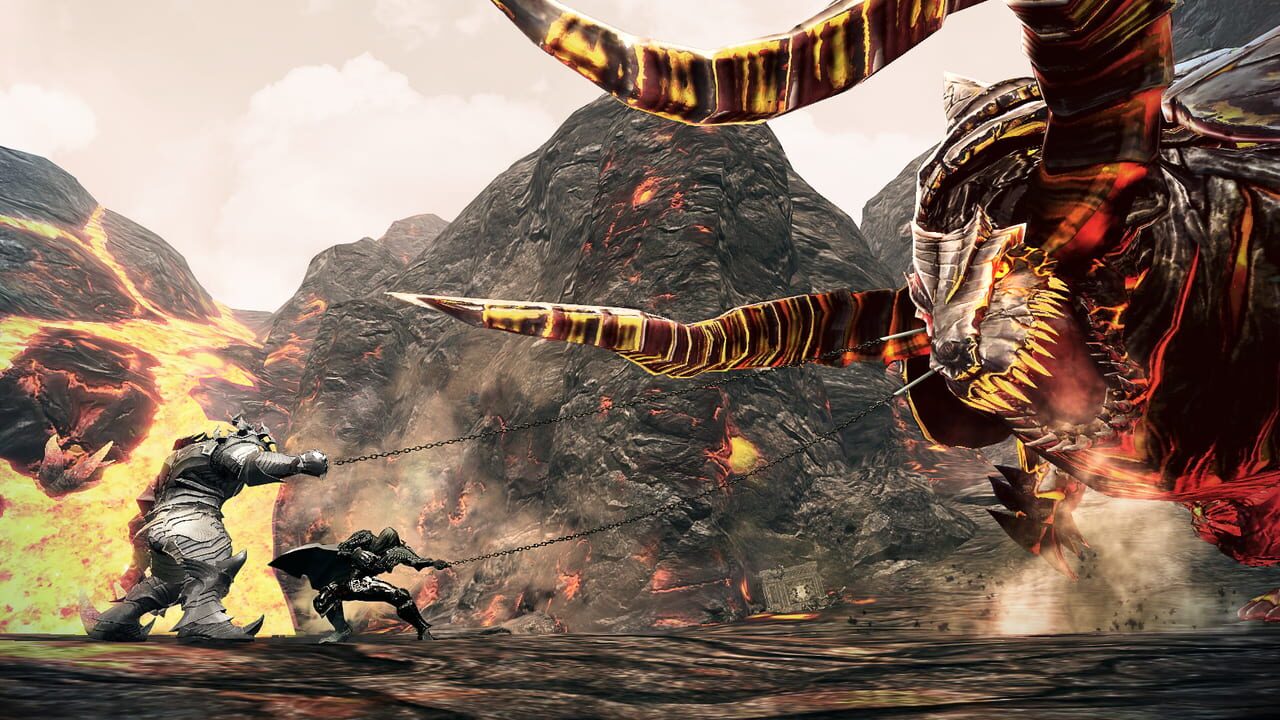
Vindictus Graphics Settings: 2026 FPS Boost
Hey warriors! If you’ve ever been mid-swing against a brutal boss and your frame rate flatlines, you’re not alone. Vindictus runs on the Valve Source engine and delivers gorgeous anime-inspired visuals, but that eye candy eats hardware for breakfast. This guide is your direct roadmap to smoother gameplay — whether you’re on a beefy rig or squeezing performance out of a budget build. Let’s fix those stutters and crank your framerate.
Core Mechanics
| Feature | Details |
|---|---|
| Engine | Valve Source (Nexon customizations) |
| Native Resolution Support | Multiple displays; adjustable from 720p up to your monitor’s max |
| Graphics Presets | Low, Medium, High, Ultra |
| Anti-Aliasing | Multiple quality tiers available |
| Motion Blur | Toggle on/off |
| Character Detail / Pop-in | Adjustable to balance visual fidelity vs. performance |
| Shadow Quality | Multiple levels; high impact on GPU load |
| Terrain / Environment Detail | Scalable setting affecting outdoor scene performance |
| V-Sync | Toggle option; disables screen tearing but may add input lag |
| Frame Cap | Lock to refresh rate or set unlimited |
| Windowed / Fullscreen Modes | Both supported; fullscreen generally better for latency |
| Minimum Requirements | Dual-core CPU, 4 GB RAM, DirectX 11 GPU with 1 GB VRAM |
| Recommended Requirements | Quad-core CPU, 8 GB RAM, GTX 1060-class GPU with 6 GB VRAM |
| Co-op Play | Up to 4 players in dungeons; increases CPU and draw call load |
Step-by-Step: Optimizing Your Setup
Step 1 — Know Your Hardware
Before you touch a single setting, figure out what you’re working with. Open Task Manager (Ctrl+Shift+Esc), go to the Performance tab, and note your CPU model, RAM amount, and GPU. Run a quick benchmark on Steam or use a free tool like CPU-Z. Vindictus scales differently on Intel versus AMD, and on integrated versus dedicated graphics — so being honest with yourself here saves hours of tweaking.
Step 2 — Start With the Right Preset
Jump into the Graphics Settings menu (Options → Display). Low-end machines should start at Low and work up. Mid-range users begin at Medium. High-end rigs can sit at High or Ultra. These presets give you a solid baseline. Don’t trust them blindly — every preset skews differently, and some settings hit your hardware harder than others.
Step 3 — Shadows Are Your Biggest Performance Drain
Shadows in Vindictus are beautiful, but they are also the single most expensive setting. Dropping shadow quality from High to Low can easily gain you 15–30 FPS in busy dungeons. If you’re struggling, crank shadows to Low and keep everything else on High. You’ll barely notice the visual difference, but your framerate will thank you.
Step 4 — Tame the Ambient Occlusion and Post-Processing
Ambient occlusion adds depth and realism to characters and environments, but it’s a heavy GPU consumer. Set it to Medium or Low if you’re targeting 60 FPS consistently. Post-processing effects like bloom, depth of field, and color grading are mostly cosmetic — turn them down if you need headroom, especially in darker dungeons where the engine works overtime.
Step 5 — Anti-Aliasing: Find the Sweet Spot
Vindictus offers several anti-aliasing options. Higher AA softens jagged edges on character models and weapon effects, but it taxes your GPU significantly. For most players, a Medium AA setting is the sweet spot. On higher-resolution monitors (1440p or 4K), you can push it to High. Avoid Maximum AA unless you have a flagship card.
Step 6 — Resolution and Scaling
Running Vindictus at your monitor’s native resolution is always the visual goal, but if you’re on a 4K display with a mid-range GPU, try dropping to 1080p or using render scaling if your client supports it. Lowering resolution from 1440p to 1080p can nearly double your framerate on older hardware. If you have a powerful GPU, you can also upscaling to 1440p on a 1080p monitor — the visual bump is worth the minor performance hit.
Step 7 — Character and Environment Detail
Vindictus has a setting for character detail that affects how much visual information loads on each hero and enemy model. In co-op with three other players, this setting becomes critical — lowering it reduces draw distance and visual pop-in without making characters look noticeably worse. Similarly, terrain and environment detail affects how lush outdoor zones render. Set this to Medium if you’re frequently running through dense areas like Karkach or the Whispering Woodlands.
Step 8 — Motion Blur and V-Sync
Motion blur is purely aesthetic — it adds a cinematic feel during fast combos but can make the screen look blurry during frantic boss fights. Turn it off if competitive responsiveness matters to you. V-Sync eliminates screen tearing but introduces input lag. If you care about timing your Parry and Counter hits perfectly, disable V-Sync and accept the occasional tear. Pair it with a high refresh rate monitor and the tears become almost unnoticeable.
Step 9 — Fullscreen vs. Windowed Mode
Fullscreen mode gives Vindictus exclusive control of your display, reducing input latency and improving performance by a few FPS. Windowed mode is convenient if you Alt-Tab frequently to check guides or Discord, but it adds overhead. If performance is your priority, stick with exclusive fullscreen. If you need windowed for multitasking, use borderless windowed — it’s a decent middle ground.
Step 10 — Close Background Applications
Vindictus is surprisingly CPU-sensitive, especially during large-scale battles with multiple enemies and particle effects. Browser tabs, Discord overlays, RGB software, and background updaters all steal CPU cycles. Close everything you don’t need before launching. Aim for less than 30% CPU usage from background processes before you even open the game.
Step 11 — Update Your GPU Drivers
This sounds obvious, but it’s the most commonly skipped step. Update your NVIDIA or AMD drivers to the latest version. Game-ready drivers often include optimizations for newer titles and bug fixes that directly improve framerate stability. Check the manufacturer’s website — don’t rely on Windows Update for GPU drivers.
Step 12 — Lower Particle Effects During Boss Fights
When facing high-difficulty bosses, the screen fills with particle effects from skills and abilities. If your framerate drops during these moments, reduce particle quality in the graphics menu. This is one of the settings most players overlook, and it has a dramatic effect during skill-heavy encounters.
Tips
-
Monitor your FPS in real-time. Use tools like MSI Afterburner or the NVIDIA overlay to watch your framerate while playing. This helps you identify exactly which moments cause the biggest drops and which settings to adjust first.
-
Keep your game folder on an SSD. Vindictus loads textures and models dynamically during combat. Running the game off a traditional hard drive can cause texture pop-in and stuttering that no graphics setting will fix. An SSD is one of the highest-impact upgrades you can make.
-
Don’t max out everything. A balanced Mid/High setup will almost always run better than an all-High or all-Ultra setup. Identify your bottleneck (CPU or GPU) and tune settings accordingly — lower CPU-heavy options first, then GPU-heavy ones.
FAQ
What is the best graphics preset for Vindictus? Start with Medium for mid-range PCs or High for strong rigs, then tweak individual settings from there rather than trusting the preset blindly.
Why does Vindictus stutter in dungeons? Most stuttering comes from shadows, high particle counts, and co-op load. Drop shadow quality to Low, reduce particles, and consider closing background apps to stabilize framerate.
Does Vindictus support cross-play? No, Vindictus does not support cross-play between platforms. Co-op is limited to players on the same platform.
Should I use V-Sync in Vindictus? Disable V-Sync if you want the lowest input lag for parrying and dodging. Enable it only if screen tearing bothers you and you don’t mind slight input delay.
Keep exploring
- Vindictus on MMOKB — the Vindictus game hub has the full knowledge base, tools and guides.
- Read the Vindictus knowledge base — Karok, Evie, Guild Skills, Pvp Arena.
- More Vindictus guides — Vindictus Event Rewards Guide (2026 Community Events), Vindictus 2026: Pro Builds & Event Strategies, Vindictus Best Builds: Pro Farming Guide And Tips For 2026, Vindictus Best Builds, Vindictus Boss Guide, Vindictus Controller Guide.
- Browse the full library — all MMOKB guides
Reviewed & verified
| Covers | vindictus |
| Last verified | November 4, 2026 |
| Accuracy | The game’s own numbers and rules — they change with patches; check in-game for live values. |
Discussion
0 commentsNo comments yet. Be the first!