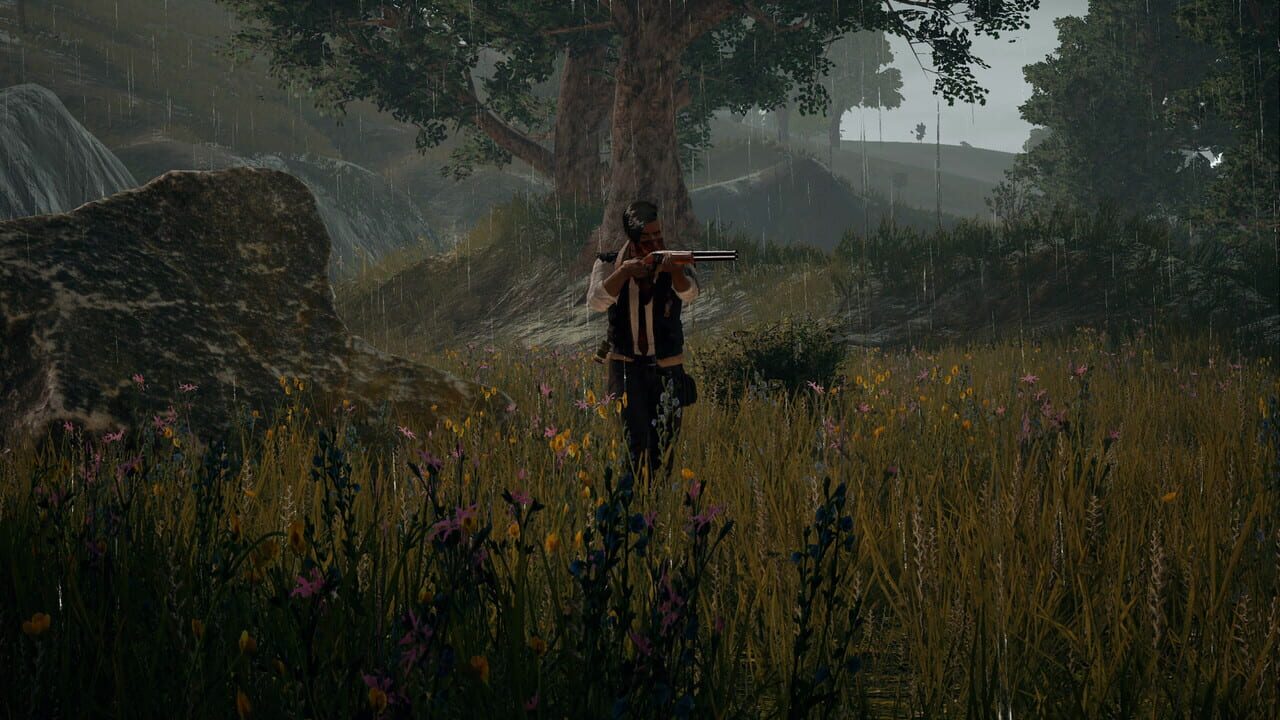
Pubg Battlegrounds Ui And Settings Guide
Intro
Whether you’re dropping into the cold stretches of Erangel or squadding up on the tropical sprawl of Sanhok, mastering pubg-battlegrounds requires more than just sharp aim — it means knowing how to read the battlefield around you. This Pubg Battlegrounds Ui And Settings Guide will walk you through every HUD element, minimap trick, sound cue, and critical setting you need to optimize your setup. From FOV and sensitivity to audio prioritization and keybind customization, this guide covers the essentials so you can step into your next match feeling dialed in and ready to win.
Core Mechanics Table
| HUD Element | Purpose | Pro Tips |
|---|---|---|
| Minimap (Top Left) | Shows terrain, roads, vehicles, teammates, and nearby enemy footprints | Zoom with mouse wheel; color-code enemies by squad visibility |
| Compass Bar | Direction indicators with landmark names and distance markers | Use for rotation calls; memorize landmark distances |
| Kill Feed (Top Right) | Recent eliminations and knockdowns | Track who’s still alive and estimate remaining squads |
| Voice/Text Chat Log | Squad coordination messages | Use abbreviated callouts; ping system for quick comms |
| Inventory Panels | Weapons, attachments, consumables, and gear | Pre-lay outfits; know your loadout cold |
| Stance & Movement Indicators | Prone/crouch/standing status | Switch stances to control noise and visibility |
| Damage Numbers & Hit Markers | Visual feedback on hits | Green = damage; red = critical; use to track low-health enemies |
| Circle Timer & Safe Zone | Countdown to zone closure and border positioning | Track multiple zones ahead; learn circle call timing |
| Ping System | Mark loot, enemies, and objectives without voice | Fast-marks for quick intel sharing in squad play |
| Sensitivity Sliders | Mouse or controller aiming precision | Start low; build muscle memory gradually |
Step-by-Step: Configuring Your PUBG UI and Settings
Step 1 — Launching the Settings Menu
From the main lobby, navigate to the Settings icon (usually a gear or wrench near the top right of the screen). Click to open the menu. The settings are divided into categories: Graphics, Sound, Controls, Video, and Accessibility. Spend extra time on each tab before entering a match.
Step 2 — Optimizing Graphics for Performance
Go to the Graphics tab. Prioritize these settings:
- Display Mode: Fullscreen is generally best for input responsiveness.
- Resolution: Match your monitor’s native resolution.
- Brightness: Crank it up slightly so shadows don’t hide prone players.
- Graphics Quality: Set to Normal or Low for competitive play. High textures look nice but cost FPS.
- Anti-Aliasing: Turn this off or to low — it softens edges and can make enemies harder to spot at range.
- Draw Distance: Keep moderate. Higher settings reveal more detail but cost performance and can give away your position through distant visual cues.
- Post-Processing, Shadows, and Effects: Set to Low or Off. These don’t improve gameplay visibility and mostly add visual clutter.
Step 3 — Tuning Audio Settings
Audio is one of PUBG’s most vital competitive advantages. Go to the Sound tab:
- Master Volume: Set to comfortable listening levels — never maxed out.
- Music: Disable. Music masks critical footsteps, reloads, and vehicle sounds.
- SFX Volume: Keep high. Footsteps, door creaks, and weapon sounds are your primary intel.
- Voice/Chat Volume: Set to a level where squad callouts are clearly audible over game audio.
- Audio Device: Use a quality headset. Stereo headphones can work, but surround-sound headsets give better directional awareness.
- Enable “Use Headphones” option if available — it enhances spatial audio.
- Prioritize directional audio. Learn which sounds come from which direction using the audio panning cues.
Step 4 — Sensitivity and Control Setup
Navigate to the Controls or Sensitivity tab. If you play on keyboard and mouse, sensitivity matters enormously:
- Mouse Sensitivity: Start between 3–6 for general aim. Many pros prefer lower values for precision.
- ADS (Aim Down Sights) Sensitivity: This controls how fast your scope tracks while aiming. Set ADS sensitivity relative to your mouse DPI. A good starting ratio is roughly 1:1 with general sensitivity, then adjust per scope.
- FOV (Field of View): Set between 90–110. Higher FOV lets you see more peripheral movement, which is critical in close-quarters fights. Don’t go too high or it distorts depth perception.
- Controller Players: Use Dead Zone settings between 10–15% to eliminate stick drift without losing responsiveness. Enable Aim Assist if playing on console.
- Keybind Customization: Map frequently used actions (heal, switch weapon, crouch, prone, ping) to comfortable keys. Avoid keys that conflict with movement (WASD).
Step 5 — UI and HUD Customization
Some versions of PUBG allow HUD layout adjustments:
- Minimap Size: Make it as large as possible for better situational awareness.
- Item Slots: Prioritize your primary weapon slot and keep your healing items on quick-access keys.
- Ping and Voice Indicators: Enable visual cues so you know when a teammate is speaking or pinging even if your mic is off.
- Circle Callouts: Enable auto circle timer display so you always know when the next zone closes.
- Damage Numbers: Enable them. They provide instant feedback on whether you’re landing shots.
- Teammate Health Bars: Keep these visible so you can assess squad status at a glance.
Step 6 — Final Checks Before Loading In
Before clicking “Deploy”:
- Test your sensitivity in the Training Ground (if available).
- Verify your audio panning feels correct — walk toward a sound source to calibrate.
- Confirm all keybinds feel natural and don’t overlap.
- Save all settings and exit the menu.
Tips
- Always play with a consistent sensitivity. Don’t change it between matches. Muscle memory takes weeks to build — protect it.
- Watch your crosshair placement. In PUBG, the crosshair should sit at head level and center screen. Don’t look at the ground when moving.
- Use the ping system aggressively. Even without voice chat, a well-placed ping can save your squad’s life.
- Prioritize audio over visuals. Sound will tell you about enemies before you see them. Learn to identify footsteps by surface type — grass, concrete, wood, and metal all sound different.
- Keep your minimap scannable. Glance at it every 3–5 seconds during movement. This builds spatial awareness.
- Adjust brightness mid-match if needed. If an area looks too dark, tweak brightness in settings without restarting.
- Turn off unnecessary visual effects. Bloom, motion blur, and depth of field are cosmetic only. Disable them for a cleaner visual field.
- Learn the kill feed pattern. Watch how kills are reported. It tells you who’s eliminating whom and helps track squad health.
- Use squad callouts in short, clear phrases. “One M4, red box, mid-range” beats a long description.
- Practice in Training Mode first. Don’t jump straight into ranked or ladder matches until your settings feel solid.
Related Guides
FAQ
Q: What is the best FOV setting for competitive PUBG play?
A: Most competitive players set their FOV between 95 and 110. Higher values improve peripheral vision, which helps detect flanking enemies. However, anything above 120 can distort depth perception and make long-range aiming feel floaty. Find the sweet spot that feels comfortable for your playstyle.
Q: Should I disable music and voice chat sounds in settings?
A: Absolutely. Disable music entirely. Voice chat volume should be adjusted so you can hear squad callouts clearly, but not so loud that they drown out in-game audio like footsteps and gunfire. Your headset should deliver balanced audio where both communication and combat sounds are audible.
Q: How do I improve my aim sensitivity in PUBG?
A: Start with a moderate-to-low mouse sensitivity (3–6 range). Play several matches at this setting before adjusting further. Many professional PUBG players use sensitivity settings in the lower end of the spectrum for precision tracking. The key is consistency — once you find a sensitivity that works, stick with it and build muscle memory over time.
Q: Is the ping system worth using if I have a mic?
A: Yes, and here’s why. The ping system is faster than typing and more precise than verbal callouts in chaotic firefights. Even with a working mic, pings provide instant visual markers that your squad can react to immediately. Use both — pings for quick positioning and voice for detailed strategy.
Q: Can I customize my HUD layout?
A: Some versions of PUBG offer limited HUD customization, allowing you to adjust minimap size, enable/disable certain UI elements, and rearrange inventory slots. However, there are no PvP arenas or player-vs-player matchmaking modes with customizable competitive brackets. PUBG remains focused on its core battle royale format with solo, duo, and squad modes across various maps including Erangel, Miramar, Sanhok, Vikendi, and Taego.
Q: Why are my teammates’ names not showing on the minimap?
A: Check your settings under the HUD or Visibility tab. Ensure that “Show Teammates on Minimap” is enabled. Also verify that you’re playing in a squad or duo mode where teammate positions are shared. Solo modes won’t display other players’ locations since everyone is competing individually.
Q: Does PUBG support controller vibration or haptic feedback?
A: Controller vibration is available in most versions of PUBG as a visual and audio cue enhancement. You can toggle this on or off in the Controls or Accessibility settings. While there are no crafting systems or trading floors for upgrading controllers or accessories, the haptic feedback helps reinforce important game events like being hit, knocking down an enemy, or entering the blue zone.
Q: How do I reduce input lag in PUBG?
A: Enable Fullscreen mode in your display settings and match your resolution to your monitor. Drop graphics quality and disable post-processing effects to cut frame time, which shortens the gap between your input and the on-screen result.
Keep exploring
- PUBG: Battlegrounds on MMOKB — the PUBG: Battlegrounds game hub has the full knowledge base, tools and guides.
- Read the PUBG: Battlegrounds knowledge base — Squad Roles, Competitive Ranks, Maps And Zones, Vehicles.
- More PUBG: Battlegrounds guides — Pubg Battlegrounds Achievement Guide (2026), PUBG Battlegrounds Tips: Your First Chicken Dinner Guide 2026, PUBG Battlegrounds Best Builds Farming And Tips, Pubg Classes Tier List 2026: Pick the Best Class for Your Playstyle, PUBG Battlegrounds Win Guide 2026: 8 Pro Strategies, PUBG Controller Settings: 2026 Pro Builds.
- Browse the full library — all MMOKB guides
Reviewed & verified
| Covers | pubg-battlegrounds |
| Last verified | November 4, 2026 |
| Accuracy | The game’s own numbers and rules — they change with patches; check in-game for live values. |
Discussion
0 commentsNo comments yet. Be the first!