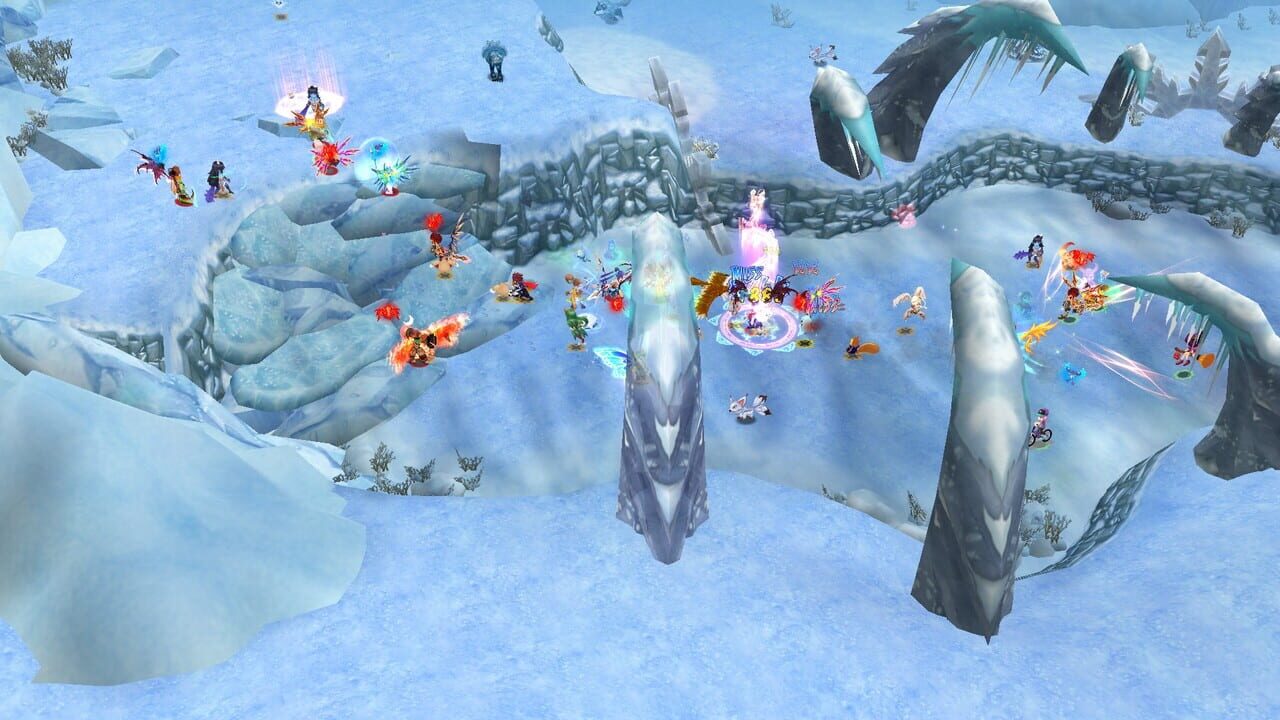
Nostale Controller Guide
So you’re jumping into Nostale and want to know the best way to play — on PC with a keyboard, or maybe you’re rocking a controller? Welcome to your ultimate Nostale Controller Guide! Whether you’re a veteran hero of Alfheim or a fresh adventurer just starting out, this guide will help you set up and master controller support in Nostale for the smoothest experience possible. Nostale is a free-to-play anime action MMORPG where you choose from multiple classes, grind through maps, tackle dungeons, and take down bosses. Getting your layout dialed in early can make grinding, dungeons, and boss fights way more comfortable. Let’s get you set up and locked in.
Game Overview: Nostale is a PC anime MMORPG by Entwell and Gameforge, featuring class-based combat, dungeons, boss fights, mounts, pets, alchemy crafting, and seasonal events. Players explore Alfheim across multiple zones with a mix of solo and group-friendly content.
Core Mechanics Table
| Feature | Description | Controller Support |
|---|---|---|
| Auto-Battle System | Many skills auto-execute while you focus on movement and positioning | Full — movement + skill shortcuts via buttons |
| Skill Bar | Up to 6 active skills you can hotkey | Full — assignable to face buttons or shoulder triggers |
| Movement | Arrow keys / WASD or joystick for auto-scroll and manual control | Full — dual-stick or single-stick options available |
| Dungeons & Bosses | Instance-based content with patterns and mechanics | Full — inputs work identically to keyboard |
| Story / Quests | Text-heavy narrative segments and NPC interactions | Full — navigate menus with controller |
| Inventory & Equipment | Manage gear, use items, equip upgrades | Full — browser-friendly with D-pad or sticks |
| Chat / Social | Party invite, chat, and friends list | Full — type with controller keyboard or use quick messages |
| Event System | Limited-time events like Double Experience events | Full — participate normally |
| Crafting (Alchemy) | Create potions and buffs from gathered materials | Full — menu-driven, controller-friendly |
| Mounts & Pets | Ride mounts and summon companions | Full — activate via shortcut keys |
Note: Nostale does not feature PvP arenas, player-vs-player combat, player trading floors, or co-op modes beyond its standard MMO party system. Everything in this guide focuses on the single-player-friendly and solo content you’ll encounter.
Step-by-Step: Getting Your Controller Working
Step 1: Connect Your Controller
Plug in your Xbox controller via USB or pair it wirelessly. For PlayStation controllers, connect via USB first. Steam Input handles most modern controllers automatically. If you’re not on Steam, Windows should still recognize most controllers out of the box.
Step 2: Enable Controller in Nostale Settings
Once connected, launch Nostale. Navigate to Settings > Controls. You should see your controller detected. If it doesn’t show up, try reconnecting or running the game through Steam, which has the best controller compatibility.
Step 3: Map Your Skills
This is the most important step. Here’s a recommended layout:
| Button | Recommended Skill |
|---|---|
| X / A | Primary DPS Skill |
| Y / B | Secondary DPS Skill |
| B / O | Crowd Control / CC Skill |
| A / X | Buff or Healing Skill |
| LB / L1 | Item Use (Potion) |
| RB / R1 | Mount / Pet Toggle |
| D-Pad Up | Quick Move to Next Objective |
| D-Pad Down | Open Map |
| D-Pad Left | Inventory |
| D-Pad Right | Social / Party Menu |
Tweak this based on your playstyle. The goal is muscle memory — you want to hit skills without looking.
Step 4: Adjust Sensitivity
Go back to Settings > Controls > Sensitivity. For Nostale, a moderate sensitivity works best:
- Horizontal Stick: 5-7 range
- Deadzone: 10-15% to prevent drift
- Vibration: Optional, but helpful for boss hit feedback
Step 5: Test in a Safe Zone
Before diving into a dungeon, walk around the starting area. Make sure:
- Movement feels responsive
- Skills fire on the right buttons
- You can open menus quickly
- Mount and pet buttons work
Step 6: Save and Apply
Hit Apply and Save. Some settings may require a game restart to take full effect. Once you’re back in, you should be good to go.
Controller Setup by Platform
Xbox Controllers
Xbox controllers have the tightest integration with Nostale. Plug in via USB or use Xbox Wireless. The guide button opens the quick menu for inventory and settings without pausing combat.
PlayStation Controllers
PlayStation controllers work well through Steam Input or direct USB connection. You may need to switch button labels in the settings to match PlayStation layout rather than Xbox defaults.
Steam Input Setup
If you’re running Nostale through Steam, launch with Big Picture Mode enabled. Steam Input will auto-configure your controller layout. You can create custom profiles per class if you play multiple heroes.
Third-Party Controllers
Razer, 8BitDo, and other third-party controllers are supported via standard drivers or Steam Input. Some budget controllers may have mapping quirks — test all buttons before relying on them in dungeons.
Tips for Controller Players
Tip 1: Use the D-Pad for Menus
The D-pad is your friend for quick menu access. Map inventory, map, and social to it so you never have to break out of combat flow.
Tip 2: Stick to Shoulder Buttons for Skills
Shoulder buttons (LB/RB or L1/R1) are easier to press while moving than face buttons. Keep frequently used skills there.
Tip 3: Don’t Overcomplicate Your Layout
Nostale’s auto-battle means you’re not micro-managing every attack. Keep your layout simple — fewer buttons to remember means less stress during chaotic boss fights.
Tip 4: Use Steam Big Picture Mode
If you’re on PC, running Nostale through Steam’s Big Picture Mode gives you a console-like experience with full controller support and a clean HUD.
Tip 5: Take Advantage of Auto-Battle
Since Nostale handles combat automatically, your controller input is mostly about positioning and timing skills manually when needed. Learn when to override auto and when to let it run.
Tip 6: Update Your Firmware
Make sure your controller firmware is up to date. Old firmware can cause connection drops or input lag — annoying when you’re trying to time a boss mechanic.
Tip 7: Watch for Button Prompts
Nostale sometimes shows button prompts during quests and dialogues. These will display the correct controller input, so pay attention if you’re unsure of a mapping.
Tip 8: Learn Boss Patterns with Controller
Boss fights in Nostale rely on recognizing attack patterns. With a controller, position your character with the left stick and trigger dodge or skill buttons with your right hand. Practice in easier dungeons first to memorize attack timing before tackling harder content.
Tip 9: Optimize for Different Classes
Different hero classes in Nostale have different skill rotations. Warriors may benefit from putting survivability skills on shoulder buttons, while mages might want CC skills closer at hand. Customize your layout per class based on your playstyle.
Tip 10: Use Controller for Quest Navigation
The auto-battle system means most of your controller time is spent navigating quest objectives. Map your D-pad for quick map access and objective tracking so you can move efficiently between zones without fumbling through menus.
Advanced Controller Strategies
Manual Skill Override Timing
While Nostale runs on auto-battle, there are moments when manually triggering a skill makes a big difference. Save your most powerful skill for when a boss enters a vulnerable phase or when a crowd of enemies clusters together. Practice identifying these windows with a controller setup — you want your triggers ready to fire at exactly the right moment.
Positioning Mastery
With a controller, positioning becomes even more important since you’re not using keyboard precision. Learn to use the left stick smoothly to kite enemies, stay at optimal range for your class, and avoid dangerous AoE attacks without overcorrecting.
Class-Specific Recommendations
- Warriors: Keep your tanking and damage reduction skills on shoulder buttons for quick access during boss phases
- Mages: Position your crowd control and burst damage skills for easy trigger access
- Support/Healers: Map healing and buff skills to face buttons so you can maintain party health without breaking flow
- Rogues: Keep your mobility and escape skills ready on triggers for quick repositioning
Conclusion
Getting your controller set up properly in Nostale makes a huge difference in your gaming experience. With the right button mappings, sensitivity settings, and a bit of practice, you’ll be mastering Alfheim’s dungeons and boss fights like a pro. Remember — Nostale’s auto-battle system means you’re not fighting against the game’s mechanics, just working with them. Take your time dialing in your layout, and soon you’ll be grinding maps and clearing dungeons without even thinking about it.
Happy adventuring, hero!
Related Guides
FAQ
Q: Does Nostale support controllers natively?
A: Yes, Nostale works with most modern controllers, especially when launched through Steam with Steam Input enabled.
Q: What’s the best controller for Nostale?
A: Xbox controllers have the tightest integration, but PlayStation and third-party controllers work well too through Steam Input.
Q: Can I customize my button mappings in Nostale?
A: Absolutely! Head to Settings > Controls to remap any button to your liking. Create different profiles per class if needed.
Q: Is Nostale easier to play with a controller or keyboard?
A: Both work great! Controllers excel at comfortable couch gaming, while keyboards offer precise movement. It comes down to personal preference.
Q: Does Nostale have PvP modes?
A: Nostale focuses on PvE content including dungeons, bosses, and solo adventures, with PvP modes available alongside it.
Q: Can I trade items with other players in Nostale?
A: No, Nostale does not feature player trading floors or item trading between players. Focus on your own hero’s progression!
Q: How do I fix controller drift in Nostale?
A: Adjust your deadzone settings in Controls > Sensitivity. A 10-15% deadzone usually eliminates drift without sacrificing responsiveness.
Q: Does Nostale support cross-progression between devices?
A: Check the official Nostale website for the latest cross-platform and account sharing policies, as these features may vary over time.
Keep exploring
- Nostale on MMOKB — the Nostale game hub has the full knowledge base, tools and guides.
- Read the Nostale knowledge base — Specialist Cards, Class Lines, Crafting, Pets, Endgame Loops.
- More Nostale guides — Nostale Achievement Guide 2026: 19th Anniversary Rewards, Nostale 2026 — Which Class Should You Pick? | Best Grinding & Raids, Nostale Best Builds 2026: Proven DPS, Tank & Support Guides, Which Nostale Class Should You Play in 2026? Full Tier List, Nostale Boss Guide, Nostale Endgame Gear Guide 2026 - Stack Your Build Right.
- Browse the full library — all MMOKB guides
Reviewed & verified
| Covers | nostale |
| Last verified | November 4, 2026 |
| Accuracy | The game’s own numbers and rules — they change with patches; check in-game for live values. |
Discussion
0 commentsNo comments yet. Be the first!