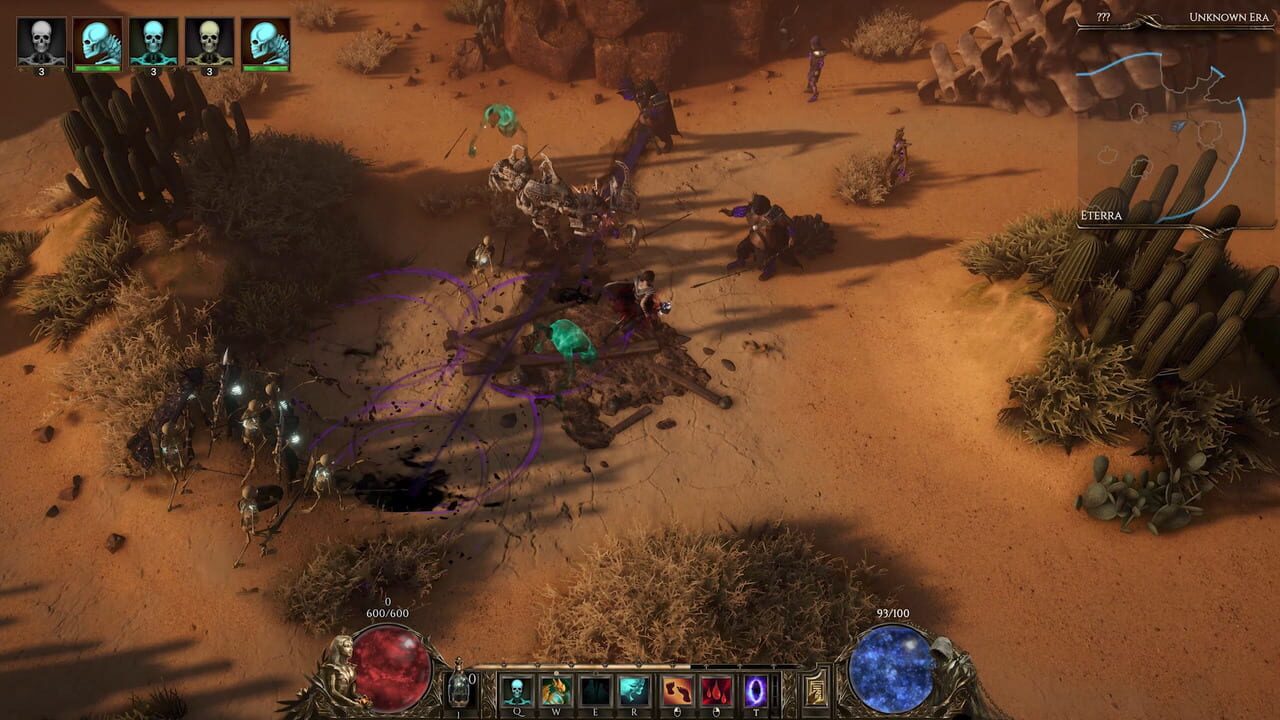
Last Epoch Controller Guide
Intro
Welcome to the definitive Last Epoch Controller Guide for the action RPG that’s been stealing hours from gamers everywhere. Whether you’re a console veteran who migrated to PC or just prefer the comfort of a gamepad, this guide will walk you through everything you need to know about playing last-epoch with a controller. We’ll cover binding, navigation, camera controls, skill usage, and more. No keyboard? No problem. Let’s get you rolling.
Core Mechanics
| Feature | Details |
|---|---|
| Supported Controllers | Xbox (Series X/S, One), PlayStation 4/5, most standard USB Bluetooth gamepads |
| Connection Type | Plug-and-play via USB or Bluetooth; automatic detection on startup |
| Gamepad Button Presets | Default mappings follow standard Xbox-style layout (A=Confirm, B=Cancel, X=Inventory, Y=Skills) |
| Analog Stick Camera | Right stick controls camera pan with adjustable sensitivity |
| Vibration/Haptics | Full rumble feedback enabled by default (toggleable in settings) |
| Key Bind Limits | Up to 8 custom binds per slot; modifier combos (LB+X, RT press-and-hold) supported |
| Deadzone Tuning | Both left and right stick deadzones adjustable from 0% to 50% in increments of 5% |
Step-by-Step
Step 1: Connect Your Controller
Plug your controller into your PC via USB cable, or pair it wirelessly through Bluetooth settings. Last Epoch auto-detects controller input the moment it sees a recognized gamepad. You should see a subtle controller icon appear in the bottom-right corner of the screen confirming detection. If it doesn’t appear, restart the game — don’t unplug and replug; that can sometimes cause the game to forget the controller.
Step 2: Navigate the Main Menu
From the title screen, use the left analog stick or D-pad to move through menu options. The A button (Xbox) or Cross (PlayStation) confirms your selection. B button or Square scrolls back. The right stick orbits menus when available. Navigation responds with a satisfying click sound and a brief highlight animation so you always know what you’re targeting.
Step 3: Configure Your Bindings
Before diving into gameplay, hit the Start/Pause button to open the main menu. Navigate to Settings → Controls. Here you’ll find every single binding organized into categories: Movement, Combat, Skills, Inventory, Map, and Utility. Each action shows its current key/command and allows you to remap by pressing the corresponding face button or trigger.
Key things to know about bindings:
- Sticks can be mapped — you can assign actions to clicking the left stick (L3) or right stick (R3).
- Triggers support partial press — RT/R2 can be set to toggle actions that activate while held and deactivate when released.
- Shoulder buttons are fully programmable — LB/L1 and RB/R1 each have dedicated actions, and combo slots let you chain two buttons together (e.g., hold LB then tap X).
Save your profile and head back to the game.
Step 4: Movement and Camera
Your left stick moves your character forward, backward, and diagonally. There is no sprint by default on the base left stick — that’s mapped to holding the left trigger (LT/L2) in most default profiles. Tapping LT once is a dash ability for certain builds.
The right stick controls camera rotation. By default, the camera follows your character with a smooth lag. You can adjust this in Settings → Video & Audio → Camera Settings:
- Camera Sensitivity — how fast the view rotates (try 60–80% for most players)
- Camera Invert — flip vertical look if preferred
- Zoom Level — pull the camera closer or farther with the scroll wheel or RB/R1 hold
In tight corridors or large boss arenas, pulling the camera in with RB/R1 gives you better spatial awareness. Boss fights especially benefit from a closer camera angle since your skills are visually cluttered.
Step 5: Using Skills on a Controller
Last Epoch uses a hotbar system with 9 ability slots plus 3 spellbook skills. Here’s how controller inputs map:
- Slot 1–6: Press 1 through 6 on your keypad, or map them to face buttons + shoulder combinations
- Spellbook Skills: Usually bound to Y/Triangle for the primary and X/Square for secondary spells. These are your powerful abilities that cost energy and have cooldowns.
- Skill Modifiers: Hold LB/L1 while pressing a skill slot to cast the “modifier” version of that skill, which changes elemental type, adds conditions, or enhances damage depending on your gear.
- Shift Skill: RT/R2 press-and-hold triggers your current Shift skill (the one above the hotbar with the blue border). Release to stop channeling or activating.
Skills show their cooldown as a shrinking circle overlay on the hotbar icon. When a skill is ready, it glows slightly and plays a soft chime — learn to listen for that audio cue during chaotic fights.
Step 6: Inventory and Item Management
Inventory management is one of the trickiest parts of controller play. Press X/Square to open your character panel. Navigate with the left stick. Items are displayed in a grid on the right side.
Key inventory shortcuts:
- RB/R1 — Cycle through tabs (Character, Backpack, Quick Slots, etc.)
- Y/Triangle — Toggle item comparison pop-up showing stats side by side
- A/Cross — Equip selected item or open socket interface
- B/Circle — Sell, salvage, or quick-move item depending on context
- Left Stick Click (L3) — Quick swap two items in adjacent slots
When comparing gear, the game highlights the difference in green (upgrade) or red (downgrade). This is huge for controller players since you can’t easily hover over items — the comparison window is your best friend.
Step 7: The Monolith and Difficulty Navigation
The Monolith of Fate is a core progression system. From the overworld map, navigate to the Monolith and interact with it. Use the left stick to select difficulty tiers and modifiers. Confirm selections with A/Cross. Modifier selection screens use a card-based UI — swipe or use shoulder buttons to flip through available curse choices.
Last Epoch supports co-op: you can party up to 4 players, and the Monolith can be run solo or in a group. Enemy difficulty scales with party size. The Time-Lost Colosseum also gives you proper PvP — ladders, rankings, and 2v2, 3v3, 5v5 or free-for-all duels — and the Bazaar lets you trade items with other players if you’re aligned to the Merchant’s Guild Item Faction. Crafting is the one exception: it is an individual activity with no shared crafting stations.
Step 8: HUD Customization
Press M (or your configured map key) to open the world map. On controller, use the left stick to pan around the map and RB/R1 to zoom in and out. For HUD layout, go to Settings → HUD and toggle elements on or off:
- Minimap position and size
- Damage numbers (always, critical only, or off)
- Cooldown timers on skills
- Target health bars
- Loot pickup prompts
A clean HUD matters more on controller since you can’t easily adjust it mid-fight. Set it up once and lock it in.
Step 9: Accessibility Tweaks
Last Epoch includes several accessibility features that controller players should check:
- Subtitles — toggleable with size and background options
- Colorblind modes — multiple presets including deuteranopia and protanopia support
- Action delay reduction — decrease input lag for fast-paced skill casting
- Auto-pickup distance — set how close you need to be for items to pick up automatically
These are found under Settings → Accessibility. Don’t skip these — they can dramatically improve your experience.
Tips
-
Map your most-used skills to face buttons. Having 4–5 core skills reachable without touching the shoulder buttons lets you react faster in boss encounters.
-
Use L3 (click left stick) as a movement reset. Some players bind a “stop” or “stand still” action to L3 for precise positioning during mechanics-heavy fights.
-
Adjust your deadzone before complaining about stick drift. Many controller issues are just bad deadzone settings. Start at 10% and work up only if you feel drift.
-
Enable the comparison popup permanently. Go to Settings → HUD and lock in the gear comparison display so you never have to guess if new loot is better.
-
Learn the modifier skill sound. Every skill modifier has a unique audio cue. Training your ears to recognize them means you can cast modifier skills without looking at your hotbar.
-
Don’t skip the camera distance test. Play a 10-minute dungeon run with your camera zoomed in all the way. You’ll immediately understand why boss fights feel harder with a distant camera.
-
Set shortcut cycles for consumables. Bind RB+1, RB+2, RB+3 to potions, food, and bombs. You’ll use these constantly and reaching for number keys breaks flow.
-
Multiplayer exists — co-op, PvP, and trading. Parties up to 4 for co-op, ladder and duel PvP in the Time-Lost Colosseum, and Bazaar trading if you’re aligned to the Merchant’s Guild. Crafting stays individual, so build on your own bench.
Related Guides
FAQ
Q: Does Last Epoch support controllers natively or do I need third-party software?
A: Last Epoch supports controllers natively. Plug in an Xbox or PlayStation controller and the game auto-detects it. No third-party tools or emulators required.
Q: Can I fully rebind every button on my controller?
A: Yes. Every single input — face buttons, shoulder buttons, triggers (including partial press), analog sticks (clicks and tilt), and D-pad — can be remapped to any action in the game. You have full control over your layout.
Q: Is there a co-op mode I can play with friends using controllers?
A: Yes. Last Epoch supports co-op parties of up to 4 players, and the native controller input covers partying up, the Monolith, and endgame content with friends.
Q: How do I adjust the camera if my character is facing the wrong direction during fights?
A: Use the right analog stick to rotate the camera freely. During combat, there’s a slight resistance built in to prevent accidental camera spins, but you can override it by pushing the stick harder. In Settings, you can also lower the camera resistance value if you want snappier response. Pressing RB or R1 temporarily pulls the camera in for better visibility of your character and nearby enemies.
Keep exploring
- Last Epoch on MMOKB — the Last Epoch game hub has the full knowledge base, tools and guides.
- Read the Last Epoch knowledge base — Sentinel, Mage, Rogue, Primalist, Acolyte.
- More Last Epoch guides — Last Epoch 2026 Beginner Guide: Your First Season, Done Right, Last Epoch Best Builds 2026: Farming Routes & Tips, Last Epoch 2026 Tier List: Best Classes for Season 5, Last Epoch Boss Guide 2026: 10 Tips Every Hunter Needs, Last Epoch Combat Guide 2026: Skills, Builds & Boss Tips, Last Epoch Dungeon Guide: 2026 Clear Strategies.
- Browse the full library — all MMOKB guides
Reviewed & verified
| Covers | last-epoch |
| Last verified | November 4, 2026 |
| Accuracy | The game’s own numbers and rules — they change with patches; check in-game for live values. |
Discussion
0 commentsNo comments yet. Be the first!