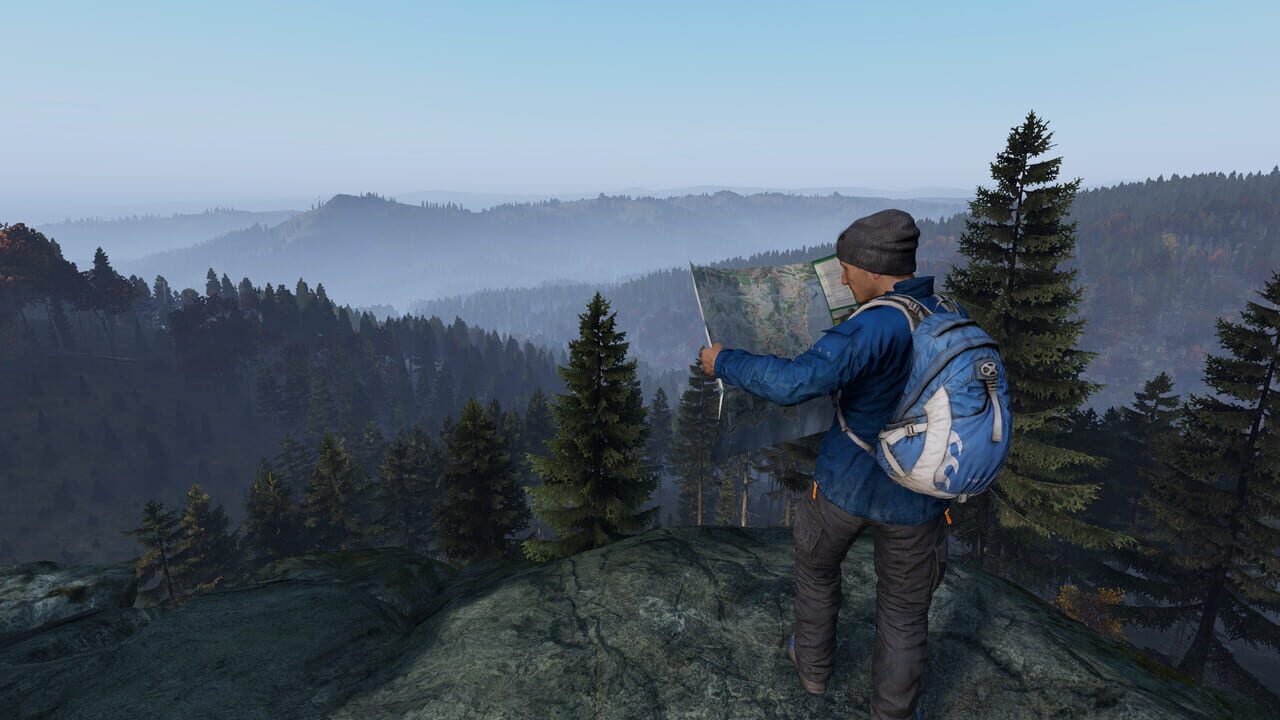
DayZ Settings Guide 2026: Audio, HUD, Graphics & Controls
Survivor, welcome to the ultimate guide for mastering your DayZ settings. If you’ve ever stared at a cluttered screen or tapped the wrong button during a tense moment, this guide is your fix. DayZ throws you into a harsh island with minimal hand-holding, so tweaking your interface isn’t just convenience — it’s survival. This guide walks through every menu, toggle, and customization option so you can hunt, craft, drive, and survive without fighting your own HUD. Let’s get you sorted.
Core Mechanics Table
| Setting Area | What It Controls | Why It Matters |
|---|---|---|
| HUD / Interface | Compass, health bars, stamina meter, inventory icons, crosshair, waypoint display | Keeps vital info readable without cluttering your screen |
| Map & Waypoints | Map zoom, fog of war, waypoint markers, map rotation, satellite vs. topographic view | Navigation across a massive island depends on this |
| Audio / Sound | Master volume, music volume, ambient volume, footstep volume, weapon volume | Hearing footsteps or distant gunfire separates the living from the looted |
| Graphics / Display | Resolution, FOV, texture quality, shadows, particle effects, post-processing, FPS limiter | Smooth frame rates matter more than pretty trees when a raider is closing in |
| Controls / Keybinds | Movement, sprint, crouch, prone, interaction, melee, reload, swap hands, map, inventory | Default keys feel right to some; others need full remapping for comfort |
| Chat & Social | Chat channels, friend list, block/report, server comms | Communication with nearby players and teammates |
| Server / Network | Connection quality, packet loss display, server browser filters | Finding the best server for your playstyle |
Step-by-Step
Step 1 — Opening Your Settings Menu
Press Esc to open the main pause menu. From here you’ll see several tabs across the top. The ones you’ll use most are:
- Graphics
- Audio
- Controls
- Interface
- Social
- Server
Click each tab to reveal its options. There’s no single “settings” icon — you’re greeted by the pause menu itself. Don’t forget to click Save Settings at the bottom of each tab so your changes stick after a restart.
Step 2 — Tuning Your HUD
Your HUD is always on-screen and can’t be fully hidden, but several elements can be toggled or repositioned:
- Go to the Interface tab in the pause menu.
- Look for HUD Position and choose Left, Right, or Top depending on your screen preference.
- Toggle individual elements:
- Compass — shows your heading and cardinal direction at the top of the screen.
- Stamina Bar — essential for tracking when you can still sprint or climb.
- Health Panel — displays blood level, broken bones, concussion, and other injury states.
- Crosshair — DayZ uses a dot/crosshair for aiming; toggling it can reduce visual noise.
- Waypoint Markers — lets you see waypoint indicators on the HUD without opening the map.
- Adjust HUD Opacity if available so overlays don’t blind you during night ops.
Pro tip: Many players turn the health panel to minimal or off once they know their status by the red vignette and audio cues. Less screen clutter means more situational awareness.
Step 3 — Map & Waypoint Mastery
Your map is your lifeline. Here’s how to set it up for maximum utility:
- Open the map by pressing the default M key (or click the map button on your HUD).
- In the map menu, adjust:
- Map Scale / Zoom — start around 1:50,000 for overview, zoom in to 1:10,000 for towns.
- Waypoint Type — choose between pin, circle, or arrow markers.
- Fog of War — keep this ON; it prevents revealing unexplored areas.
- To create a waypoint:
- Open the map.
- Left-click anywhere to drop a waypoint pin.
- Right-click a waypoint to rename it (e.g., “Cache,” “Safehouse,” “Loot Spot”).
- Press the waypoint number key (1–5) to jump to it quickly.
- Map Rotation — toggle between North-up (static) and Heading-up (rotates as you turn). Preference-based; North-up is easier for navigation, Heading-up feels more natural while moving.
You can also set your spawn waypoint before dropping in, which is critical for hot loot routes.
Step 4 — Audio Settings That Save Your Life
Audio in DayZ is everything. Here’s how to dial it in:
- Go to the Audio tab in the pause menu.
- Set your priorities in this order:
- Master Volume — 80–100% recommended.
- Music Volume — lower this to 0–20%. In-game music rarely helps you survive.
- Ambient / SFX Volume — max or near-max. Footsteps, door creaks, animal sounds, and distant gunshots all live here.
- Weapon / Gun Volume — medium-high so you can distinguish shot types.
- Voice / Chat Volume — adjust to hear nearby player voices clearly.
- Sound Options:
- Enable 3D Audio if available — it’s the difference between hearing someone behind you versus just in front.
- Turn off auto-mute for music if your HUD plays background tracks that duck SFX.
- Use headphones if possible. Speakers smear directional audio.
Step 5 — Graphics & Display Optimization
DayZ is a demanding game. Smooth FPS beats visual fidelity every time:
- Navigate to the Graphics tab.
- Set these in order:
- Resolution — match your monitor’s native resolution.
- Fullscreen Mode — Exclusive Fullscreen for lowest input lag; Borderless if you alt-tab often.
- Field of View (FOV) — 80–100 is the sweet spot. Too wide and enemies get small; too narrow and you lose peripheral vision.
- Quality sliders (start here and adjust down if FPS drops):
- Texture Quality — High if you have 8GB+ VRAM; Medium otherwise.
- Shadow Quality — Low to Medium. Shadows consume massive GPU; they rarely give competitive advantage.
- Particle Quality — Low. Smoke, fire, and debris are heavy and mostly cosmetic.
- Post-Processing — Low or Off. Reduces bloom and color grading that can obscure vision.
- Tree Quality — Low. Dense trees look nice but hurt FPS and can actually make you harder to spot.
- Enable V-Sync only if you have screen tearing; otherwise disable it for less input lag.
- Use the FPS Limiter to cap frames at your monitor’s refresh rate for stability.
Step 6 — Controls & Keybind Remapping
Default controls work fine, but customization prevents finger crashes during tense moments:
- Open the Controls tab.
- Browse categories:
- Movement — Walk, Sprint, Crouch, Prone, Jump, Swim.
- Combat — Aim, Shoot, Reload, Melee, Throw, Swap Weapon Hands.
- Interaction — Open Inventory, Open Backpack, Use Item, Pick Up, Drop.
- UI — Map, Waypoints, Chat, Pause, Screenshot.
- To remap a key:
- Click the current key assignment.
- Press your desired key.
- Confirm the change.
- Recommended changes:
- Bind Prone to a comfortable key (many use Z or Ctrl).
- Bind Swap Hands to an easy key for quick dual-wielding.
- Bind Open Map to a key you can hit without looking.
- Save your profile so custom binds persist across sessions.
Step 7 — Chat, Friends & Social Settings
Multiplayer communication is built into DayZ, but it’s minimal compared to team-based shooters:
- Go to the Social tab.
- Key features:
- Chat Channels — Local (nearby players), Server (all players on that server), and Team (if playing with a pre-made group).
- Friend List — add Steam friends to see when they’re online and join their server.
- Block / Report — report toxic players or block them to stop their chat from appearing.
- Adjust Chat Speed and Chat Bubble Display options to control how messages appear on screen.
- Disable unnecessary notifications if chat popups distract you during combat.
Server & Network Tips
- Go to the Server tab to view your connection stats.
- Watch for packet loss and ping — high values mean lag spikes that can kill you.
- Use server filters to find realms matching your preferences: PvP, PvE, vanilla, or modded.
- Close background applications before playing to free up bandwidth and CPU cycles.
FAQ
How do I hide the DayZ HUD?
You cannot fully hide the HUD in DayZ, but you can toggle individual elements in the Interface tab. Disable the health panel, compass, or waypoint markers to reduce clutter while keeping essential info visible.
What audio settings should I prioritize in DayZ?
Prioritize Ambient/SFX volume and 3D Audio above all else. These let you hear footsteps, doors, and gunshots with directional accuracy. Keep music volume at 0–20% since it doesn’t aid survival.
What FOV is best for DayZ?
An FOV of 80–100 is the recommended sweet spot. Lower FOV makes enemies appear larger but reduces peripheral vision. Higher FOV widens your view but shrinks target size, making long-range engagements harder.
How do I remap controls in DayZ?
Open the Controls tab from the pause menu, click any key binding, and press your desired replacement key. Confirm the change and save your profile. Recommended remaps include binding Prone to Z or Ctrl and Swap Hands to an easily reachable key.
Can I play DayZ offline with AI bots?
DayZ has no built-in offline mode: the game is multiplayer-only, so you can’t practice against AI bots. Solo play means renting a private server on PC, or using a community offline mod. Choose a map (Chernarus, Livonia, or Sakhal) and fill it with friends instead.
How do I lower FPS drops in DayZ?
Reduce Shadow Quality, Particle Quality, Tree Quality, and Post-Processing to Low. Use an FPS Limiter capped at your monitor’s refresh rate, and run DayZ in Exclusive Fullscreen mode for the lowest input lag and most stable performance.
Keep exploring
- DayZ on MMOKB — the DayZ game hub has the full knowledge base, tools and guides.
- Read the DayZ knowledge base — Maps, Infection, Medical, Vehicles, Military Operations.
- More DayZ guides — DayZ Achievements: 14 Tips for 2026 Survival, DayZ Survival Guide: 15 Pro Strategies for Chernarus (2026), DayZ Beginner Guide 2026: How to Survive Chernarus, Dayz Best Builds & Farming Tips 2026: Your Ultimate Guide, DayZ Best Builds 2026 — Loadouts, Gear & Strategies, Dayz Best Classes 2026: Pick Your Tier (Proof).
- Browse the full library — all MMOKB guides
Reviewed & verified
| Covers | dayz |
| Last verified | November 4, 2026 |
| Accuracy | The game’s own numbers and rules — they change with patches; check in-game for live values. |
Discussion
0 commentsNo comments yet. Be the first!