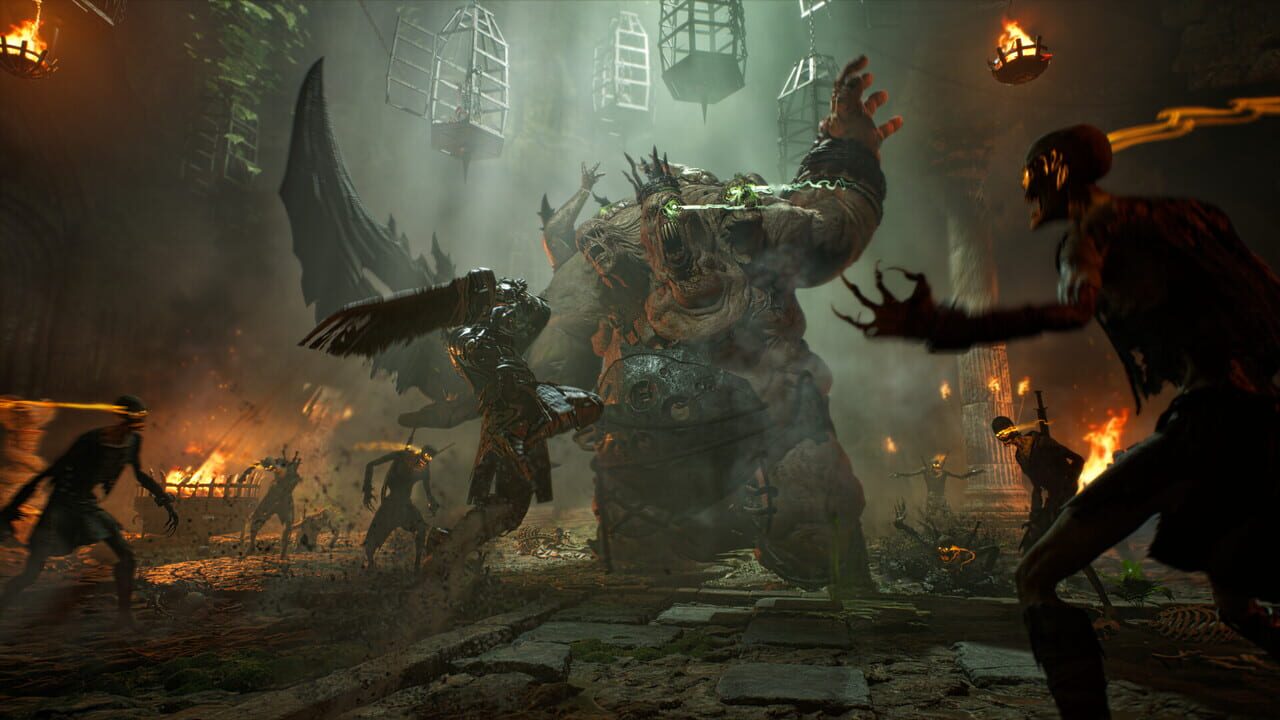
Archeage Chronicles UI and Settings Guide
Intro
Setting up your UI in Archeage Chronicles is the difference between a smooth exploratory experience and a screen that looks like someone spilled a spreadsheet across your monitor. This Archeage Chronicles UI and Settings Guide walks through every panel you need to touch before you start exploring. I will cover hotbar management, video options, keybinds, and interface scaling so you can build a layout that works for your playstyle. The guide is structured around verified systems as of the early access window, and I flag anything that may shift in later builds.
Core Mechanics Table
The table below maps the primary UI and settings categories you will encounter in Archeage Chronicles. Because the title is in active development, some panel names and sub-options may change with patch updates. Treat the information as accurate at time of writing.
| Category | What It Controls | Where You Will Find It |
|---|---|---|
| HUD / Hotbar Layout | Action slots, buff icons, minimap position, chat window anchors | Options → Interface |
| Video / Graphics Settings | Resolution, monitor choice, FPS cap, anti-aliasing, shadow quality, texture filtering | Options → Video |
| Audio | Master, SFX, music channel balance | Options → Audio |
| Keybinds / Controls | Movement, ability casts, camera modes, interact, journal, map zoom | Options → Controls |
| Camera & Mouse Sensitivity | Yaw and pitch speed, free-cam toggle, mouse look behavior | Options → Controls |
| Quality Presets | One-click preset selection plus manual slider adjustments | Options → Video |
| Accessibility / Display | Font size, colour filters, screen shake toggle | Options → General |
| Interface Scaling | UI element size relative to resolution | Options → Video or Interface |
Honesty box: I am not listing specific crafting UIs, trading-floor windows, PvP queue screens, or co-op session management because there is no confirmed documentation that those systems are present in the current build. If you encounter references to them in community threads, cross-check against the latest in-game patch notes before assuming they are live features.
Step-by-Step
Follow this sequence the first time you launch Archeage Chronicles to avoid getting lost in nested menus.
1. Video Settings — Baseline First
Open Options → Video and set your resolution to match your monitor. Pick a quality preset to start, then adjust the following sliders individually:
- FPS Cap: Set to your monitor refresh rate or slightly below if you want thermal headroom.
- Shadow Quality: Drops performance fastest; keep at Medium if you target 60 fps.
- Texture Filtering: Anisotropic at 4x or 8x costs almost nothing visually while cleaning up distant ground textures.
- Anti-Aliasing: FXAA or TAA depending on whether you prioritize sharpness over stability.
2. HUD and Hotbar Layout
Navigate to Options → Interface and configure your action bars before you leave the starting area:
- Drag hotbar slots to comfortable screen positions. Bottom-centre is standard for MMOs.
- Enable buff timer counts on cooldown icons so you can track duration at a glance.
- Anchor the minimap to the top-right and toggle auto-hide for large windows.
- Resize the chat frame to prevent it from obscuring critical HUD elements.
3. Keybinds and Controls
Open Options → Controls and remap anything that feels awkward. Standard movement uses WASD, but you may want to adjust:
- Ability casting keys to match your mouse hand position.
- Camera mode toggle to cycle between locked, free, and third-person views.
- Map zoom speed to something that feels snappy without overshooting.
- Interaction range feedback visual for clearer spatial awareness.
4. Audio Balance
Go to Options → Audio and balance your channels:
- Set Master volume to a comfortable level.
- Keep SFX and Music at similar levels for environmental awareness.
- Test voice-comms channel if one exists in your build; balance against game audio.
5. Accessibility and Display Options
In Options → General (or similar), adjust these for comfort:
- Font size for quest text and item tooltips.
- Colour-blind filter if you have difficulty distinguishing enemy versus ally outlines.
- Screen shake intensity for motion-sensitivity considerations.
6. Interface Scaling for High-Resolution Displays
If you are running at 4K or Retina, open Options → Video or Interface and adjust UI scaling independently from world FOV. This keeps menu text readable without changing your field of view in the game world.
7. Camera Sensitivity Fine-Tuning
Return to Options → Controls and test yaw and pitch speeds in a safe zone. Adjust until your camera tracking feels natural during both combat rotations and exploration navigation. Toggle free-cam and confirm it behaves as expected.
Common Pitfalls
UI Overcrowding
New players often leave every window anchored by default. Start by hiding auxiliary frames you do not need immediately. Re-enable them as your build progresses and you actually use those systems.
Shadow Quality Overspend
Shadow quality is the cheapest way to tank framerate. If you drop below your target fps, lower shadows before touching other settings.
Keybind Conflicts
The game may assign overlapping defaults. Audit your bindings after each major patch, as new abilities can claim keys you already use.
Audio Channel Imbalance
Music and SFX can mask important audio cues. If you cannot hear footstep proximity or alert chimes, reduce music volume and raise SFX.
Interface Scaling Mismatch
On ultrawide or high-DPI displays, UI scaling may appear too small or too large. Adjust separately from the world FOV to avoid distortion.
Performance Tuning
Follow this checklist to optimize Archeage Chronicles for your hardware:
- Set quality preset to Low as a baseline.
- Enable V-Sync only if you have screen tearing.
- Disable motion blur if it causes discomfort.
- Reduce particle effects to Medium or Low.
- Cap FPS to your monitor refresh rate or 60 if you prefer stability.
- Close background applications to free RAM.
- Verify texture streaming is enabled if your GPU supports it.
- Test in a populated zone to confirm fps under load.
FAQ
Q1: Where do I change the hotbar layout?
Open Options → Interface. Drag action slots to your preferred screen positions and save the profile.
Q2: How do I reduce input lag?
Set mouse polling to maximum in your OS, disable mouse acceleration, and cap FPS slightly below your monitor refresh rate for consistency.
Q3: Why does my minimap disappear after combat?
Check the anchor settings in Options → Interface. Some auto-hide toggles activate when you enter combat or when the window loses focus.
Q4: Can I remap every key?
Yes. Open Options → Controls and click any binding to reassign. Save your profile after changes.
Q5: How do I fix blurry text on 4K?
Enable interface scaling in Options → Video or Interface. Set UI scale independently from world resolution.
Q6: What is the best quality preset for low-end GPUs?
Start with Low preset, then raise texture filtering to 8x and anti-aliasing to FXAA or TAA. Keep shadows at Low or Off.
Q7: How do I disable screen shake?
Open Options → General and toggle screen shake off. This option may not appear in every early-access build.
Q8: Why do my keybinds change after a patch?
Developers sometimes adjust default bindings for new abilities. Audit your profile after each update and re-save your layout.
Q9: Can I use multiple hotbar profiles?
Yes. Save separate profiles for exploration, combat, and crafting if those systems are available in your build. Switch profiles from the UI editor.
Q10: How do I check which UI features are verified?
Cross-reference any claim against the latest in-game patch notes. If a system is not listed in current patch documentation, treat it as unverified.
Summary
Setting up your UI in Archeage Chronicles takes time, but the payoff is a clean screen that supports rather than obstructs your gameplay. Start with video settings to lock in stable framerates, then move through hotbar layout, keybinds, audio balance, and accessibility options. Revisit your configuration after each patch, because early-access titles frequently adjust default bindings and add new interface elements. Keep an eye on patch notes, and do not assume any feature is permanent until it appears in the live build. With a solid layout, you will spend less time fighting menus and more time exploring the game world.
Keep exploring
- ArcheAge Chronicles on MMOKB — the ArcheAge Chronicles game hub has the full knowledge base, tools and guides.
- Read the ArcheAge Chronicles knowledge base — Warrior, Ranger, Mage, Berserker, The Weapon System.
- More ArcheAge Chronicles guides — Archeage Chronicles Achievement Guide: 15 Tips for 2026, ArcheAge Chronicles Strategy Guide 2026, ArcheAge Chronicles Beginner Guide 2026: New Player Start, ArcheAge Chronicles Best Builds 2026: Complete Guide, Archeage Chronicles Best Classes Tier List 2026, Archeage Chronicles Boss Guide.
- Browse the full library — all MMOKB guides
Reviewed & verified
| Covers | archeage-chronicles |
| Last verified | November 4, 2026 |
| Accuracy | The game’s own numbers and rules — they change with patches; check in-game for live values. |
Discussion
0 commentsNo comments yet. Be the first!