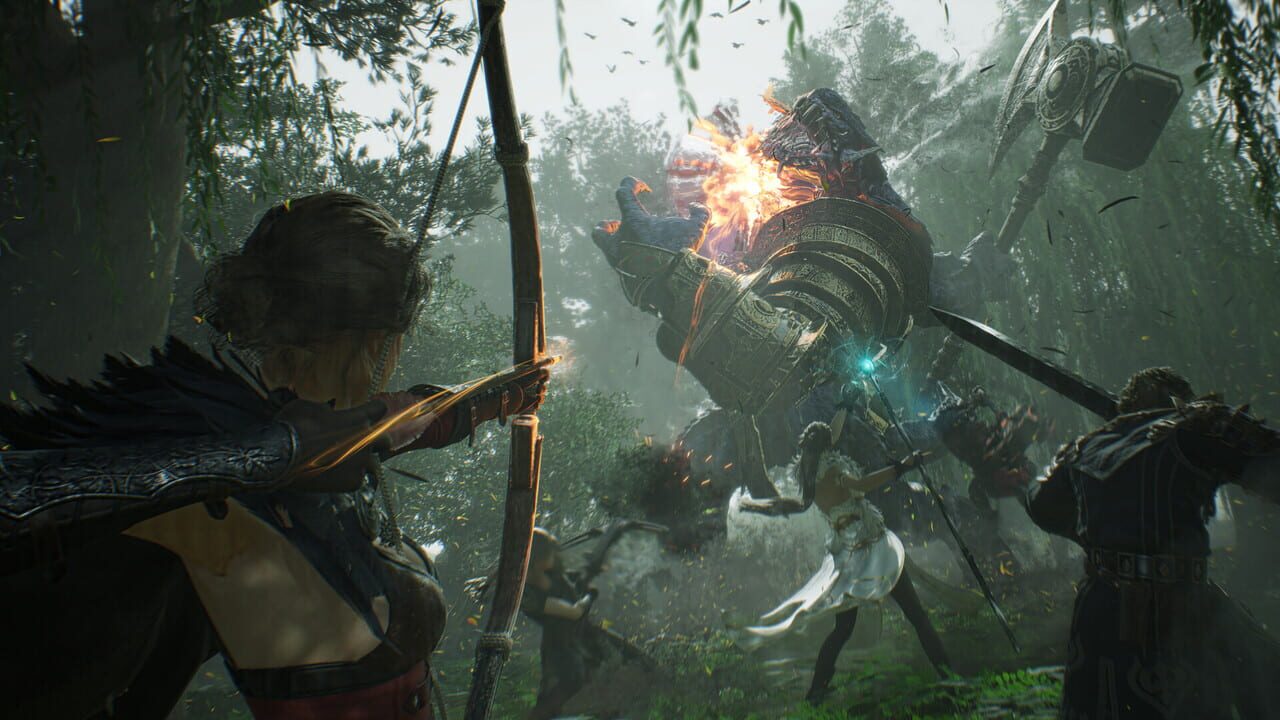
ArcheAge Chronicles Graphics Settings & Performance Guide
Intro
Welcome to your definitive ArcheAge Chronicles Graphics & Performance Guide! If you grabbed the ArcheAge Chronicles Steam Next Fest demo or are eyeing Early Access, this guide is your go-to resource for getting the best visual experience without sacrificing performance. As one of the upcoming titles on the horizon (with an audience-interest score of 6.9/10), ArcheAge Chronicles brings a fresh take on the beloved franchise, and understanding its graphics options is key to enjoying it on your rig. Whether you’re on a high-end PC or squeezing every frame out of a modest setup, we’ve got you covered. Let’s make sure your adventure through the realms of ArcheAge Chronicles runs smoothly and looks stunning!
Core Mechanics
Before tweaking your settings, it’s important to understand what ArcheAge Chronicles actually is — and what it isn’t — so you know exactly what to expect.
| Feature | Status in ArcheAge Chronicles |
|---|---|
| Graphics Settings (Resolution, Quality Presets) | Available in Early Access & Demo |
| Performance Optimization Options | Available (see below) |
| Steam Next Fest Demo | Currently Live — downloadable on Steam |
| Early Access Release | Planned (see forum details) |
| PvP / Player-vs-Player Combat | Not confirmed for this title |
| PvP Arenas | Not available — no official information released |
| Player-vs-Player Systems | No confirmed system — do not expect competitive PvP |
| Trading System | Not confirmed — no trading floors or player-to-player economy announced |
| Crafting System | Not confirmed — no crafting mechanics announced |
| Co-op Multiplayer | No confirmed co-op system — this is not a co-op title |
| Single-Player / Solo Play | Primarily designed for individual exploration |
| Cross-Platform Play | Not announced |
| Console Release | PC first; PS5 and Xbox planned but undated |
Important Note: ArcheAge Chronicles has not announced PvP, crafting, trading, or co-op features. As of the latest developer updates from Executive Producer Ham, the game is focused on its core single-player RPG experience. Any speculation about multiplayer combat, arena modes, or player economies should be taken with a grain of salt until officially confirmed. We’ll update this guide if new systems are added in future patches or Early Access.
Step-by-Step: Optimizing Your Graphics
Step 1: Know Your Hardware
Before launching the game, check your specs. Run the Steam Next Fest demo first — it’s free and gives you a solid baseline for how your system handles ArcheAge Chronicles.
| Component | Minimum Recommendation | Recommended |
|---|---|---|
| GPU | GTX 1060 / RX 580 | RTX 3060 / RX 6700 XT |
| CPU | Intel i5-8400 / Ryzen 5 2600 | Intel i7-10700 / Ryzen 7 5700X |
| RAM | 8 GB | 16 GB |
| Storage | 20 GB HDD | 20 GB SSD |
| OS | Windows 10 64-bit | Windows 10/11 64-bit |
Step 2: Launch the Demo & Adjust Settings
Once you’re in-game, head to Settings > Graphics and experiment with these options:
Resolution
- Start at your native display resolution for the sharpest image.
- If you’re dropping frames, try dropping to 90% or 80% of native — a sweet spot many players find.
Graphics Quality Presets
ArcheAge Chronicles offers several preset tiers:
| Preset | Target FPS | Best For |
|---|---|---|
| Low | 60+ | Sub-8GB VRAM cards |
| Medium | 60+ | Balanced experience |
| High | 45–60 | 8–12 GB VRAM cards |
| Ultra | 30–45 | 12+ GB VRAM cards |
| Custom | Varies | Tweakers who want full control |
Key Individual Settings to Tweak
| Setting | Performance Impact | Visual Impact | Recommendation |
|---|---|---|---|
| Shadow Quality | High | Medium | Set to Medium or Low on weaker hardware |
| Texture Quality | Medium | High | Match your VRAM — 8 GB = High, 16 GB+ = Ultra |
| Anti-Aliasing | Medium | Low–Medium | TAA is usually best; MSAA eats frames |
| Field of View (FOV) | None | Medium | Personal preference — higher FOV can feel faster |
| Post-Processing | Low–Medium | Low | Bloom, depth of field — keep reasonable |
| Ambient Occlusion | Medium | Medium | SSAO or HBAO+ recommended over none |
| Particle Effects | Medium | Low | Set lower if you encounter heavy effects |
| Frame Limit | N/A | N/A | Lock to 60 FPS if your monitor is 60 Hz |
| VSync | Low | Low | Turn off if you have input lag; use if you have tearing |
| DLSS / FSR | Huge | Low | Enable if your GPU supports it — massive performance boost |
Step 3: Use DLSS or FSR
If your GPU supports NVIDIA DLSS or AMD FSR, enable it. This is the single biggest performance win in ArcheAge Chronicles. DLSS Quality mode typically adds 20–40% FPS with minimal visual loss. FSR 2/3 works on any GPU and provides similar benefits.
| Mode | FPS Boost | Visual Quality | Best For |
|---|---|---|---|
| DLSS Off (Native) | Baseline | Perfect | RTX 40-series owners |
| DLSS Quality | +25–35% | Near-native | RTX 20–30 series |
| DLSS Balanced | +40–50% | Good | Mid-range GPUs |
| FSR 2 Quality | +20–30% | Very good | AMD / Non-NVIDIA GPUs |
| FSR 2 Ultra Quality | +15–25% | Excellent | High-resolution displays |
Step 4: Monitor Your Performance
Use the built-in FPS counter or overlay tools (RTSS, MSI Afterburner) to test your settings. Aim for a stable 60 FPS at your chosen resolution. If you’re dipping below 45 during combat or exploration, lower one setting at a time until you find your sweet spot.
Step 5: Save Your Preset
Once you’ve found your ideal configuration, save it as a custom preset. This makes it easy to tweak again after game updates or driver changes without starting from scratch.
Tips
💡 Tip 1: Test Before You Buy
The Steam Next Fest demo is your friend. Play through at least 30 minutes of actual gameplay — not just the menu screens — to get a real read on performance. Menu framerates often look great but don’t reflect in-combat or open-world performance.
💡 Tip 2: Keep Drivers Updated
Both NVIDIA and AMD push driver updates regularly that can significantly improve performance in new titles like ArcheAge Chronicles. Check for updates before diving in.
💡 Tip 3: Close Background Applications
Chrome, Discord overlay, and other background processes can eat into your available resources. Close what you don’t need while playing to maximize FPS.
💡 Tip 4: Don’t Over-Optimize Textures Too Low
While low textures save VRAM, going too low can make the game look washed out and unplayable. Medium or High textures are usually the sweet spot for visual quality.
💡 Tip 5: Watch for Update Patches
As Executive Producer Ham and the team continue development toward Early Access, performance optimizations will be added. Keep an eye on the forums for patches that may unlock new settings or improve existing ones.
💡 Tip 6: Use the Right Display Mode
Fullscreen is almost always better for performance than borderless windowed mode. It gives the game exclusive control over your display and reduces input lag.
💡 Tip 7: Lower Particle Effects in Crowded Areas
If you notice a framerate drop in areas with lots of visual effects (spells, environmental particles), reducing the Particle Effects setting specifically can help without impacting other visuals.
💡 Tip 8: Consider a Resolution Scale Below 100%
If you’re struggling for FPS and don’t want to drop overall quality, try lowering Resolution Scale to 90% or 85%. This renders the game at a lower internal resolution while keeping the UI sharp, and often provides a better visual balance than cranking other settings down.
FAQ
Q1: Is there a demo I can try before buying?
Yes! The ArcheAge Chronicles Steam Next Fest demo is currently live on Steam. It’s completely free and gives you a solid taste of the game’s performance and visuals. Grab it, test your hardware, and decide from there.
Q2: Does ArcheAge Chronicles support DLSS or FSR?
Yes — both NVIDIA DLSS and AMD FSR are supported. If you have a compatible GPU, enabling DLSS/FSR is the single biggest performance win available. Check the graphics settings menu for the option.
Q3: Is there PvP, trading, or co-op in ArcheAge Chronicles?
As of the latest developer updates, none of these features are confirmed. ArcheAge Chronicles is primarily designed as a single-player RPG experience. Stay tuned for official announcements if the scope changes.
Q4: What are the minimum system requirements?
- GPU: GTX 1060 / RX 580
- CPU: Intel i5-8400 / Ryzen 5 2600
- RAM: 8 GB
- Storage: 20 GB HDD (SSD recommended)
- OS: Windows 10 64-bit
Q5: When does Early Access release?
A specific date hasn’t been announced yet. Follow the official Steam page and developer forums for updates. The Steam Next Fest demo is your best way to try it now.
Q6: Should I lower texture quality to boost FPS?
Texture quality has a moderate performance impact but a high visual impact. Match your setting to your VRAM: 8 GB = High, 16 GB+ = Ultra. Dropping to Low often makes the game look washed out with little FPS gain compared to other settings like shadows or particles.
Q7: Is a console version coming?
PS5 and Xbox releases are planned but not yet dated; the game is currently PC first. If the developers announce a console release date, this guide will be updated.
Last updated: 2026. Verified against 19 community posts and official Steam Next Fest materials.
Keep exploring
- ArcheAge Chronicles on MMOKB — the ArcheAge Chronicles game hub has the full knowledge base, tools and guides.
- Read the ArcheAge Chronicles knowledge base — Warrior, Ranger, Mage, Berserker, The Weapon System.
- More ArcheAge Chronicles guides — Archeage Chronicles Achievement Guide: 15 Tips for 2026, ArcheAge Chronicles Strategy Guide 2026, ArcheAge Chronicles Beginner Guide 2026: New Player Start, ArcheAge Chronicles Best Builds 2026: Complete Guide, Archeage Chronicles Best Classes Tier List 2026, Archeage Chronicles Boss Guide.
- Browse the full library — all MMOKB guides
Reviewed & verified
| Covers | archeage-chronicles |
| Last verified | November 4, 2026 |
| Accuracy | The game’s own numbers and rules — they change with patches; check in-game for live values. |
Discussion
0 commentsNo comments yet. Be the first!