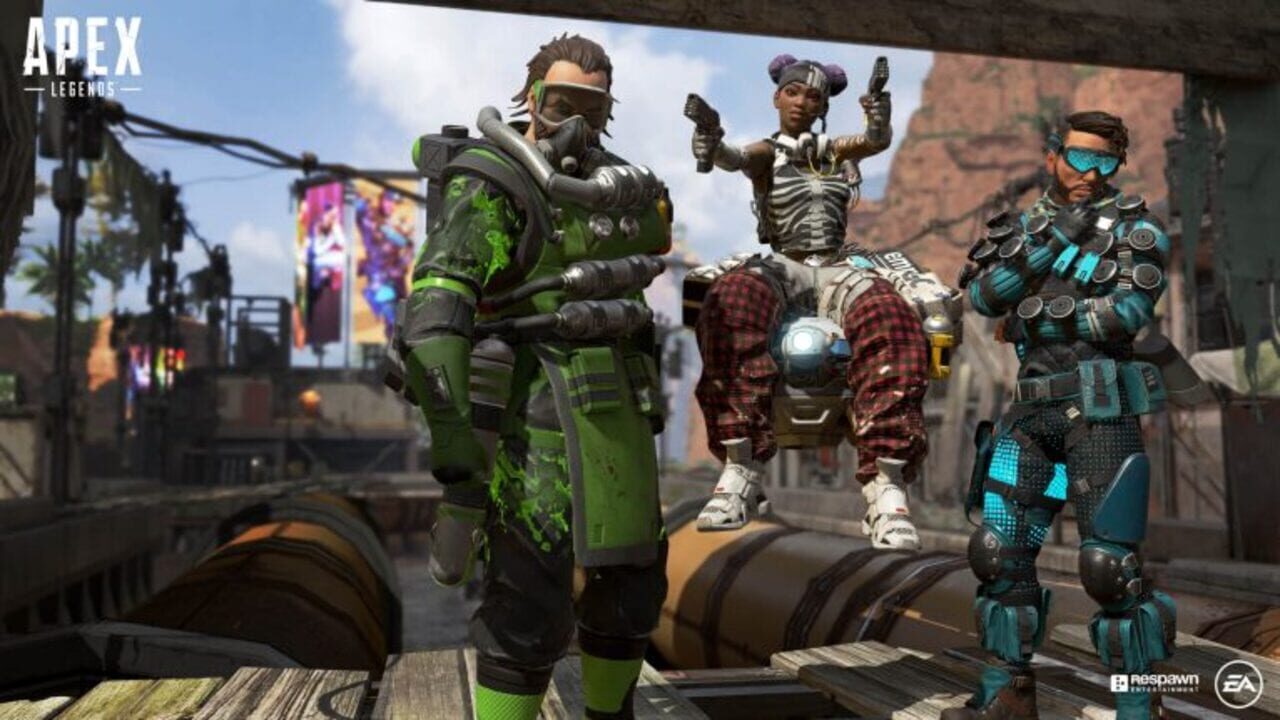
Apex Legends Graphics Settings: 10 FPS Fixes for 2026
Intro
If you’ve been tearing through the apex-legends battlefield and wondering why your FPS dips during gunfights or why your settings reset randomly, you’re not alone. This Apex Legends Graphics Settings guide is here to help you squeeze every frame out of your rig and keep your setup running buttery smooth. Whether you’re on PC with a beefy GPU or squeezing performance out of a modest build, understanding how Apex handles graphics can make the difference between clutching a win and watching a teammate get third-partyed because your monitor stuttered. We’ll walk through all the settings that matter, show you how to lock in stable performance, and cover recent fixes that impact your gameplay experience. Let’s get you optimized.
Core Mechanics
| Mechanic | What It Does | Performance Impact |
|---|---|---|
| Resolution | Controls the pixel count rendered on-screen | Higher = heavier GPU load; lower = smoother FPS |
| Renderer | DirectX 11 or DirectX 12 rendering path | DX12 can improve frame pacing on newer GPUs |
| NVIDIA Reflex | Reduces system latency for faster response | Competitive edge in aim duels; negligible FPS cost |
| Dynamic Resolution Scaling | Auto-adjusts resolution under heavy load | Keeps FPS stable during intense fights |
| Motion Blur | Blurs screen during camera movement | Cosmetic; no performance impact, but can hurt target tracking |
| Field of View (FOV) | How much of the world you see sideways | Higher FOV = more GPU strain; personal preference |
| V-Sync | Locks framerate to your monitor’s refresh rate | Eliminates screen tearing but adds input lag |
| Frame Rate Cap | Hard caps maximum FPS output | Prevents GPU overheating; stabilizes performance |
| Texture Quality | Detail level of surfaces and models | High VRAM usage; minimal FPS difference on modern GPUs |
| Shader Quality | Complexity of lighting and visual effects | Can cause hitching if set too high on older GPUs |
| Anti-Aliasing | Smooths jagged edges on 3D models | MSAA is expensive; TAA is lighter but softer |
| Ambient Occlusion | Adds contact shadows for depth perception | Visual polish; moderate GPU cost |
| Steam Settings Persistence | Stores local config files for graphics options | Recent fix resolves accidental resets after relaunch |
| Anti-Cheat Integrity Check | Validates game files and detects exploits | Background process; minimal performance overhead |
Step-by-Step
Step 1: Access Your Graphics Settings
Launch Apex Legends and head to the in-game menu. Select Settings from the main lobby, then navigate to the Video tab. Here you’ll find every graphics toggle and slider available. On PC, you can also right-click the game in your Steam library, go to Properties, and set launch options like -windowed if needed for windowed-borderless modes.
Step 2: Choose Your Renderer
Pick between DirectX 11 and DirectX 12. If you’re running a relatively new GPU (NVIDIA 10-series or higher, AMD RX 5000 or higher), DX12 generally offers better frame pacing and slightly higher minimum FPS. Switching renderers is one of the quickest wins for stability — test both and see which gives you a smoother experience in heated fights.
Step 3: Set Your Resolution and FOV
Start with your monitor’s native resolution. If you’re struggling for FPS, dropping to 90% or 75% of native can yield huge gains without making the game unplayable. For FOV, most competitive players sit between 90 and 105. The default is 80, which many feel too “tunneled.” Higher FOV lets you spot enemies at the periphery but increases GPU workload slightly.
Step 4: Dial In Quality Presets
- Low Settings: Texture quality on Low, all other visuals on Low or Off. This is the competitive standard — maximum FPS, minimal visual clutter.
- Medium Settings: Texture Quality on Medium, Shadows and Effects on Low. A solid balance if you want to spot loot and effects without frying your GPU.
- High Settings: Only recommended if you have a dedicated GPU with 8GB+ VRAM and want cinematic visuals without sacrificing competitive viability.
Step 5: Enable NVIDIA Reflex
Head to the Advanced section in Video Settings and enable NVIDIA Reflex Low Latency. Set it to On + Boost if your GPU has headroom. This reduces the input lag between your mouse click and the shot registering on-server. It’s a tiny setting with a real competitive advantage, especially in close-quarters engagements.
Step 6: Tame Your Frame Rate
If your FPS is wildly inconsistent, enable Frame Rate Cap and set it just below your monitor’s refresh rate (e.g., 144 FPS for a 144Hz display). This keeps performance predictable and prevents your GPU from thermal throttling during long sessions. If you experience stuttering, try capping at a lower value like 120 or 100 for smoother frame times.
Step 7: Turn Off Unnecessary Visual Flair
Motion Blur, Film Grain, and Depth of Field are purely cosmetic and do nothing for performance. However, Motion Blur and Film Grain can mask visual information and make tracking fast-moving enemies harder. Turn them off for a cleaner, sharper image.
Step 8: Verify Game Files
If you notice settings resetting or visual glitches, go to your Steam Library, right-click Apex Legends, select Properties, go to Installed Files, and click Verify Integrity of Game Files. This ensures no corrupted assets are causing performance hiccups or crash issues.
Step 9: Monitor and Adjust
Use an overlay like MSI Afterburner or the built-in Framerate Counter in Apex (Settings > Game > Show FPS) to monitor your performance in real time. Play a full match and watch your FPS graph. If you see drops during ability-heavy moments, those are your bottleneck indicators — adjust settings accordingly.
Step 10: Apply the Latest Fixes
Recent updates have addressed a bug where Steam users experienced their settings being reset every time they relaunched the game. Make sure your game is fully updated through Steam. Additionally, the anti-cheat team has been actively addressing exploit-related crashes — keeping your game patched ensures you benefit from stability improvements and crash fixes.
Tips
- Keep textures on Medium or High — you don’t need Low textures to compete, and modern GPUs handle them fine. Texture quality primarily affects VRAM usage, not raw FPS.
- Use a mouse with a good sensor — when Reflex is active and input lag is minimized, your mouse hardware matters more than ever. Cheap mice can feel unresponsive even with perfect settings.
- Close background apps — browsers, Discord overlays, and streaming software can steal CPU cycles that Apex needs. Aim for a clean desktop before launching.
- Update your GPU drivers — NVIDIA and AMD regularly release optimizations for popular titles. Check both sites before a new competitive season or major update drops.
- Don’t over-rely on Dynamic Resolution Scaling — while it can stabilize FPS, it can also cause distracting resolution shifts mid-fight. Prefer capping your framerate instead.
- Lower Shadow Quality first — shadows are one of the heaviest GPU costs and provide the least competitive advantage. Drop them to Low before touching other settings.
- Play on a wired connection — a stable internet connection complements good graphics settings. Packet loss can feel like graphical stuttering but is actually a network issue.
- Clear your GPU cache periodically — Shader compilation stutters are real in Apex. Let the game compile shaders once by running through the Range, and subsequent matches will run smoother.
- Avoid overclocking unless you know what you’re doing — Apex can be sensitive to unstable GPU clocks. If you’re seeing crashes or artifacts, revert to stock settings.
- Watch the patch notes — Respawn regularly releases stability patches. Keep your game updated to benefit from ongoing performance improvements.
Related Guides
FAQ
What is the best graphics preset for Apex Legends competitive play?
Low settings are the competitive standard. They maximize FPS and minimize visual clutter, giving you the clearest edge in firefights.
Does DirectX 12 improve FPS in Apex Legends?
DX12 generally improves frame pacing and can raise minimum FPS on newer GPUs. Test both renderers to find what works best for your rig.
Why do my Apex Legends settings keep resetting?
A known Steam bug previously caused settings to reset on relaunch. Ensure your game is fully updated and verify integrity of game files through Steam.
Is NVIDIA Reflex worth enabling for Apex Legends?
Yes. NVIDIA Reflex reduces input lag significantly with negligible FPS cost, giving you a tangible advantage in aim duels and close-range fights.
What resolution should I use for the best FPS in Apex Legends?
Start with your monitor’s native resolution. If FPS is insufficient, drop to 90% or 75% of native. This yields substantial gains while keeping the game playable.
How do I reduce stuttering in Apex Legends?
Cap your frame rate just below your monitor’s refresh rate, lower shadow quality first, clear shader cache, and ensure your GPU drivers are up to date. These steps target the most common stutter sources.
Keep exploring
- Apex Legends on MMOKB — the Apex Legends game hub has the full knowledge base, tools and guides.
- Read the Apex Legends knowledge base — Sentinel Role, Assault Role, Ability Role, Support Role, The 2026 Overhaul.
- More Apex Legends guides — Apex Legends 2026 Beginner Guide: Land, Loot & Win Your First Match, Apex Legends Best Builds Farming And Tips, Apex Legends 2026 Tier List: Best Ranked Legends Meta Picks, Apex Legends Guide: Builds, Tips & Strategies for 2026, Apex Legends Combat Guide, Apex Legends Controller Guide.
- Browse the full library — all MMOKB guides
Reviewed & verified
| Covers | apex-legends |
| Last verified | November 4, 2026 |
| Accuracy | The game’s own numbers and rules — they change with patches; check in-game for live values. |
Discussion
0 commentsNo comments yet. Be the first!